Strategy
Twitter analytics on X made simple. See how to access data, understand metrics like engagement and impressions, and use to improve results.
- Also available in
- Español
- Français
- Deutsch
- Italiano
Key takeaways
- Twitter analytics track how people discover, engage with, and act on your X content, from impressions and engagement rate to follower growth and link clicks.
- Full access to the native X analytics dashboard now requires X Premium, but you can still view post-level data on mobile for free.
- Focus on the metrics tied to your specific goals (awareness, engagement, traffic, or conversions) rather than tracking everything.
- Third-party tools like Perch by Hootsuite give you deeper reporting, cross-platform comparisons, and analytics that go beyond what X offers natively.
What is X (formerly Twitter) analytics?
Twitter analytics is the native reporting tool that shows how your content performs on X, including impressions, engagement rate, profile visits, and follower growth over time.
Until recently, this data was free to access. Now, the full Twitter analytics dashboard is only available to X Premium roughly 4.4 million paid subscribers as of early 2026 — or X verified accounts on desktop.
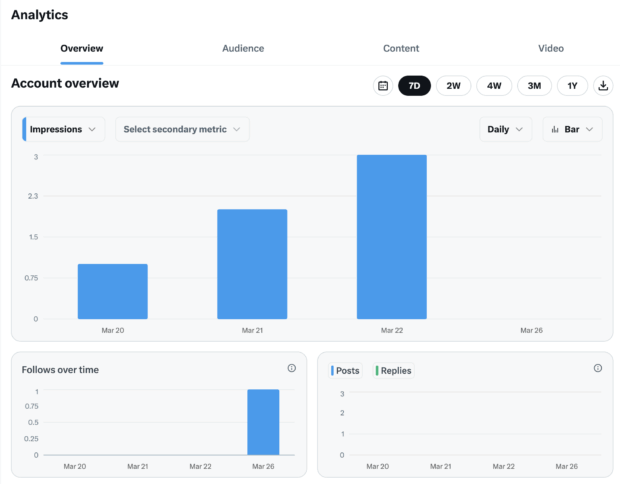
Here’s what the full Twitter analytics dashboard looks like:
Bonus: Get a free social media analytics report template that shows you the most important metrics to track for each network.
Can you still get Twitter analytics for free?
Yes, you can still get some Twitter analytics for free, but not the full picture. X moved its complete dashboard behind the Premium paywall, leaving free accounts with post-level data only.
Here’s how the split works:
- Free: Post-level analytics in the X mobile app, including impressions, engagements, detail expands, profile visits, and new followers for each individual post.
- X Premium: The full desktop dashboard with account-level trends, historical data, engagement rate, and side-by-side metric comparisons.
- Third-party tools: Account-level and post-level reporting without a Premium subscription, plus cross-platform comparisons and exportable reports.
If you manage X alongside other channels, a tool like is the simplest way to get account-level reporting without paying for Premium. The short version: free access still exists, but it stops at the individual post.
How do I check Twitter analytics?
There are three ways to check your Twitter analytics: the native X analytics dashboard on desktop (Premium only), post-level analytics in the X mobile app (free), or a third-party tool like Perch by Hootsuite.
Here’s how each method works.
Method 1: From X (Premium required)
To access the full analytics dashboard, you’ll need an X Premium account. If you’re a Premium
1. Go to x.com/i/account_analytics and log in. Or, from the main dashboard, click the three dots in the left sidebar. Then select Creator Studio > Analytics.
2. You’ll land on your account overview. This shows impressions, engagement rate, profile visits, new followers, and more. 3. Use the drop-down menus to toggle between different metrics like replies, reposts, likes, and bookmarks. You can switch between line and bar graphs to visualize performance over time.
4. Click the Content tab to see analytics for individual posts.
Method 2: On mobile (no Premium required)
This is sort of a Twitter/X hack. You can still view analytics for individual posts from the mobile app, even without Premium.
Here’s how to do it.
1. Tap any of your Tweets.
2. Tap the three dots in the top right corner of the post. Then, tap View analytics.
3. This gives you a quick breakdown of:
- Impressions
- Engagements
- Detail expands
- New followers
- Profile visits
Keep in mind: There’s no access to the full analytics dashboard on mobile, just post-level data. But at least you can access it without paying for Premium.
Method 3: With Hootsuite
If you’re not using X Premium, or you want more customizable reporting, Perch offers a more flexible way to track performance across all your social channels.
Here’s how to check your Twitter analytics in Perch:
1. Log in to your Perch dashboard.
2. From the left sidebar, click My reports under Analytics.
3. Choose Create a report from the left menu.
4. Choose the report you want to generate.
You can choose to view data by goal (engagement, awareness, or conversion). Or, by platform. To view your overall X analytics data, select X from the left menu. Then, under X overview, click Create report.
5. Choose which X accounts you’d like to showcase in your report. You can choose to view one account at a time, or compare post performance across multiple accounts for a more complete view.
6. Now, your X analytics are ready to view! Find metrics like impressions, clicks, engagement rate, follower count, follower growth, and more.
7. Don’t forget, you can customize your dashboard or export reports to share with your team.
Perch also lets you:
- Compare performance across platforms
- Track X/Twitter campaigns by tag or date range
- Monitor audience growth and content trends over time
Which Twitter metrics should you track?
You should track the Twitter metrics that directly map to your marketing goals, whether that’s awareness, engagement, traffic, or audience growth.
Starting with your goal keeps you from drowning in numbers. Use the table below to find the handful of metrics that matter for your strategy, then read the detailed breakdowns in the next section.
Goal
Twitter/X metrics to track
What these metrics tell you
Grow brand awareness
Impressions, reach, profile visits, mentions
How many people saw your content and took an extra step to learn about your brand
Increase engagement
Engagement rate, replies, reposts, likes
How much your content actually landed (and how likely the algorithm is to push it further)
Build community
Replies, reposts, mentions, new followers
Whether people feel connected to your brand and want to engage
Drive website traffic
Link clicks, engagement rate, profile visits
Who cared enough to take the next step, and whether your message is strong enough to earn the click
Strengthen brand perception
Mentions, replies, sentiment
The temperature check on your brand (and whether it’s trending up or down)
Improve content performance
Engagement rate, reposts, impressions, video completion rate
Which posts are actually working so you can double down on the good stuff
Key Twitter analytics metrics explained
Each metric below tells you something slightly different about how your content travels and what people do once they see it. Here’s the order we’ll cover them in:
- Engagement rate
- Follower growth
- Reposts
- Impressions
- Reach
- Link clicks
- Likes
- Replies
- Mentions
- Profile visits
- Video views and completion rate
1. Engagement rate
Engagement rate shows how often people interact with your content after seeing it. That includes clicks, likes, replies, reposts, and anything beyond a scroll-by.
Why it matters: Engagement is the quickest gut check on whether your content is hitting the right note. High engagement means your audience cares, and the algorithm will usually reward you for it.
If engagement is low: Experiencing low engagement? Your hook may need more punch, the topic might be off, or the post could use a more engaging format (think videos, multi-image posts, or polls).
Where to find it on X: If you have X Premium, you’ll find engagement rate in the dropdown menu of your Account overview section.
You can toggle the time period you’d like to view your engagement rate for, and even track secondary metrics alongside it (likes, replies, or new followers) using side-by-side charts.
If you’re not a Premium user, or just want a clearer view, Perch makes things easier.
You can sort all your posts by engagement rate, spot patterns over time, and compare performance across platforms. No spreadsheets, no switching tabs.
2. Follower growth
Follower growth shows how your audience is changing. It tells you how many people followed, unfollowed, and what the total change is over time.
Why it matters
A rise or drop in Twitter followers can tell you a lot. When it goes up, it usually means your content is landing. When it jumps or dips, that’s your audience giving you instant feedback.
If follower growth is low
People might like what they see in the moment but not enough to stick around. It could be a tone shift, a topic shift, or just inconsistent posting. Take a quick look at your recent posts to spot patterns.
Where to find it on X
You can find this number on your Twitter analytics dashboard homepage, under New follows, or under Follows over time.
Perch shows your follower growth next to your post data, so it’s easier to see what’s helping, or hurting, your audience.
You can also track followers across all your social accounts in one place, which can help you see how different content performs on different platforms.
3. Reposts/retweets
Reposts (formerly retweets) show how many people shared your post with their own audience. Every repost pushes your content into new circles you wouldn’t reach on your own.
Why it matters
Reposts are a big signal that people like your post. And that means serious reach potential. When people share your post, the algorithm pays attention, and your visibility can grow fast.
If reposts are low
Reposts usually happen when something sparks an opinion, solves a problem, hits an emotion, or just makes people laugh. Try leaning into relatable moments, trending topics, stronger hooks, clear opinions, or genuinely helpful insights.
Where to find it on X
This number lives in the dropdown menu of your Account overview page in Twitter analytics. Here, you’ll see the total number of reposts in the X analytics dashboard. That’s it. You get a number, but no details about who shared it or how to follow up.
With Hootsuite Streams, you can go further. Track reposts in real time, see who shared your content, reply with a thank you, or join the conversation. You can even reshare their post or send a message, all from one place in Nest by Hootsuite.
Knowing how many reposts you got is nice. Knowing what to do with them is better.
Pro tip💡: Want to know more about becoming a high-performer on Twitter/X? Check out our collection of the top Twitter statistics to learn more about the platform and its demographics.
4. Impressions
Impressions show the number of times your content appeared in someone’s feed. One person can generate multiple impressions, which is what separates this metric from reach.
Why it matters
While Tweet impressions aren’t as meaningful as engagement, it’s still worth tracking over time, particularly as average impressions fell 5% year-over-year in 2025. It tells you how far your content is traveling, if the algorithm is picking you up, and if your community is pushing your content outside its circle.
If impressions are low
Your posts may not be getting pushed out far enough. Try tapping into trending conversations or experiment with formats that naturally get more reach, like video.
Where to find it on X
In the Twitter analytics dashboard, you can track impressions daily, weekly, monthly, yearly, or during a specific “pay period.” In this case, “pay period” refers to the two-week window used in X’s creator ad revenue program. It’s the time range that determines payouts, if you’re part of that program.
You want steady growth, but don’t panic if a high-impression month doesn’t translate into clicks or follows. Visibility is only one piece of the puzzle.
In Perch, you can view monthly impressions across all platforms in a single view, helping you spot big-picture trends and campaign spikes with less digging.
5. Reach
Reach counts the unique accounts that saw your post, while impressions count every single time it appeared on a screen. If 100 people each saw your post twice, that’s 200 impressions and a reach of 100.
Why it matters
Reach tells you the actual size of the audience you’re touching, which is the number that matters most for awareness goals. It also helps you judge whether impressions are climbing because you found new people, or because the same followers keep seeing the same post.
If reach is low
Your content is likely staying inside your existing follower base. Reposts, replies from larger accounts, and participation in trending conversations are the fastest ways to push past that circle.
Where to find it on X
X’s native dashboard leans heavily on impressions and doesn’t surface unique reach for organic posts, so you’ll need to use impressions as a proxy. Perch reports reach alongside impressions where the platform makes it available, so you can compare total visibility against unique audience size in one place.
6. Link clicks
Link clicks show who cared enough to go deeper, whether that’s reading a blog post, checking out a product, or signing up for something.
Why it matters
If your goal is website visits, downloads, or revenue, link clicks are one of your most important metrics to track. It shows which hooks, CTAs, or formats actually move people to act, not just scroll by.
If link clicks are low
Your post might not be creating enough curiosity or urgency. Try strengthening your CTA, testing different hooks, editing your link previews, adding visuals, and posting during high engagement windows.
Where to find it on X
Twitter analytics doesn’t show this metric in the larger dashboard, even with a Premium account. But you can see individual post link clicks on mobile. Follow the steps in our On mobile (no Premium required) section above to see that.
In Perch, link clicks are tracked automatically, and included in a range of detailed reports.
A built-in Ow.ly URL shortener can also be used when creating Tweets to add invisible tracking to every link you share. That data flows into your Perch reports and into Google Analytics, so you can see which posts are driving traffic, leads, or sales.
7. Likes
Likes show how many people tapped the heart icon on your post. It’s a low-effort form of engagement but still a useful signal.
Why it matters
Likes show when something landed, even if the user didn’t comment or share. Not the most powerful metric, but great for spotting creative trends and testing new ideas.
If likes are low
A high-like post might feel like a win, but if it doesn’t drive replies, clicks, or profile visits, it may not be doing much beyond surface-level reach. The key is context. A post with fewer likes but more replies or clicks might be far more valuable than one that was passively liked and forgotten.
Pro tip 💡: Not seeing the likes you expected? The X algorithm has changed a lot, so check out how it works in 2026.
Where to find it on X
You can track likes from the dropdown menu in your Twitter analytics Account overview section.
In Perch, you can see likes alongside deeper key metrics like link clicks, engagement rate, and profile visits, so it’s easier to spot what’s really working. You’ll start to see patterns: What earns applause, and what sparks action.
8. Replies
Replies count how many people responded directly to your post or replied while quoting it.
Why it matters
Replies are where conversation (and community building!) happens. When someone responds to your post or shares it with a comment, that’s a deeper form of engagement and a chance to build connection.
If replies are low
Low replies usually mean your posts aren’t prompting conversation. Try asking questions or inviting opinions, sharing a hot take (but not too spicy), and responding to questions quickly.
Domino’s does this well by starting a playful (and timeless) debate: does pineapple really belong on pizza? It’s low-stakes and instantly reply-worthy.
Where to find it on X
You can track replies in the Twitter analytics dashboard, or monitor them live in Nest by Hootsuite to respond quickly and keep the conversation going.
9. Mentions
Mentions are how often people tag your @handle. This includes direct tags, replies, or organic chatter happening around your brand.
Why it matters
More mentions means more word of mouth, more reach, and more real conversation orbiting your content or brand.
If mentions are low
You may need to spark more interaction. Ask questions, reply to trending conversations (see McDonald’s masterclass below), or run UGC-style prompts that invite tagging.
And honestly? Replying more can do wonders.
Where to find it on X
Mentions appear in the X Premium analytics dashboard under engagement metrics, or monitor them live in your Notifications tab.
However, you won’t see:
- Sentiment
- Who’s mentioning you most
- Topic clusters
That’s where a tool like Perch comes in clutch. You can monitor mentions in real time and filter by sentiment, keyword, or account. And with Lumen by Talkwalker, you can also see what people say when they don’t tag you, share of voice vs competitors, and brand sentiment over time.
10. Profile visits
Profile visits show how many people clicked on your name or handle to view your Twitter profile.
Why it matters
It’s a sign of interest. Someone saw your post and wanted to know more about who you are. That’s often the moment right before someone decides to follow.
If profile visits are low
Give your profile some polish. Pin a high-performing Tweet. Add a strong CTA in your bio. Highlight your most relevant content. If you’re running paid campaigns, consider retargeting users who’ve visited your Twitter profile but haven’t taken action yet.
Where to find it on X
You can find this metric in the Twitter analytics dashboard if you have Premium.
Psst: Need a high-performing social media bio? Use Hootsuite’s free AI social media bio generator to create one in just a few clicks.
11. Video views and completion rate
Video views count how many times people watched your video, and video completion rate shows the percentage of viewers who stayed to the end. X counts a view after a set number of seconds of playback, so views alone don’t tell you whether anyone actually watched.
Why it matters
X has leaned hard into video, and watch time is one of the signals the algorithm uses to decide what gets pushed further. Completion rate also tells you whether your hook, pacing, and length are working, which is far more useful than a raw view count.
If video completion rate is low
People are dropping off early, so tighten the first three seconds, cut the intro, and shorten the clip. Captions help too, since many people watch with sound off.
Where to find it
- On X: Open the post-level analytics for any video post to see views, and use the Content tab in the Premium dashboard to compare video posts against each other.
- In Perch: Track video views alongside engagement rate and clicks, so you can see whether watch time is translating into action.
How is Twitter engagement rate calculated?
Twitter engagement rate is calculated by dividing total engagements by total impressions, then multiplying by 100. So a post with 50 engagements and 5,000 impressions has a 1% engagement rate. (Want a shortcut? Use an engagement rate calculator.)
On X, an engagement is counted when someone interacts with your post in any of these ways:
- Likes
- Replies
- Reposts and quote posts
- Link clicks
- Hashtag, username, or profile photo clicks
- Detail expands (tapping to see the full post)
- Follows from the post
Worth noting: not every tool calculates this the same way. Some third-party platforms divide engagements by followers instead of impressions, which produces a very different number. Pick one method and stick with it so your trends stay comparable.
As for what counts as good, that depends heavily on your industry and audience size. Our social media benchmark report breaks down average engagement rates by industry and platform so you can see where you actually stand.
How much does X pay per 1 million views?
X doesn’t publish a fixed rate per million views, so payouts vary widely. Earnings from the creator ad revenue sharing program depend on how much ad revenue is generated by ads shown in the replies to your posts, not on view count alone.
A few things shape the final number:
- Ad demand: Payouts rise and fall with the advertising market.
- Audience: Views from verified users carry more weight than views from non-verified accounts.
- Engagement quality: Replies create the ad inventory that generates revenue, so conversation matters more than passive impressions.
Payouts are calculated on a rolling two-week pay period, which is the same window you can filter by in the X analytics dashboard. For marketers, the practical takeaway is simple: treat revenue sharing as a bonus, not a reporting metric, and keep your focus on clicks, conversions, and brand lift.
5 tips to use Twitter analytics to improve your strategy
Twitter analytics can be easy to overlook. But used the right way, they can help you shape your content, track what’s working, and spot trends before they fade.
We asked Nick Martin, Social Media Marketing Manager at Tipalti, how he uses Twitter analytics in his daily workflow. Here’s what he shared.
1. Check post-level data and bigger trends
Don’t just look at how an individual Tweet performed in isolation.
Martin checks both the fast feedback (likes, replies, impressions) on individual posts and how the profile is performing over time.
“I zoom out to see how our profile is performing on a weekly, monthly, and quarterly basis. The fast feedback from individual post analytics will help me make adjustments so that I can be more successful with my posts in the future.”
This helps him make quick changes to content that’s underperforming while also building a longer-term picture of what consistently resonates with his target audience.
He also keeps a running list of post experiments to try when a message doesn’t land: “Add an image, adjust the length of the post, try a video, make it a thread, etc.”
If something underperforms, he treats it as a learning opportunity and tweaks it for next time.
2. Set benchmarks so you know what’s actually working
You can’t spot a spike (or a slump) without knowing your average. A Twitter performance calculator can help you establish that baseline, or start with a simple benchmark: what does a typical post from your account look like in terms of impressions, engagement rate, and clicks? For reference, the average X post earned about 33 likes and 7 retweets in 2025.
Once you know that, anything above or below will stand out and give you a reason to dig deeper. Benchmarks also help you figure out whether something was a fluke or a repeatable win.
With a tool like Perch, you can track benchmark trends automatically across any time frame and compare performance without manually pulling reports.
3. Focus on the metrics that match your goals
There are lots of numbers in Twitter analytics, but not all of them matter equally.
Which is why Martin only tracks the metrics that support his marketing strategy, instead of chasing every number on the dashboard.
“Our social media strategy is focused on growing brand awareness, so I care most about impressions, engagements, and clicks,” says Martin.
He keeps less emphasis on metrics like sentiment score or support requests, since those aren’t tied to his team’s goals. The key: know which signals matter to you, and prioritize those.
4. Use competitor activity to inform your strategy
You can’t see your competitors’ analytics directly, but you can watch what they post, and how the audience responds.
Martin sets up private Twitter lists with competitor accounts and uses social listening to monitor trends. If a type of content performs well for a peer brand, he considers testing it in his own content mix.
“Social listening lets your competitor’s analytics inform your own strategy. It’s great,” says Martin.
Bonus: With Nest by Hootsuite, you can build private streams to track competitor posts and mentions in one place. You can also compare competitor Twitter performance.
5. Share insights beyond the social team
Twitter analytics doesn’t just help the social team. Martin shares top-performing content and social feedback with other departments, too. Product, sales, and creative teams can all benefit from what’s happening on the platform.
3 best Twitter analytics tools for 2026
Tool
Starting price
5/5