Introduction
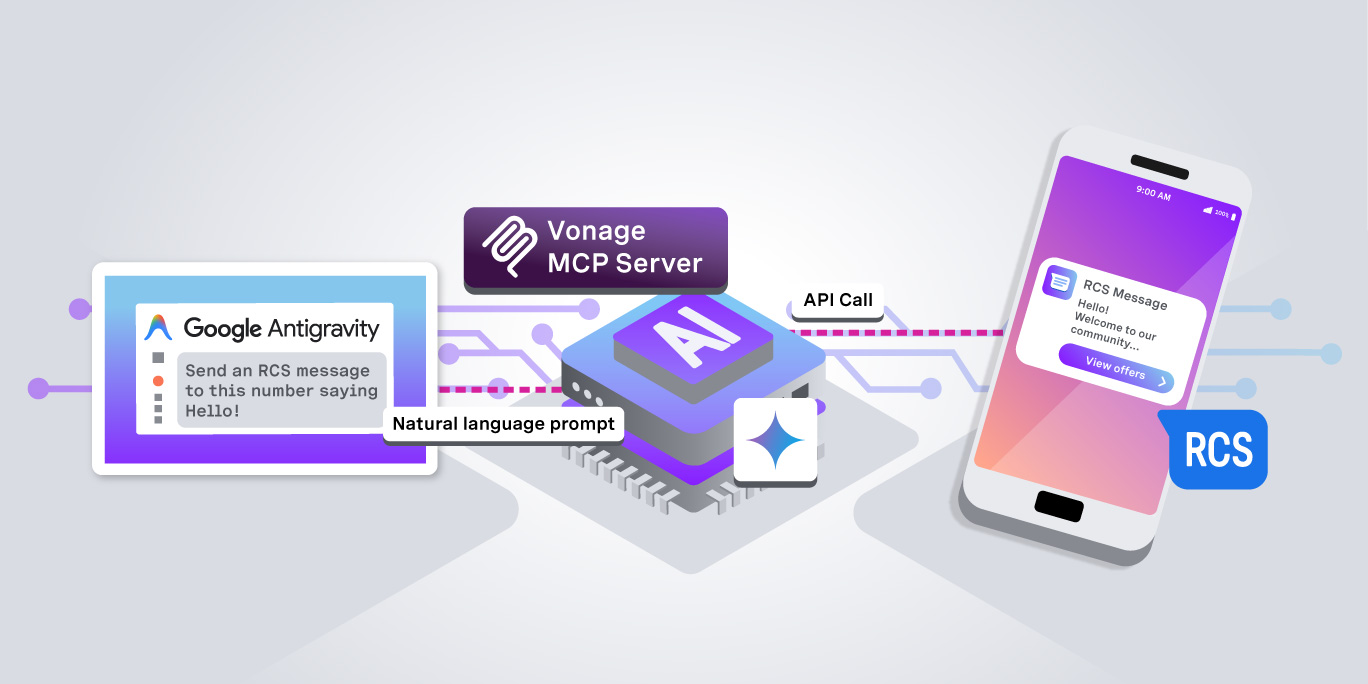
In this tutorial, you will send a Rich Communication Services (RCS) message using only a natural language prompt, with Google Antigravity's Gemini and the Vonage Tooling MCP Server handling the API call for you.
Both the Messages API and the Verify API support RCS: the Messages API handles rich outbound messaging (which is what this tutorial covers), while the Verify API uses RCS as a delivery channel for one-time passwords.
Prerequisites
Before you begin, make sure you have your environment ready:
- Google Antigravity and Node.js installed on your local machine.
Google Antigravity and installed on your local machine.
- If you haven't set up your MCP connection yet, start with Access the Vonage Tooling MCP Server on Google Antigravity.
If you haven't set up your MCP connection yet, start with Access the Vonage Tooling MCP Server on Google Antigravity.
- An RCS agent set up and configured through your Vonage account.
An RCS agent set up and configured through your Vonage account.
- A phone with RCS capabilities. Note that your test phone number must be allowlisted to receive the RCS message, having RCS enabled on the device is not sufficient.
A phone with RCS capabilities. Note that your test phone number must be allowlisted to receive the RCS message, having RCS enabled on the device is not sufficient.
- To create an application, go to the Create an Application page on the Vonage Dashboard, and define a Name for your Application. If you intend to use an API that uses Webhooks, you will need a private key. Click “Generate public and private key”, your download should start automatically. Store it securely; this key cannot be re-downloaded if lost. It will follow the naming convention private_<your app id>.key. This key can now be used to authenticate API calls. Note: Your key will not work until your application is saved.Choose the capabilities you need (e.g., Voice, Messages, RTC, etc.) and provide the required webhooks (e.g., event URLs, answer URLs, or inbound message URLs). These will be described in the tutorial.To save and deploy, click "Generate new application" to finalize the setup. Your application is now ready to use with Vonage APIs.
- To create an application, go to the Create an Application page on the Vonage Dashboard, and define a Name for your Application.
To create an application, go to the Create an Application page on the Vonage Dashboard, and define a Name for your Application.
- If you intend to use an API that uses Webhooks, you will need a private key. Click “Generate public and private key”, your download should start automatically. Store it securely; this key cannot be re-downloaded if lost. It will follow the naming convention private_<your app id>.key. This key can now be used to authenticate API calls. Note: Your key will not work until your application is saved.
If you intend to use an API that uses Webhooks, you will need a private key. Click “Generate public and private key”, your download should start automatically. Store it securely; this key cannot be re-downloaded if lost. It will follow the naming convention private_<your app id>.key. This key can now be used to authenticate API calls. Note: Your key will not work until your application is saved.
- Choose the capabilities you need (e.g., Voice, Messages, RTC, etc.) and provide the required webhooks (e.g., event URLs, answer URLs, or inbound message URLs). These will be described in the tutorial.
Choose the capabilities you need (e.g., Voice, Messages, RTC, etc.) and provide the required webhooks (e.g., event URLs, answer URLs, or inbound message URLs). These will be described in the tutorial.
- To save and deploy, click "Generate new application" to finalize the setup. Your application is now ready to use with Vonage APIs.
To save and deploy, click "Generate new application" to finalize the setup. Your application is now ready to use with Vonage APIs.
Configure Your Environment Variables
When working with the MCP server, your mcp_config.json file needs specific environment variables to authenticate and execute commands properly.
The Application ID
The Application ID is a long alphanumeric string (e.g., 012abc34-d56e-7fg8-h90i-1234567jk89l) displayed in the application details panel.
Application ID
The Vonage Private Key
VONAGE_PRIVATE_KEY64 is your private key file, base64-encoded. On macOS/Linux, you can generate it with base64 -i private.key | tr -d '\n' > b64_key.txt, then open b64_key.txt to copy the value. If you have VS Code installed, you can open it directly with code b64_key.txt. On macOS, you can skip the file entirely and use | pbcopy to copy it straight to your clipboard.
RCS Agent ID
To send RCS messages, you must also add RCS_SENDER_ID, this is the sender ID associated with your RCS agent, visible under the External Accounts page in your Vonage dashboard once the agent is linked.
Link External Accounts
Purchase Virtual Number
If you plan to use a delivery option that includes SMS failover, you'll also need to define VONAGE_VIRTUAL_NUMBER in the configuration. This is the virtual number the API uses to send the SMS when the recipient's device or network doesn't support RCS.
Add Variables to the MCP Config JSON File
Add all required variables to the env block of your mcp_config.json like this:
Note: The mcp_config.json file lives in a local config directory on your machine, it's not part of a project repository, so your credentials won't be accidentally committed to version control. That said, treat this file like any other file containing secrets: don't share it, back it up securely, and make sure it isn't copied into a project folder that gets pushed to a repo.
Note: The mcp_config.json file lives in a local config directory on your machine, it's not part of a project repository, so your credentials won't be accidentally committed to version control. That said, treat this file like any other file containing secrets: don't share it, back it up securely, and make sure it isn't copied into a project folder that gets pushed to a repo.
RCS Usage Examples
We have options to send RCS messages, and each one of them maps to specific capabilities within the Vonage Messages API.
Send the RCS Message
This option sends a plain-text RCS message with no SMS fallback, so you don't need a virtual number for this one. Once your environment is configured and the Vonage MCP server is connected to Google Antigravity, open Gemini and type a natural language prompt asking it to send an RCS message to your test phone number.
"Send an RCS message to +4434567890 that says 'Hello!'"
Send RCS Message
RCS Only or SMS Fallback
It attempts delivery via RCS first and automatically cascades to SMS if the device or network does not support RCS. This option requires VONAGE_VIRTUAL_NUMBER to be set in your environment variables so the API can handle the failover leg.
This prompt only appears when VONAGE_VIRTUAL_NUMBER is set in your environment. Since it's optional and only needed for SMS failover, the MCP server uses its presence to determine whether to offer the fallback option.
Instead of needing to specify a delivery method in your prompt, the MCP server asks you directly:
Which RCS sending option would you like to use? rcs text only (no SMS fallback), with fallback (RCS + SMS failover), and other (rich cards, suggested actions).
Alternatively, you can skip the prompt altogether by being explicit in your request from the start:
"Can you send an RCS message with SMS failover to +1234567890 saying 'Hello from Vonage RCS with fallback!'?"
Allow Security Checks
Right before Gemini executes the action, your development environment steps in with a safety check:
"Do you allow using this MCP tool vonage-tooling/rcs-send-text?"
This security pattern ensures that even though Gemini is driving the automation, no actual network calls or messages are sent without your explicit approval. Click Allow, and Vonage processes the delivery straight to your phone.
Other covers additional RCS message types, such as rich cards, carousels, and suggested actions, that go beyond plain text. See the Vonage Messages API RCS documentation for the full list of supported payload types.
Conclusion
That's it, you've reached the end of the tutorial. You've learned how to send RCS messages via the Vonage MCP Server via Gemini within Google Antigravity. For example, you could use this workflow to send order confirmations, OTP alternatives, or onboarding messages with rich cards, all triggered directly from a Gemini conversation without writing any code. You can extend this workflow to send rich RCS cards, handle inbound replies, or explore other Vonage MCP tools from Gemini, such as checking your account balance or listing your applications.