An AI assistant can summarize your meeting notes, but you may still spend Friday afternoon checking task updates, chasing owners, and assembling the status report. Faster drafting helps less when the information behind it is scattered or out of date.
In McKinsey’s 2026 State of AI survey, 8 in 10 respondents said AI improved their individual productivity, while 37% reported a positive impact on their organization’s earnings before interest and taxes. Those findings cover organizations broadly, rather than project teams specifically. For your team, the practical test is whether AI reduces the work of coordinating a project, including updating records, assigning follow-ups, and preparing reports.
AI for project management means using AI tools to help plan, track, report on, and coordinate project work. This guide explains how to connect those tools to your project records, build the stack in six steps, and adapt it for an agency, a product team, or a PMO.
TL;DR: Build your AI stack around shared project records before adding assistants or automation.
- Measure the full cost: Include subscriptions, usage, corrections, and maintenance when deciding whether to expand the setup
- Cover five functions: Project context, an AI assistant, meeting capture, automated actions, and permissions with human review. You don’t need a separate tool for each
- Start with one recurring workflow: Measure the time spent on reporting, meeting follow-ups, or intake, then connect AI to the information that job needs
- Keep people accountable: Confirm action-item owners, check important claims, and review changes affecting budgets, deadlines, or sensitive information
- Choose for your workflow: Consider client access, request volume, and data sensitivity rather than team size alone
What Does AI for Project Management Actually Do Well?
AI can help with scheduling, reporting, planning, and turning conversations into proposed tasks. Project managers still need to assess trade-offs, resolve stakeholder concerns, and confirm priorities, owners, and commitments.
In a September 2025 survey of 1,000 project professionals by the Association for Project Management (APM), 70% said their organization uses AI, up from 36% in 2023. Among AI-using respondents who reported benefits, task and schedule automation, resource allocation, and risk analysis and forecasting were each cited by 50%. Reporting and dashboarding followed at 49%, and stakeholder communications at 43%.
Why Do Disconnected AI Tools Fall Short for Project Teams?
Disconnected AI tools can make individuals faster without updating the shared record of the project. A project manager who pastes notes into a chatbot gets a tidy summary. Unless someone transfers the relevant changes, the task board, risk log, and client report remain out of date.
The integration problem also shows up in the data. Among AI-using respondents in APM’s survey, 42% named integration with organizational workflows as a challenge, behind training (49%) and security or data privacy (44%). Microsoft’s 2025 Work Trend Index special report found that 48% of employees describe their work as chaotic and fragmented. Adding disconnected AI tools can create more places to check, on top of the chat overload teams already face.
Start with the project’s context
Choosing a separate AI tool for each job can leave you with assistants that lack access to the project information they need. A context-first stack reverses the order. It starts with the shared project record, then adds AI that can read it and, where appropriate, write changes back.
also highlights workflow design. Nearly three-quarters of AI high performers report fundamentally redesigning workflows around AI, compared with one-quarter of other respondents. High performers make up only 6% of the sample.
Connecting the tools does not remove the need for someone to check their output. James Doherty, a project controls expert at maritime consultancy BMT, put the responsibility plainly:
You have to feel suitably qualified and experienced before you should be using AI to generate any work for you. It’s about assurance, you have to sign your name at the bottom of anything you’re delivering.
You have to feel suitably qualified and experienced before you should be using AI to generate any work for you. It’s about assurance, you have to sign your name at the bottom of anything you’re delivering.
You have to feel suitably qualified and experienced before you should be using AI to generate any work for you. It’s about assurance, you have to sign your name at the bottom of anything you’re delivering.
What Are the Five Layers of a Project Team’s AI Stack?
You can organize a project team’s AI stack into five layers: context, assistant, capture, action, and guardrails. Each layer answers a different question. These are functions to cover, not necessarily five separate tools.
- Context: The system of record for tasks, docs, owners, and decisions that the other layers draw from
- Assistant: AI that drafts, summarizes, and answers questions about the work
- Capture: Meeting and conversation records, including summaries and proposed action items
- Action: Automations and agents that move work between steps
- Guardrails: Permissions, data rules, and human review that determine what AI may access, change, and share
For a deeper look at the action layer, our guide to types of AI agents explains how agents differ in their decision-making and ability to act.
How to Build an AI Stack for Project Management
Build around one recurring workflow first. These six steps help you connect the information it needs, assign review responsibilities, and measure whether AI improves the result.
Step 1: Audit the jobs, not the tools
List the recurring project jobs that take the most hours each week before you look at any AI product. For example, the weekly status report and meeting follow-ups are common candidates. So are intake triage and rebuilding the plan after a change.
Then estimate the hours per job and who does it. A project coordinator who spends three hours every Friday assembling a client report has a clearer starting point than a team that wants “AI for brainstorming.” The audit also identifies jobs that are slow because ownership is unclear. Resolve that before automating them.
Step 2: Choose the context layer first
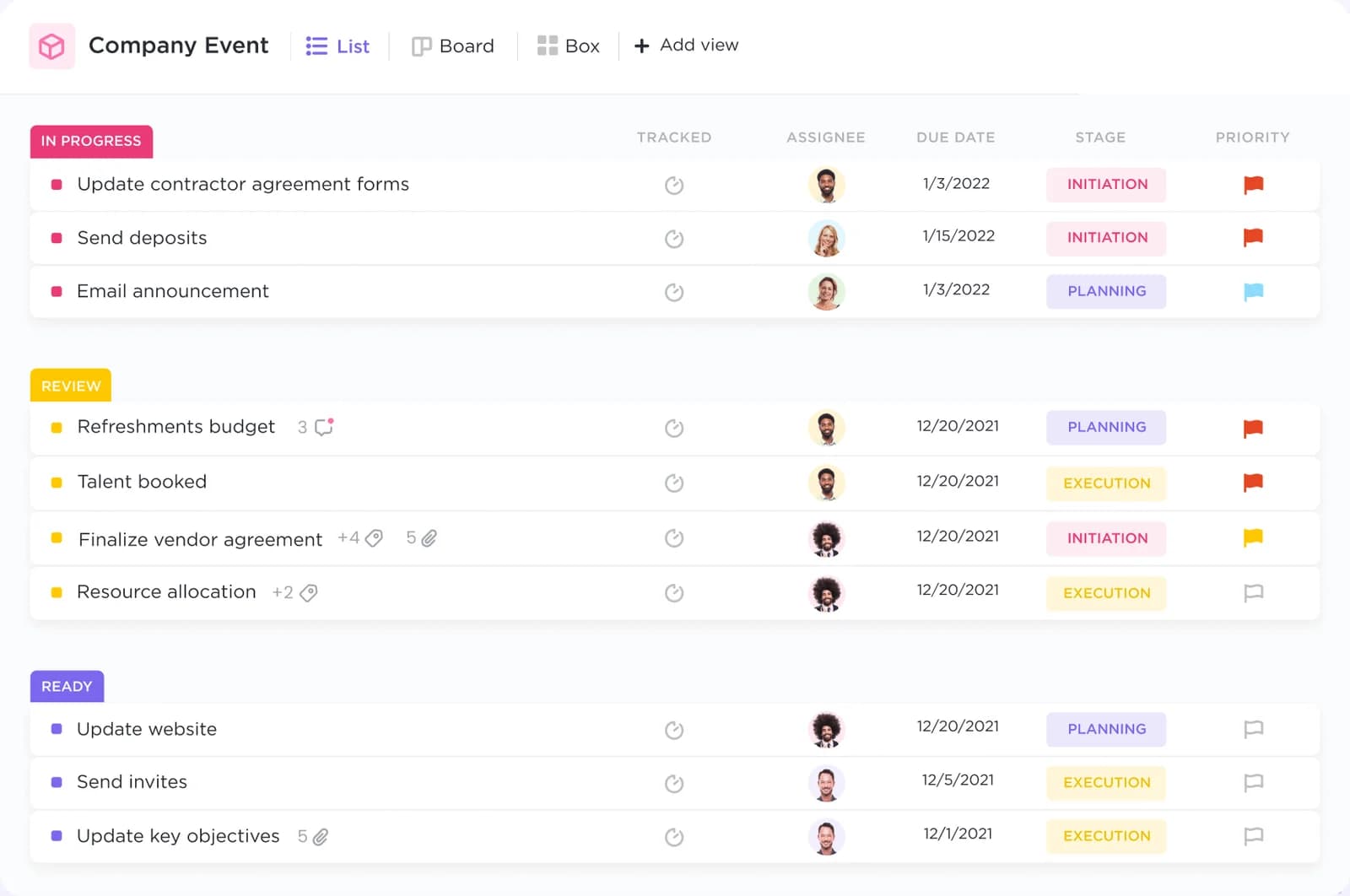
Decide where the project’s shared record lives. That means a place for tasks, owners, dates, and the documents behind them. Every AI layer you add should draw from that record, with permission to write back only where the workflow requires it.
For a freelancer, the context layer can be a spreadsheet and a folder. As coordination needs grow, a project tool with shared permissions and supported integrations becomes more useful. AI can use both structured fields and unstructured notes when the tool supports them and access is enabled. Teams already working across chat, docs, and boards should read our breakdown of work sprawl before adding anything.
Step 3: Connect one assistant to that context
Pick one assistant for the initial workflow and connect it to the context layer. You can do that through the project tool’s built-in AI or a supported integration. Agree on shared instructions and data-handling rules rather than leaving everyone to configure separate personal accounts.
Check two things before rollout. First, confirm what data the assistant can access. Second, write three or four shared prompts for the team’s real jobs, such as “Summarize every task in this project List that changed status this week and flag anything overdue.” Our collection of weekly status report templates gives the assistant a structure to fill.
Step 4: Turn meetings into tasks, not just transcripts
Choose a meeting notetaker whose action items can be transferred into your shared project record. A transcript can provide useful context, but it does not replace assigned follow-up work.
Set a rule that someone reviews the notes and confirms owners and dates after the meeting, then creates or approves the resulting tasks. The notetaker’s draft saves time, and human confirmation keeps accountability with a person. Follow your organization’s recording and consent requirements. Our guide to AI agents for meetings compares options in more depth.
Step 5: Automate one handoff end to end
Choose one handoff that happens every week. For example, turn a new request from one of your intake forms into a task with the required details and a named owner. Get that flow working before adding another.
Price the automation before you design around it. Check how the provider counts actions, AI usage, and overages rather than assuming one request equals one billable unit. Zapier’s pricing page, for example, explains that successful actions consume tasks and some actions can use more than one.
Estimate usage from your request volume and the actions each request triggers. Test what happens when information is missing or a connection fails, and name someone to handle those exceptions.
Step 6: Set guardrails and a review cadence
Write down which tools are approved, what data each may access, what changes it may make, and which outputs need a named reviewer. Review outputs that affect decisions, budgets, commitments, or sensitive data, even when they stay inside the team.
Compare the workflow monthly against the hours you measured in Step 1. Include time spent checking outputs, correcting errors, and maintaining integrations, along with subscription and usage charges.
If a tool delivers no measurable benefit across two reviews, reassess whether to reconfigure or remove it. When removing one, also check its retained data and revoke connections the team no longer needs.
Which AI Stack Fits Your Team Size?
Team size affects coordination needs, but it does not determine which AI tools you need. Client visibility, workflow volume, data sensitivity, and review requirements matter too. Use the setups below as starting points rather than fixed prescriptions.
Permissions and review rules apply at every size. A small team handling confidential client work may need stricter controls than a larger team working with public information.
Agencies often have a small team serving many clients, so their setup must handle client visibility and billable time alongside internal coordination. Our guide to project management for agencies covers that setup in detail.
Three AI Stacks in Practice
The following hypothetical examples show how the five layers can work together for an agency, a product team, and a PMO. Adapt the tools and review cadence to your workflow.
Example 1: A six-person creative agency running client work
A design and content agency runs 12 retainer clients using Figma, Canva, and Adobe tools for production. The founder handles accounts, and five people produce the work.
Client visibility shapes this setup. Access rules limit which records clients can see, while the review step checks what appears in each report. The hours alert gives the account owner time to discuss scope or additional work before the retainer is exhausted.
Example 2: A product team running two-week sprints
Eight engineers, a designer, and a product manager ship features in two-week sprints with code in GitHub.
This team deliberately leaves standups out of the capture layer because its task board records the updates it needs. Sprint reviews provide a more useful record of demonstrations, feedback, and decisions. A completed task is not necessarily a released feature, so the release-note review checks that distinction.
Example 3: A PMO reporting on 40 projects
A three-person project management office at a 600-person company reports monthly to leadership on 40 active projects.
Here, much of the value comes from standardization. Shared status fields make it easier to compare 40 projects, while consistent reporting dates help distinguish current information from stale updates. Our guide to resource management covers the capacity side of portfolio reporting.
How Do You Set Up This AI Stack in ClickUp?
ClickUp fits the context-first model because tasks, Docs, and Chat live in one workspace. Start with one project List, a defined reporting period, and a named reviewer, then connect the five layers around that workflow.
Connect project context to ClickUp Brain
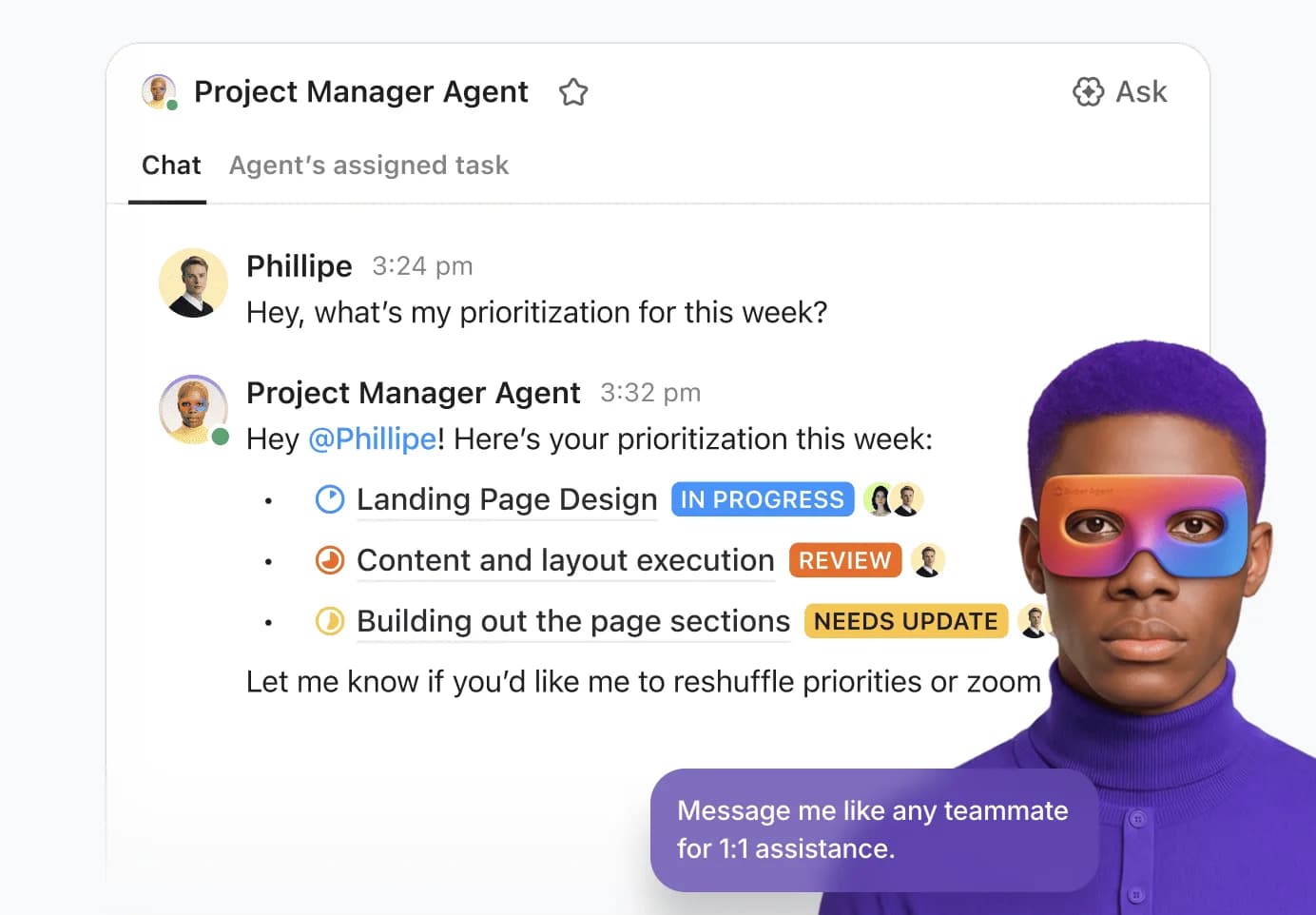
ClickUp keeps tasks, owners, dates, briefs, and decisions together, enabling ClickUp Brain to answer questions using the project information you have permission to access.
For a weekly report, try:
“Review this project List for the past seven days. Summarize completed work, overdue tasks, and open decisions. Link each point to its source and flag missing updates rather than assuming progress.”
“Review this project List for the past seven days. Summarize completed work, overdue tasks, and open decisions. Link each point to its source and flag missing updates rather than assuming progress.”
Through Enterprise Search, Brain can also find information in supported connected apps, including Google Drive, Slack, Jira, Confluence, GitHub, SharePoint, and Gmail. Configure the relevant connections and access before relying on those sources. Brain can then help turn the findings into a task or Doc.
Capture meetings and confirm the follow-up work
ClickUp AI Notetaker creates a meeting notes Doc with a summary, key takeaways, and an action-item checklist. Those notes stay in the same workspace as the project work, and you can ask Brain questions about them afterward.
Review the proposed actions, confirm owners and deadlines, and convert the agreed items into assigned tasks. A checklist in meeting notes is not the same as a task with an accountable owner.
Before recording, check your Workspace’s AI Notetaker availability, usage allowance, and sharing settings. Choose the appropriate note-sharing option and follow your organization’s recording and consent requirements.
Run recurring work with Super Agents
Use ClickUp Super Agents once you have a repeatable process. For example, configure a reporting agent to review the project List every Friday, draft a status update, and flag tasks that lack current information.
Specify its sources, available tools, output location, and escalation rules. A reporting agent might draft an internal update and create a follow-up task for missing information, while leaving client communications and deadline changes to the project manager.
Our Super Agent workflow examples cover other setups. If the workflow needs connected-app information, configure that access separately and check who can interact with the agent.
Review outputs and measure the result
Use ClickUp Dashboards to monitor the project metrics behind your report. Track preparation and review time separately so you can compare the new workflow with your original baseline.
Check dates, commitments, and significant risks before sharing the update. Review the agent’s permissions and output destination too: its configured access needs separate attention from the permissions applied when someone uses Brain directly.
ClickUp’s breadth can require more setup than a simple board. AI availability, usage allowances, and role restrictions also vary, so include them in your cost check. Start with the reporting workflow, confirm that it saves time without increasing corrections, and expand from there.
Common Mistakes When Adding AI to Project Management
Use these checks during setup and your monthly review to spot where the workflow needs attention.
Buying the assistant before connecting the project data
People still paste task lists into a chatbot every Monday, or its reports miss recent changes. Check whether the assistant can access current project records and whether its answers cite the right sources.
Recording meetings without assigning follow-up work
You have searchable transcripts, but agreed actions still lack owners or deadlines in the project tool. Check a recent meeting’s action list against the task board to see where follow-up stopped.
Automating an incomplete intake process
Requests reach the right team faster but still need several rounds of clarification. Look at which fields are repeatedly missing and route incomplete requests for review before they enter the delivery queue.
Letting AI output skip review
A report describes discussed work as approved, or completed work as released. Check that the reviewer can trace important claims to source records rather than simply proofreading the draft.
Keeping tools without checking their value
Reported time savings exclude the hours spent correcting outputs and maintaining integrations. Include that work in your monthly comparison before deciding whether to keep, reconfigure, or remove a tool.
Start With Context, Then Add AI
A useful AI stack should reduce the effort it takes to keep a project moving. Faster drafts help, but so do fewer missed follow-ups, less time reconciling conflicting updates, and clearer information for decisions. Look for those improvements alongside the hours saved.
Keep a record of what the AI handled, what someone had to correct, and whether the result was useful to its audience. That gives you a practical basis for deciding what to expand, adjust, or stop.
Try ClickUp for free to keep project records and follow-up work together. Check which AI capabilities are included in your plan before adding them to your workflow.
Frequently Asked Questions
Will AI replace project managers?
AI can assist with reporting, meeting follow-ups, and planning, but project managers still need to negotiate trade-offs, resolve stakeholder concerns, and approve commitments. The effect on individual roles will depend on how organizations redesign the work. Current research does not establish how many project management roles AI will replace.
Which AI tool is best for project management?
Choose an AI tool that supports the workflow you need and can access the relevant project records securely. General assistants such as ChatGPT or Claude can work with information you provide or connect through supported integrations. Project platforms with built-in AI, including ClickUp, Asana, and monday.com, offer assistance within the project workspace; capabilities and model choices vary by platform and plan. Our guide to ways to use AI in project management covers specific use cases.
How much does an AI stack for project management cost?
Budget for subscriptions, usage charges, setup, and review time. Costs depend on the number of users, meeting minutes, automation actions, and AI credits your workflow consumes. Check which capabilities your existing plans already include, then compare the combined cost with measured time savings and output quality.
What should a project manager review before using AI output?
Check the output against its source records, especially owners, dates, dependencies, budget figures, and claims about progress. Confirm whether a proposed action was actually agreed upon or merely discussed. Review outputs that affect decisions, commitments, or sensitive information, even when they will only be shared internally.
What AI prompts work for project management?
Useful prompts identify the source, scope, and expected output. They also tell the AI how to handle missing information. For example:“Using this project List, summarize tasks that changed status in the past seven days. Group them into completed, in progress, and blocked, and link each task”“From these meeting notes, draft action items with the stated owner and deadline. Mark missing details as ‘needs confirmation’ rather than guessing”“Review this project’s tasks and risk log for issues that could affect the next milestone. List the supporting evidence and distinguish recorded risks from your suggestions”
Everything you need to stay organized and get work done.