Spreadsheet project management can work well while one person maintains the tracker. As more people update it, keeping status and dates current requires clearer rules. A designer, a developer, and a client may all need to contribute, and someone needs to catch missed updates and resolve conflicting changes.
Those checks can add to an already interrupted workday. Microsoft’s 2025 Work Trend Index found that the top 20% of Microsoft 365 users by received ping volume were interrupted every two minutes during core work hours. If people can’t tell whether a shared tracker is current, they have another reason to ask for updates.
In this blog, we’ll cover the columns to include, a six-step setup, five sheets worth building, and six tools compared on price and fit. It also explains how to recognize when chasing updates and maintaining schedules takes more effort than the spreadsheet saves.
TL;DR
Switch based on coordination problems, not editor count. Consider another setup when missed handoffs, update chasing, or schedule maintenance outweigh the convenience of the spreadsheet
Start with a consistent task tracker. Use one row per task, one accountable owner, separate start and due dates, dropdown statuses, and a Last updated field
Add only the sheets your project needs. Build on the tracker with a timeline, RACI matrix, budget sheet, or risk register
Make updates part of the process. Protect formulas, flag overdue work and dependency conflicts, and have owners update their rows before a weekly review
Choose tools by the work involved. Excel supports detailed calculations, Google Sheets supports shared trackers, and options such as Smartsheet and ClickUp Sheets connect spreadsheet-style work with task workflows
Why Do Teams Still Run Projects in Spreadsheets?
Teams run projects in spreadsheets because they often already have access through Microsoft 365 or Google Workspace. If the team knows the tool, it can start a tracker without introducing another app or login.
Flexibility is the second reason. A spreadsheet doesn’t impose a methodology. A marketing lead can track a campaign as a list and turn it into a rough Gantt chart with conditional formatting. Dedicated tools such as Asana, Jira, and monday.com offer more built-in project structure, but teams still need to configure it around their work.
The third reason is math. Budgets, effort estimates, and resource totals use formulas. Excel and Google Sheets support SUMIF, lookups, and pivot tables, which makes them useful for finance-heavy projects. The Google Sheets vs. Excel comparison covers where each one leads.
These are good reasons to start with a spreadsheet. It can suit a solo owner, a one-off project, or a team that mainly needs calculations. When several people use it to coordinate work, agree on who updates each row, how changes are communicated, and when the tracker is reviewed.
What Should a Project Management Spreadsheet Include?
A project management spreadsheet should include one row per task and columns that answer who, what, when, and what’s blocking it. Start with the structure below, then adjust it to fit your project.
Keep start and due dates in separate columns so you can use them in formulas, filters, and timeline formatting.
Two other columns are easy to overlook. “Task ID” keeps dependencies readable after someone re-sorts the sheet by due date. “Last updated” helps you spot rows that need review without opening version history. Agree on when owners should update that field so it remains a useful signal.
How to Build a Project Management Spreadsheet
Building a project management spreadsheet takes six steps. Start with the work and column structure, then add controlled inputs, dates, and dependency checks. Finally, add a visual timeline and agree on how the team will keep the tracker current.
The example below follows an illustrative six-person website relaunch: a content lead, a designer, two developers, an SEO specialist, and a project manager. Formula references use the column order above, with headers in row 1 and tasks beginning in row 2.
Step 1: List deliverables before tasks
Start with the main deliverables the project plan must ship, then break each into tasks that one person can own. For example, the relaunch deliverables are sitemap, wireframes, copy, design, build, and launch QA. “Build” becomes 11 tasks, while “Sitemap” stays at two.
Use the Phase column to group tasks by deliverable. That lets you filter the tracker to review one part of the project without maintaining a separate task list.
Step 2: Lock the header row and the columns
Freeze the header row so column names stay visible as you scroll. Protect headers and formula cells against accidental changes while leaving task-entry cells editable.
In Excel, convert the range to a table with Ctrl+T to keep formulas and formatting consistent as rows are added. Freezing the header and protecting cells are separate settings.
In Google Sheets, use View > Freeze > 1 row, then Data > Protect sheets and ranges to protect the header and formula ranges. This guide explains how to lock cells in Google Sheets.
Step 3: Turn free text into dropdowns
Use data validation for Status and Owner so entries stay consistent. Start with five statuses: Not started, In progress, Blocked, In review, and Done.
In Excel, use Data > Data Validation > List. In Google Sheets, use Insert > Dropdown. The Google Sheets data validation guide covers custom rules.
Dropdowns make filters and status counts more reliable. For example, with Status in column E, use =COUNTIF(E2:E100,"Blocked") to count blocked tasks. Keep one owner per row so responsibility stays clear.
Step 4: Add dates and dependency checks
Give each task a start date and due date, then record its predecessor’s Task ID in Depends on. For this basic tracker, use one predecessor per row. If a task has several prerequisites, record and review them separately rather than treating one link as the complete dependency picture.
Add a helper column called Dependency check after Notes or link. In L2, enter:
=IFERROR(IF(OR(H2="",F2=""),"",IF(F2<XLOOKUP(H2,$A$2:$A$100,$G$2:$G$100),"Review dates","")),"Check task ID")
Copy the formula down. It flags tasks scheduled to start before their predecessor’s due date and identifies dependency IDs missing from the task list. Enter dates as date values, keep Task IDs unique, and extend the ranges beyond row 100 if needed.
In the relaunch tracker, “Build homepage” depends on “Approve homepage design.” If approval moves from March 10 to March 14 while the build still starts on March 11, the check shows “Review dates.”
This formula flags a conflict; it doesn’t reschedule the work. Someone must review and update the affected dates.
Step 5: Add a visual layer
Use conditional formatting to highlight overdue and blocked tasks. With Status in E and Due date in G, apply this overdue rule to the task rows:
=AND(ISNUMBER($G2),$G2<TODAY(),$E2<>"Done")
Choose a red fill. Test the rule on a late task, a completed task, and a blank due date. For blocked rows, use =$E2="Blocked" with an amber fill and decide which rule takes priority when both apply. Here’s how to color code rows in Google Sheets.
For a simple timeline, add date columns and shade cells when their dates fall between each task’s start and due dates. This walkthrough of a Gantt chart in Google Sheets shows the setup.
If you put the timeline on a separate tab, reference the original task list rather than copying values. That keeps dates connected to one source.
Step 6: Set a weekly review and one owner per row
Pick a weekly slot for project monitoring. Ask owners to update their rows beforehand, then use the review to discuss blocked work, overdue tasks, and dependency warnings.
Agree on who can change Status. Owners should maintain their own rows, with a comment explaining changes that affect someone else’s work. Update Last updated when the row is reviewed, even if its status hasn’t changed.
Treat these as team rules, supported by permissions and validation where practical. If updates are still missed or the project manager spends too much time chasing them, review the process before deciding whether the tracker needs more automation or a different tool.
Watch this overview of project management databases:
Five Project Management Spreadsheets Worth Building
Most projects need only a few of the sheets below. Build the task tracker first and add the others when the project needs them. Use Task IDs to connect task-level data and deliverable names or IDs for broader summaries.
1. Task tracker
The task tracker is the core sheet, using the columns from the table above. Use it when you need to track owners, dates, and progress beyond a simple checklist. These Excel task tracker templates give you a starting layout.
Skip it if: The project is a short checklist one person finishes in a day; a to-do list is faster.
2. Gantt-style timeline
A Gantt-style timeline shows tasks as bars across days or weeks so overlaps and gaps are visible. It pulls start and due dates from the tracker and shades cells with conditional formatting. This follows the visual approach to building a Gantt chart, but shading cells alone won’t calculate dependencies or reschedule tasks.
Skip it if: You only need to see what’s due next; a sorted due-date list may be enough.
3. RACI matrix
A RACI matrix lists deliverables in rows and people or roles in columns. Each cell marks who is Responsible, Accountable, Consulted, or Informed. It helps clarify who does the work and who approves it, especially when a client or another department signs off. These RACI matrix examples show common layouts.
Skip it if: Ownership and approval responsibilities are already clear in the task tracker.
4. Project budget sheet
A budget sheet tracks planned cost, actual cost, and variance per line item. Those three numbers sit at the core of managing project budgets. Define variance consistently, such as actual minus planned, so a positive result means overspending.
Add a Committed column for signed but unpaid costs so you can see spending that hasn’t reached the actuals yet. Move costs out of Committed when they enter Actual to avoid counting them twice.
Skip it if: Finance already maintains a project budget you can use; reconcile with that record rather than creating a competing version.
5. Risk register
A risk register scores each risk by likelihood and impact. Each row also names an owner and a mitigation. Agree on a scoring scale, then review the highest-priority risks regularly. Teams that also track assumptions, issues, and dependencies may prefer one of these RAID log templates.
Skip it if: A short risks section in the tracker is enough to capture the project’s uncertainties, owners, and responses.
Where Does Spreadsheet Project Management Break?
Spreadsheet project management becomes harder to maintain when updates, handoffs, and schedule changes depend on people checking the file. Formulas, notifications, and automation can help, but someone still needs to configure and maintain them. Watch for these gaps in your tracker:
- File locks in Excel. Co-authoring depends on supported versions, file formats, and cloud storage. Microsoft notes that if someone opens the workbook in an Excel version that doesn’t support co-authoring, other users can receive a locked-file error
- Notification gaps in Google Sheets. Conditional notifications can email people when values change, but external-data changes, such as those driven by IMPORTRANGE, don’t trigger them. A TODAY()-based value that changes while the document is closed may also fail to trigger a notification. Test date-based alerts rather than assuming they will fire
- Dependencies that need manual maintenance. In the basic tracker above, Depends on records a relationship and the formula flags a date conflict. It doesn’t move downstream dates. More advanced scheduling formulas or automation can do that, but they add setup and maintenance
- Decisions separated from updates. Version history records cell changes, while comments can hold discussion. If approvals and files remain in email or chat, however, the tracker may not explain why a date or status changed. Reviewing Google Sheets edit history helps trace edits, but it won’t recover decisions that were never recorded there
- File size and performance limits. Google lists a limit of 20 million cells or 100 MB for spreadsheets created in or converted to Google Sheets. A tracker can become slow or difficult to maintain before reaching that ceiling, especially when it combines data from several project files
Use a second regular editor as a process check
A second person updating status is a reason to review how the tracker works, not an automatic reason to replace it. A larger sheet with clear ownership may stay reliable, while a short tracker with inconsistent updates may not.
Ask these questions during your weekly review:
- Are updates current? Check whether owners maintain their rows without repeated reminders
- Are handoffs clear? Confirm that the next person knows when work is ready and what they need to do
- Are schedule changes manageable? Review how long it takes to find affected tasks and update their dates
- Are the rules sustainable? Check whether permissions, formulas, and notifications still work as people and projects change
Keep the spreadsheet if those checks are working. Consider a different setup when missed handoffs, update chasing, or schedule maintenance outweigh the convenience of the sheet. You may only need to move task coordination while keeping budgets and calculations in the workbook.
Project management author Elizabeth Harrin makes a useful point about spreadsheets’ continuing role:
Regardless of what tool you use, spreadsheets are a huge part of life as a project manager.
Regardless of what tool you use, spreadsheets are a huge part of life as a project manager.
Regardless of what tool you use, spreadsheets are a huge part of life as a project manager.
The decision is which parts of your project the spreadsheet supports well and which need a more reliable process or another tool.
Project Management Software vs. Excel: What Actually Changes?
Project management software brings assignments, reminders, dependencies, and activity history into task records. Many tools also offer a grid view for people who prefer rows and columns. Excel supports detailed calculations and modeling, but coordinating project work may require additional formulas, rules, or automation.
Compare the setup your team needs rather than assuming one category is always cheaper or easier. A spreadsheet may be enough if owners keep it current and handoffs are reliable. Dedicated software becomes worth considering when its built-in workflows reduce the time spent maintaining the tracker and chasing updates.
Spreadsheet Tools for Project Management, Compared
Every tool below uses rows and columns as a core interface and lets a team track project work without building a custom app. The list includes traditional spreadsheets, spreadsheet-database hybrids, and project platforms with spreadsheet features.
Compare them by the work you need to manage: calculations, shared updates, linked records, or task scheduling. Check the plan that includes those capabilities rather than comparing entry prices alone.
How we review software at ClickUp
Our editorial team follows a transparent, research-backed, and vendor-neutral process, so you can trust that our recommendations are based on real product value.
Here’s a detailed rundown of how we review software at ClickUp.
1. Microsoft Excel (Best for calculation-heavy project plans)
Excel’s strength is calculation. Structured tables keep formulas consistent as rows grow, while XLOOKUP can return an owner or due date by task ID. SUMIFS can total effort or cost by phase and owner, and PivotTables can summarize a longer tracker. Our Excel project management guide walks through a full setup.
In an illustrative six-person website relaunch, a PivotTable shows each developer booked for 46 hours in the week design approval slips. The task list alone hides that collision. This is planned workload analysis, not rescheduling; see our workload management guide.
Excel supports co-authoring when a workbook is saved in OneDrive or SharePoint Online, uses a supported format, and editors use a compatible client. Microsoft’s co-authoring requirements explain the setup and locked-file errors for incompatible clients.
Standout features
- Structured tables: Keep formula columns consistent as the task list grows
- XLOOKUP: Return an owner or due date from a task ID
- SUMIFS: Total estimates or costs by phase and owner
- PivotTables: Summarize hours by owner and week
Pricing
- Free: Excel for the web
- Paid Microsoft 365 plans available
Ratings
- G2: 4.7/5 (3,200+ reviews)
- Capterra: 4.8/5 (19,500+ reviews)
Where it taps out: Co-authoring depends on a supported file format, cloud location, and client. Teams using local copies or incompatible versions may encounter a locked-file error.
Best for: Teams building calculation-heavy project plans with budgets, effort estimates, and capacity summaries.
Skip it if: Your editors cannot keep the workbook in OneDrive or SharePoint Online and use clients that support co-authoring. Compare these Excel alternatives if the team cannot standardize that setup.
What real-life users are saying about Microsoft Excel
A Capterra review describes Excel’s data-management value and learning curve:
Sometimes Excel is difficult to understand, especially when using advanced formulas and functions. Large data files can also become slow.
Sometimes Excel is difficult to understand, especially when using advanced formulas and functions. Large data files can also become slow.
Sometimes Excel is difficult to understand, especially when using advanced formulas and functions. Large data files can also become slow.
2. Google Sheets (Best for collaborative project trackers)
Google Sheets lets a team edit the same tracker, add comments, and review version history instead of circulating separate copies. Our Google Sheets project management guide shows one way to structure a shared tracker.
In the illustrative website relaunch, dropdown chips keep Status and Owner entries consistent. A filter view lets the SEO specialist sort her rows without changing the project manager’s view. An agency can give its client Commenter access, so the client flags a wrong date without changing the Status cell; Google’s sharing guidance explains roles and filter views.
On an eligible Google Workspace or Google AI plan, Gemini in Sheets can create tables and formulas, add dropdowns, or apply conditional formatting. Conditional notifications can email people when selected values change, but external data such as IMPORTRANGE does not trigger a rule, and a TODAY() value that updates while a file is closed may be missed.
Standout features
- Dropdown chips: Keep Status and Owner entries consistent
- Filter views: Sort and filter without changing other editors’ views
- Commenter access: Let clients comment without editing cell contents
- Gemini in Sheets: Create tables or formulas on eligible plans
Pricing
- Free: Anyone with a Google Account can create a Sheet
- Workspace business plans available
Ratings
- G2: 4.6/5 (48,300+ reviews, suite-wide)
- Capterra: 4.7/5 (13,200+ reviews)
Where it taps out: Conditional notifications have specific trigger gaps. External data changes such as IMPORTRANGE do not trigger a rule, and a TODAY() value that updates while the file is closed may be missed. Do not rely on these notifications alone for critical alerts based on those changes.
Best for: Teams and agencies sharing a live project tracker with clients.
Skip it if: Critical reminders depend on external data changes or TODAY()-based values that can update while the sheet is closed.
What real-life users are saying about Google Sheets
A G2 review says:
What I like most about Google Workspace is how smoothly all the tools work together. It makes it much easier for me to stay organised, collaborate with my team, and manage my work efficiently. I especially value the way Gmail, Google Drive, Docs, Sheets, Calendar, and Meet are integrated, because it lets me communicate, share information, manage tasks, and move projects forward within one connected environment.
What I like most about Google Workspace is how smoothly all the tools work together. It makes it much easier for me to stay organised, collaborate with my team, and manage my work efficiently. I especially value the way Gmail, Google Drive, Docs, Sheets, Calendar, and Meet are integrated, because it lets me communicate, share information, manage tasks, and move projects forward within one connected environment.
What I like most about Google Workspace is how smoothly all the tools work together. It makes it much easier for me to stay organised, collaborate with my team, and manage my work efficiently. I especially value the way Gmail, Google Drive, Docs, Sheets, Calendar, and Meet are integrated, because it lets me communicate, share information, manage tasks, and move projects forward within one connected environment.
3. Smartsheet (Best for spreadsheet-style project scheduling with dependencies)
Smartsheet looks like a spreadsheet and behaves like a project tool. Rows can be indented into parent and child tasks, while Gantt charts and dependencies connect the schedule to the work. Smartsheet’s dependency guidance explains how to enable and use the feature.
In the illustrative six-person website relaunch, “Approve homepage design” is a predecessor to “Build homepage.” If approval moves from March 10 to March 14, an enabled dependency can move the dependent build dates too. A baseline on Business or higher lets the team compare the changed schedule with its original plan.
Baselines compare planned and actual schedule dates, while spreadsheet formulas cover cell, column, and cross-sheet work. A Capterra reviewer noted that formulas across columns and cross-sheet references took extra steps.
Standout features
- Gantt dependencies: Update dependent dates when a predecessor changes
- Baselines: Compare planned and actual dates on Business and higher plans
- Spreadsheet formulas: Use cell, column, and cross-sheet formulas
- Workflow automation: Set automated triggers for routine project updates
Pricing
- Pro: $12/member/month
- Business: $24/member/month, three-member minimum
- Enterprise: Custom pricing
- Advanced Work Management: Custom pricing
Ratings
- G2: 4.4/5 (23,200+ reviews)
- Capterra: 4.5/5 (3,800+ reviews)
Where it taps out: Teams that need complex formula work across columns and sheets may prefer a traditional spreadsheet.
Best for: Operations and project teams that want Gantt scheduling and linked dependencies without leaving a grid.
Skip it if: Your team wants a free plan, prefers boards or lists, or needs the flexibility of a traditional spreadsheet for complex modeling. Compare other Smartsheet alternatives.
What real-life users are saying about Smartsheet
A review on Capterra’s Smartsheet page says:
It’s a good place to house projects that require status updates and input across multiple people and departments.
It’s a good place to house projects that require status updates and input across multiple people and departments.
It’s a good place to house projects that require status updates and input across multiple people and departments.
4. ClickUp Sheets (Best for spreadsheet calculations alongside ClickUp tasks)
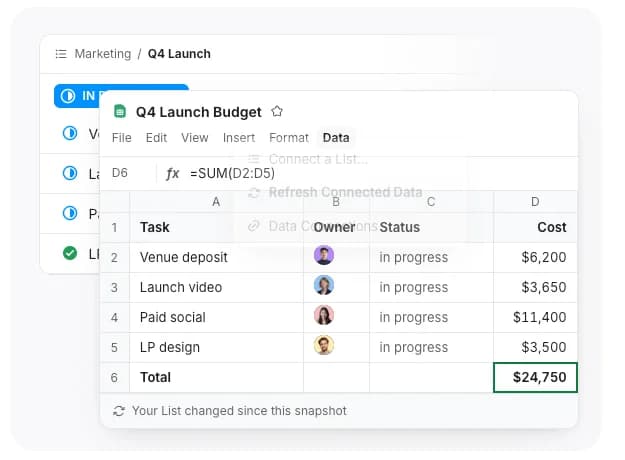
A ClickUp Sheet pairs spreadsheet cells and formulas with task data from a ClickUp List. It supports 400+ formulas, charts, conditional formatting, and multiple tabs; the ClickUp Sheets feature page describes the available tools.
Standout features
- 400+ formulas: Use functions such as SUMIF, VLOOKUP, and IF in spreadsheet cells
- Connected task data: Pull List tasks, owners, and due dates into a Sheet
- Spreadsheet imports: Create a Sheet from .xlsx, .csv, or .xlsm files
Core