Sharing a house key with someone is simple enough. But when several people need access to different rooms, you have to think about who can enter, what they can use, and when their access should end. Giving everyone the same key might save time upfront, but it leaves you with little control over what happens inside.
A Google Drive client portal comes with a similar challenge. You can create a folder, share the link, and start exchanging files within minutes. But as you take on more clients, you need a way to keep their documents separate, control who can upload or edit files, and make sure former clients and contractors don’t retain access longer than they should.
Google Drive gives you the tools to manage much of this through shared drives, folder permissions, and file-sharing settings. The challenge is choosing the right setup for how your clients work, particularly when some don’t have Google accounts or need to send files regularly.
This guide walks you through building a Google Drive client portal, choosing the right sharing and upload settings, and keeping client files organized. We’ll also cover where Drive falls short and when you might need a dedicated client management tool.
TL;DR
A Google Drive client portal gives clients a shared space to upload, review, and access files without relying on email attachments. To set one up:
- Choose the right setup: Use My Drive for simple file sharing with Google-account holders, shared drives for broader client collaboration, or Google Sites for a central client-facing page
- Plan how clients will upload: Check whether clients have Google accounts before choosing between shared-drive visitor access and Google Forms
- Organize files consistently: Create a dedicated folder for each client, with standard subfolders for uploads, reviews, and final deliverables
- Control access: Share with named contacts, assign permissions based on what clients need to do, and remove access when projects end
- Know where Drive falls short: Google Drive handles file sharing and review, but you’ll need other tools to manage client requests, approvals, deadlines, and project updates
Follow the six-step setup guide below to build your portal, then use the maintenance checklist to keep it organized and secure.
Can You Use Google Drive as a Client Portal?
Yes. Google Drive works as a client portal when the relationship runs on documents and deliverables. You can use shared folders to exchange briefs, review drafts, and deliver finished files through an interface many clients already know.
The deciding factor is how much you expect your clients to do in the portal. If they mainly send materials, leave comments, and download finished work, Drive covers that. If they expect to track project status, pay invoices, or message your team in the same place, Drive stops short. Drive’s Approvals feature handles sign-off on individual files, but only on eligible Enterprise and Education Plus plans. You’ll end up bolting on email, spreadsheets, and a payment tool to fill the gaps.
Why Build a Client Portal in Google Drive?
If your team already uses Google Workspace, building a client portal in Drive can save you the cost and effort of introducing another platform. It also comes with a few practical advantages:
- No additional platform to maintain: You can use your existing Google Workspace storage and sharing features without paying for separate portal software. Files stay in the same environment your team already works in, which also reduces the chance of duplicate documents across tools
- A familiar experience for clients: Clients with Google accounts can open shared files using their existing sign-in. Those without Google accounts can access supported files through email verification when your organization enables visitor sharing
- Control ongoing access: Update permissions as client relationships change, revoke access when an engagement ends, and set expiration dates where supported. This helps you keep client access up to date as the project moves forward
- Feedback alongside the work: Google Docs, Sheets, and Slides support comments and version history, while Docs also offers suggesting mode. Clients can review the latest draft and leave feedback directly, without exchanging multiple attachments over email
Why Do Google Drive Client Portals Run Into Problems?
A client might be able to open a shared folder but still struggle to upload a document. Google Drive has different rules for visitors, file uploads, and shared drives. If you don’t account for these limits when setting up your portal, clients can run into problems even when you’ve given them access.
Visitors can’t upload files to My Drive folders
Google’s visitor sharing feature lets people without Google accounts collaborate after verifying their email. Visitors can view, comment on, and edit supported files anywhere you share them. They can upload or create files only inside shared-drive folders, with the required permissions and a supported Workspace edition.
If your portal lives in My Drive, a client using visitor access can collaborate on supported files you share, but can’t upload documents into your client folder.
Visitors must verify their access every seven days
Visitors verify their identity using a code sent by email. They can then access shared content for seven days before they need to verify again.
That’s fine for clients who check in once a month to review or submit a document. For clients who open the portal daily, re-verifying every week can be frustrating.
Google Forms has separate file-upload restrictions
If you use Google Forms to collect client documents, you’ll need to keep the form in My Drive. Google doesn’t support file-upload questions in forms stored in shared drives. Clients must also sign in to a Google Account to upload attachments. File-upload questions are also unavailable when your administrator turns on Data Loss Prevention.
According to Google’s documentation, uploaded files are saved to the form owner’s Drive account. If your client portal uses a shared drive, you’ll need to move those submissions into the right client folder yourself or set up a separate process to handle them.
Two questions settle which setup you need: do your clients have Google accounts, and how often will they send you files?
Which Google Drive Setup Fits Your Client Portal?
You have three ways to organize a Google Drive client portal: shared folders in My Drive, client folders in a shared drive, or a Google Sites homepage layered over either one.
Here’s how they compare:
1. Shared folders in My Drive
A shared folder in My Drive is a regular Google Drive folder that you give specific clients access to. It’s one of the simplest ways to exchange files without setting up a separate client portal.
If you work alone or manage a small client base, you can create a folder in My Drive for each client and share it with their Google account. They can open the files you’ve shared and, with the right permissions, add their own documents.
You can also use this setup with a personal Google account. However, files in My Drive belong to individual owners. As your team grows, you may need to manage files owned by different people or arrange ownership transfers when someone leaves.
Pros
- Quick to set up: Create a folder, invite your client, and start sharing documents without additional software
- No paid Workspace plan required: Works with free personal Google accounts, making it accessible to independent professionals
- Familiar collaboration tools: Clients can review documents, leave comments, and work on shared files using Google’s existing interface
Cons
- Individual file ownership: Files can belong to different people, which makes ownership transfers and team handovers harder
- Limited visitor uploads: Clients without Google accounts can’t upload files directly into My Drive folders
- Limited free storage: Personal Google accounts include 15 GB of free storage shared across Drive, Gmail, and Google Photos, which can fill up quickly with large client files
Best for: Freelancers and solo consultants who work with clients using Google accounts and need a simple place to exchange documents.
Skip it if: Your clients need to upload files without Google accounts or your team needs organization-owned files.
2. Client folders in a shared drive
A shared drive is a Google Workspace storage space where files belong to the organization. Team members can access and manage shared files without relying on one person’s Google Drive account.
Create one shared drive for client work and organize each engagement into its own folder. For clients who need stricter access controls, you can also create a separate shared drive for their projects.
However, shared-drive members generally have access to the entire drive. If you’re keeping multiple clients in one shared drive, give each client access only to their designated folder without making them a member of the drive itself.
Pros
- Organization-owned files: Documents remain with your business when employees leave or change roles
- Easier team collaboration: Internal team members can work from a shared location without transferring ownership between accounts
- Visitor uploads: On supported Workspace editions, clients without Google accounts can upload to shared-drive folders when visitor sharing is enabled and they have the required permissions
Cons
- Workspace subscription required: Shared drives are available only with eligible Google Workspace plans
- Permission management needs care: Adding a client as a shared-drive member can expose other folders in that drive
- Dependent on admin settings: External sharing and visitor access must be allowed by your organization’s administrator
Best for: Agencies, accounting firms, and consultancies that manage several clients and need their files to remain accessible across the team.
Skip it if: You’re using a personal Google account or your organization doesn’t allow external file sharing.
3. Google Sites with Drive
Google Sites lets you create a simple website that serves as the homepage for your client portal. You can link or embed Google Drive files and bring key project resources together in one place.
For example, a consulting firm could create a site for each client with an onboarding page, meeting schedule, and links to project deliverables. Clients would have one place to return to throughout the engagement, without searching through emails for the right document.
You can also control who can view the published site. However, site access and Drive permissions work separately. Clients still need permission to open the files you link or embed.
Pros
- Central client homepage: Bring onboarding instructions, documents, forms, and meeting resources into one place
- Customizable layout: Organize pages around your client’s needs and add your business name, logo, and branding
- Works with existing Drive folders: Keep your current file structure while giving clients an easier way to find resources
Cons
- Separate permission settings: Granting access to a Google Site doesn’t automatically grant access to its linked Drive files
- More maintenance: You’ll need to update the site as projects change and keep its links and embedded content current
- Limited portal functions: Google Sites doesn’t provide built-in client request tracking, approvals, or project status management
Best for: Client-facing teams that want a central place for onboarding resources, documents, and project information.
Skip it if: Your clients only need occasional file exchanges and can work directly from shared Drive folders.
Google Sites can work with either My Drive or a shared drive. If your clients only need to send and receive documents, Drive alone may be enough. Add a site when they need a central place to access resources throughout the engagement.
What Should a Google Drive Client Portal Include?
When clients open their portal, they should be able to find the latest documents, upload files, and leave feedback without having to ask for directions. Behind the scenes, your team also needs a way to manage access and keep everything organized as projects move forward.
Here’s what you’ll need:
- A dedicated folder for each client: Keep client documents separate and share access only with the people involved in that project
- A consistent folder structure: Create standard subfolders for uploads, drafts, reviews, and final deliverables, making files easier to find
- A clear upload method: Give clients a reliable way to send documents based on their Google account access and the type of files you’re collecting
- Controlled file access: Keep general access set to Restricted and assign permissions based on what clients need to view, comment on, or edit
- A way to track feedback and file versions: Keep comments attached to the right documents and follow a naming system that makes approved versions easy to identify
- A process for managing access: Assign someone to maintain each client folder, review permissions, and remove access when the project ends
Keep internal notes, financial records, and other private business files outside client-facing folders. This helps your team work freely without risking access to documents that were never meant to be shared.
How to Set Up a Client Portal in Google Drive
Before you invite clients into Google Drive, decide where their files will live and how they’ll send them to you. Once you’ve sorted that out, build a folder structure, set permissions, and prepare the portal for regular use.
Here’s how to set it up in six steps.
Step 1: Find out how your clients will send files
Start by asking clients whether they use a Google Account to access Drive and what they’ll need to do in the portal. Some might only review documents, while others will send files, leave comments, or work on shared drafts.
Remember that a Gmail address isn’t required for a Google Account. Someone with an Outlook or business email address might already have one.
Based on their answers, choose the right upload method:
- Clients with Google Accounts: They can upload to a shared folder once you give them permission to add files. You can also collect attachments through Google Forms
- Clients without Google Accounts: They can upload files through visitor sharing in eligible shared-drive folders, provided your Workspace administrator allows it
- Clients who only review files: Viewer or Commenter access may be enough, depending on whether you need their feedback
If your organization blocks visitor sharing, you’ll need another way to collect files from clients without Google accounts. Confirm this before building the rest of your portal. Also ask whether clients will upload from a computer or phone. Visitor sharing requires a computer browser; it does not support mobile devices or Drive for desktop.
Add these questions to your client onboarding questionnaire and use the answers when preparing each client’s workspace.
Step 2: Create a dedicated folder for each client
Now that you know how clients will access their files, create the folders they’ll use.
If your Google Workspace plan supports shared drives and your administrator allows you to create them, open Google Drive and follow these steps:
- Select Shared drives from the left sidebar
- Click New, enter a name such as Client Work, and select Create
- Open the new shared drive and select New > New folder
- Name the folder after your client or project, such as Acme Corp
- Repeat this process for each client you’re managing
Keep shared-drive membership limited to the internal team members who need access. You’ll invite clients to their own folders later.
If you’re using a personal Google account, open My Drive > New > New folder and create a separate folder for each client. Just remember that clients without Google accounts won’t be able to upload files there.
For projects that need stricter separation, create a dedicated shared drive for that client.
Step 3: Create a folder structure you can reuse
A client shouldn’t have to search through dozens of files to find a draft or upload a document. Give every client folder the same basic structure, with names that explain where everything belongs.
For example, your Acme Corp folder could contain:
- 01 Client Uploads: Documents, assets, and other files clients send you
- 02 In Review: Drafts and deliverables waiting for feedback
- 03 Final Deliverables: Completed and approved files
- 04 Shared Agreements: Contracts and other documents both parties need to access
The numbers keep folders in a consistent order, while the names help clients find the right place for their documents.
You can use the same naming pattern across projects. For files that need separate versions, a name such as Acme_Proposal_v02 is easier to identify than Final_Proposal_New.
Google Drive doesn’t have a built-in command to duplicate entire folders. For a small setup, you can recreate these subfolders each time. If you have a larger structure, our guide to copying folders in Google Drive covers alternative methods.
Keep private business records, internal feedback, and financial information outside folders shared with clients.
Once your folders are ready, decide which clients can access and modify them.
In Google Drive, right-click the client’s main folder and select Share > Share.
Add the client’s email address, choose Viewer as the starting permission, and keep General access set to Restricted.
Next, open the individual subfolders and adjust access based on what clients need to do. Role names differ slightly between My Drive and shared drives:
Google Drive passes permissions from parent folders to their contents. Giving someone Editor access to the main client folder would also let them edit files in its subfolders. Start with Viewer access and grant higher permissions only where needed to avoid that problem. For documents that must remain hidden from people with parent-folder access, use a separate location or a limited-access folder.
You can also review the sharing settings to control whether editors can reshare files and whether people can download, copy, or print them. These settings provide extra control, but they don’t override access inherited from a parent folder.
Test with two separate client accounts. Confirm that each can upload and review the intended files, and that neither can open the other client’s folder or files, even with a direct link.
Pro Tip: Before sending the portal link, check the permissions on the main folder and each subfolder. In a shared drive, invite clients to their designated folders without adding them as members of the entire drive. If the Share dialog warns that the drive’s settings prevent sharing with non-members, ask a shared-drive Manager to allow non-member access in the drive settings.
Step 5: Give clients a clear way to submit files and requests
Once clients have access, explain where to send files and how to submit new requests.
For direct uploads, send them the link to 01 Client Uploads. Clients with the required permissions can add documents there, while eligible visitors without Google accounts can upload through shared-drive visitor sharing.
If you also need clients to complete an intake form, Google Forms can help you collect project details, contact information, and attachments.
However, file-upload questions require respondents to sign in to a Google Account. You’ll also need to keep the form in My Drive, since forms stored in shared drives don’t support file-upload questions. Uploaded files are saved to a folder in the form owner’s Drive. After reviewing each submission, you can move them into the correct client folder.
For clients without Google accounts, you can collect request details through a form without file-upload questions. Make sure it’s published and allows the intended respondents to access it, then direct clients to the shared-drive upload folder for attachments.
Our guide to client information form templates covers the details you can collect during onboarding and later requests.
Once you’ve chosen an intake method, include the instructions in your welcome email. Clients should know where to send documents and whom to contact if they have trouble accessing the folder.
Step 6: Set access expiration and prepare for offboarding
Client access shouldn’t continue indefinitely after a project ends. Before handing over the portal, decide when you’ll review permissions and who will handle them.
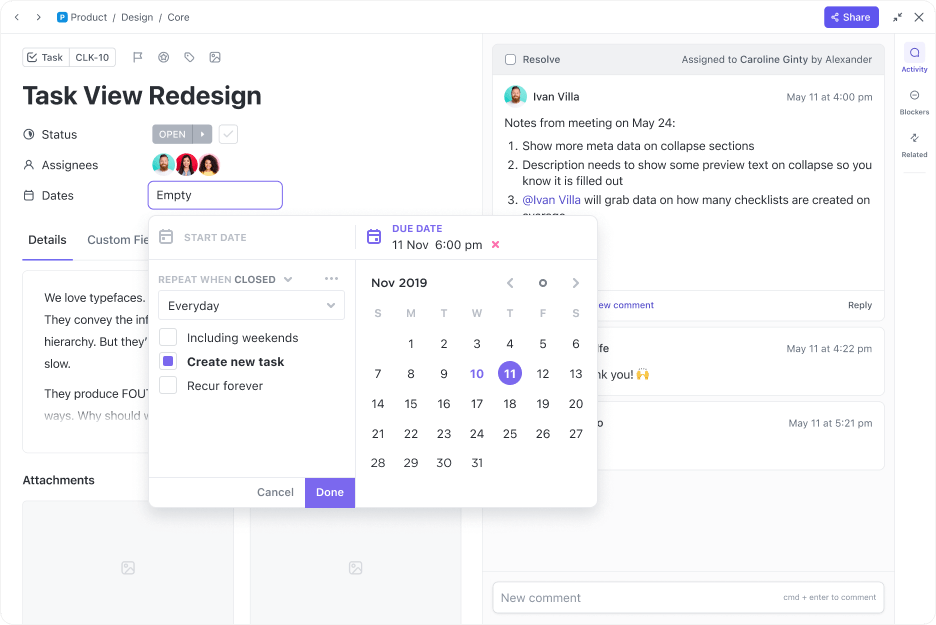
If you use an eligible Google Workspace account, you can set expiration dates for supported access roles:
- Open the file or folder’s Share dialog
- Find the client’s name and click the dropdown next to their permission
- Select Add expiration
- Choose a date within one year and click Save
Google supports expiration dates for files and for Viewer access to folders. Other folder roles may need manual removal when the project ends.
When the project ends, check the client’s main folder, plus any subfolders or files you shared with them separately. Removing access to the main folder might not remove higher permissions granted directly to individual files or subfolders. Once you’ve checked those, remove any remaining access and move your internal copies of the final documents to an archive.
Add this review to your project closeout checklist, along with the date access was removed and the person who completed it.
How Do You Keep a Google Drive Client Portal Organized?
Once your portal is up and running, a quick monthly review can help you catch outdated permissions, misplaced files, and unfinished closeout tasks before they pile up.
Here’s what you can check:
For clients who send files every day, check their folders more often. When a project ends, complete the offboarding process right away instead of waiting for the next monthly review.
Google Drive Client Portal Examples
The setup can look a little different depending on the kind of clients you work with and how often they need to send files. Here are three common ways teams use Google Drive as a client portal in practice.
A five-person marketing agency: This agency works with clients who use a mix of Gmail and Outlook. It keeps all client work in one shared drive, with a separate folder for each account. Clients upload brand assets and source files to 01 Client Uploads, while the agency shares draft campaigns in 02 In Review and collects feedback in comments. Because the review process stays inside the file, the team spends less time chasing feedback across email threads.
A small accounting firm: Most clients only need the portal during tax season, and many don’t use Google accounts. The firm uses a shared-drive folder for each client and grants visitors Contributor access only to the uploads folder, so clients can send documents without seeing more than they need to. Draft returns stay view-only, and the firm adds expiration dates to sensitive files it shares back. Since clients use the portal only at certain times of year, the seven-day visitor verification window is usually manageable.
An independent consultant: This consultant works mainly with clients who already use Google Workspace. Each client gets a folder in My Drive for shared documents, plus a Google Site that acts as a simple homepage for the engagement. The site includes meeting notes, key links, and access to deliverables, which makes it easier for clients to find what they need without digging through older emails. In this case, the site also doubles as a lightweight client onboarding hub.
Where Does Google Drive Fall Short as a Client Portal?
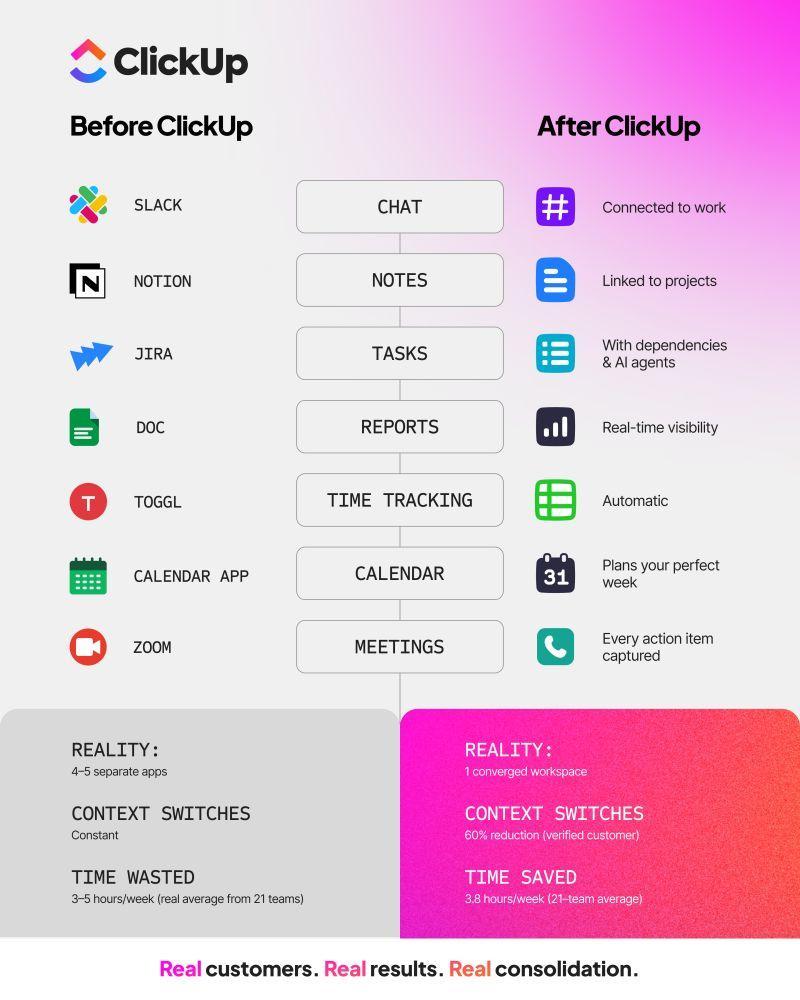
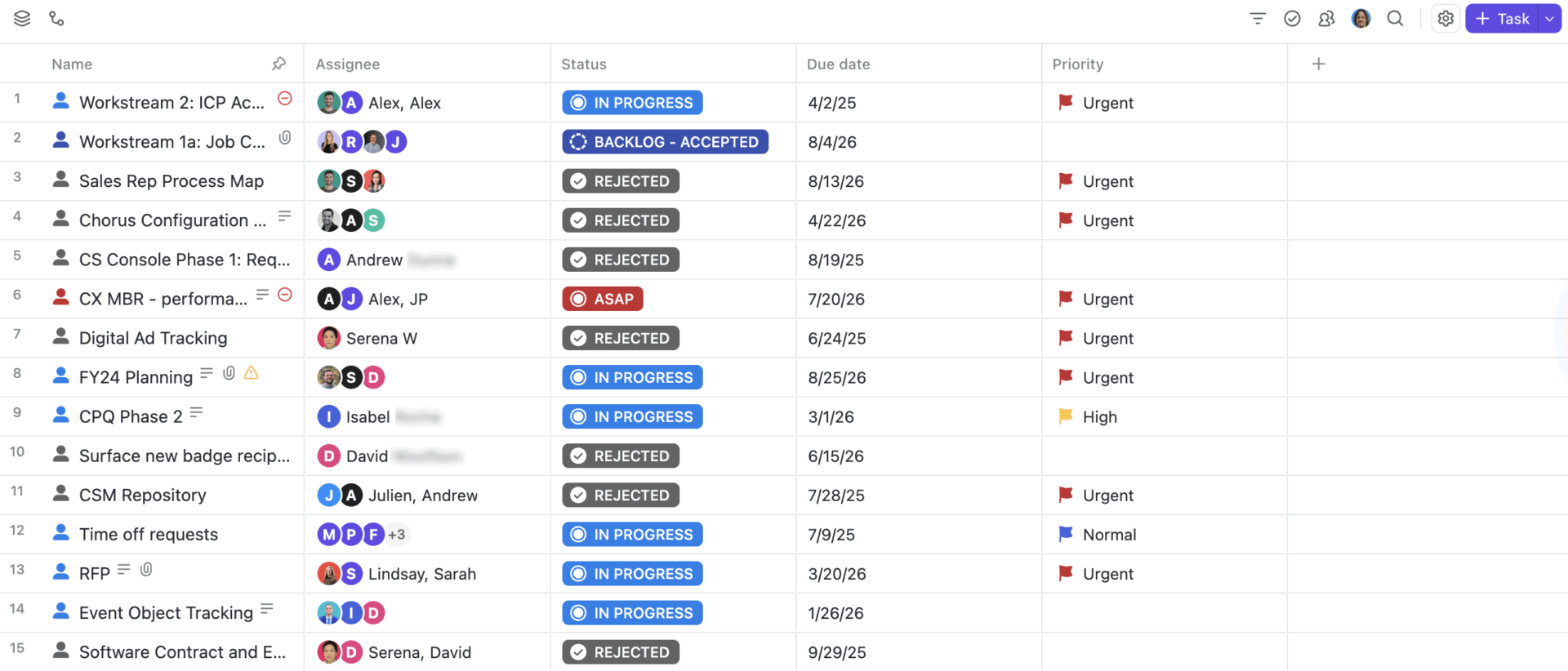
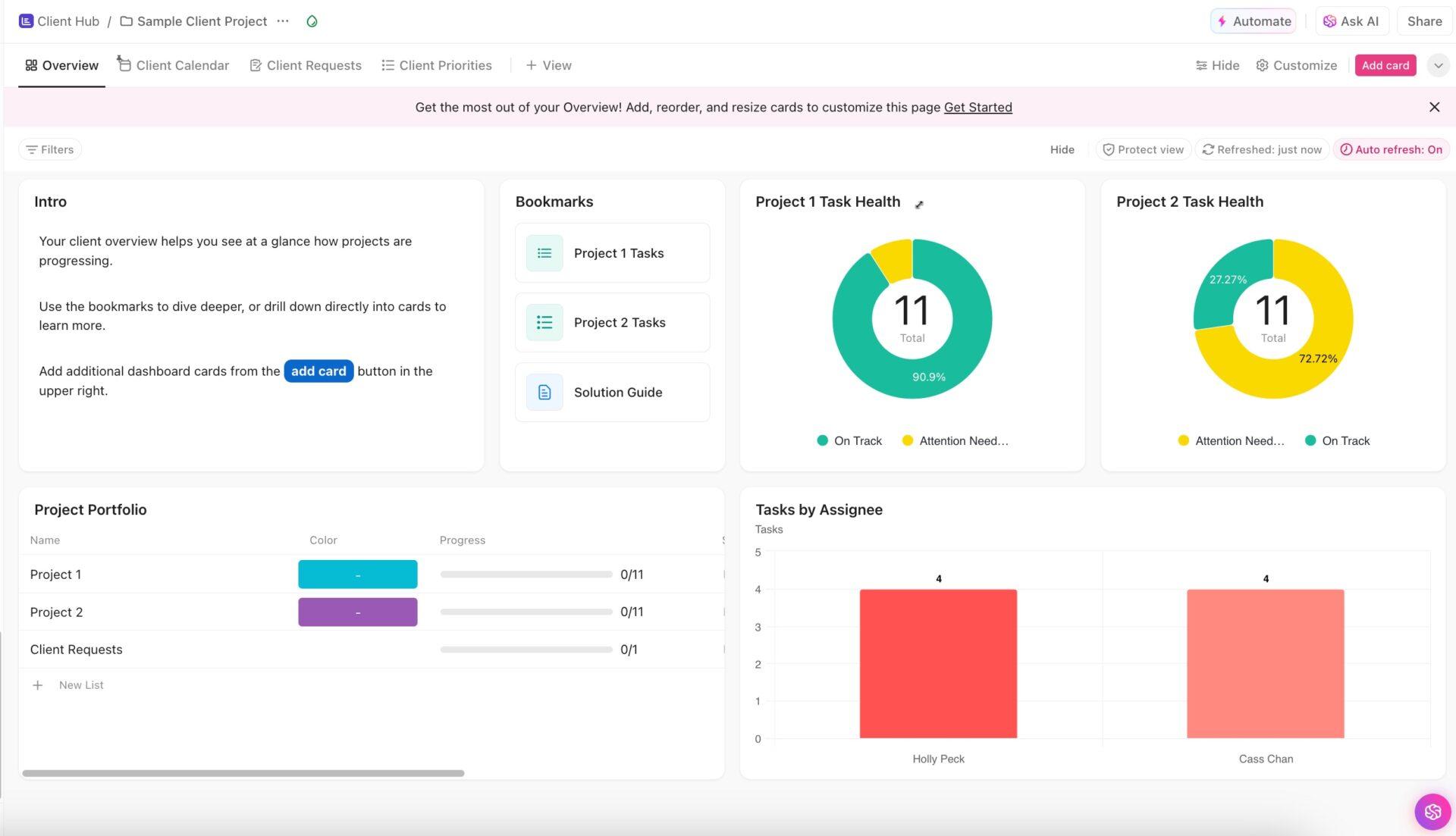
Google Drive works well when the job is mostly about sharing files. The gaps show up once clients need more visibility into the work around those files.
A few limits come up most often:
- No project status: Clients can see the file, but not the progress around it
- No clear request tracking: New requests often arrive through email or comments, which makes them harder to manage
- No built-in client communication space: Conversations stay scattered across comments, email threads, and meetings
In practice:
ClickUp pricing
Free Free