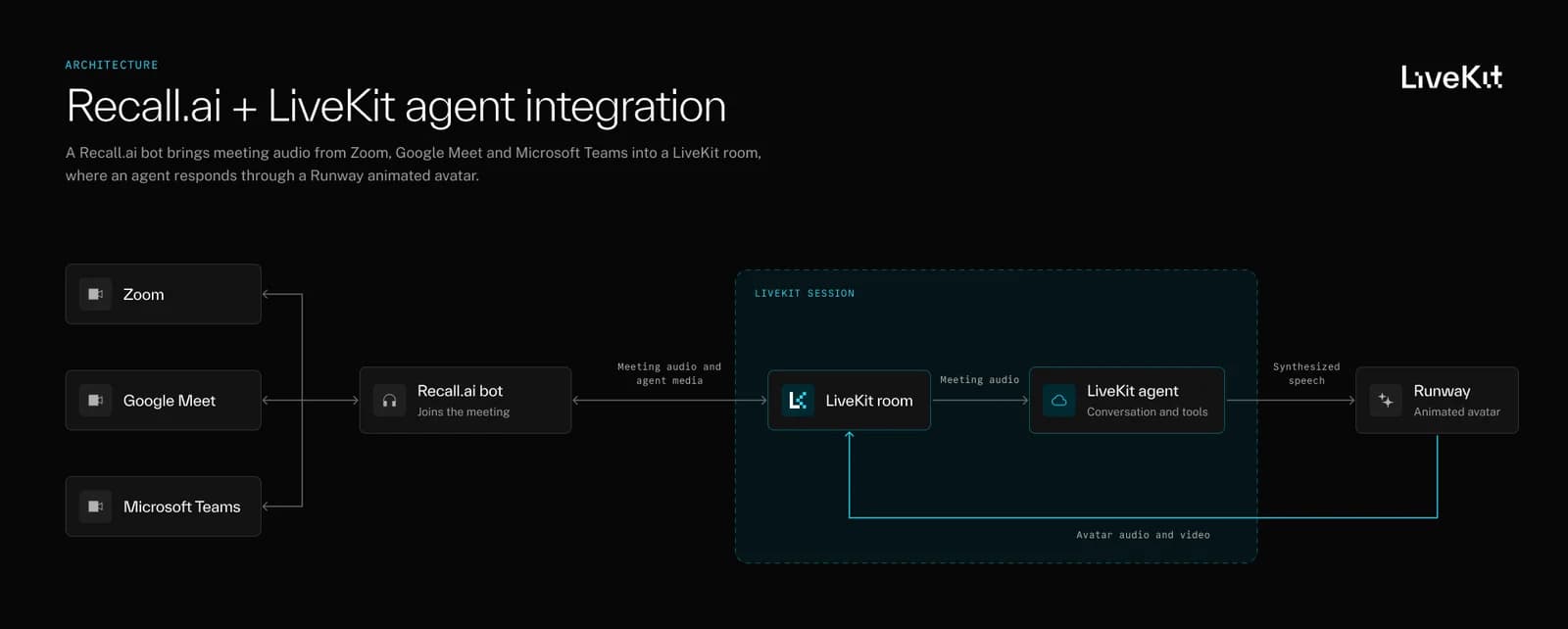
LiveKit Agents lets developers build voice and multimodal AI agents that listen, respond, and perform actions in real time. With Recall.ai, those agents can also join meetings on Zoom, Google Meet, and Microsoft Teams.
Recall.ai handles the meeting connection, so you can run your agent on LiveKit without having to build and maintain separate integrations for each meeting platform.
The Recall.ai team put together a sample application to show how this works. It uses a LiveKit agent with a Runway avatar that joins Google Meet, answers questions, shares webpages, sends chat messages, and responds to commands from meeting participants.
We'll use that sample to walk through the integration and show how LiveKit's function tools can interact with a meeting through Recall.ai's APIs.
The demo uses Google Meet, but the integration also supports Zoom and Microsoft Teams.
How to send LiveKit agents to your meetingsLink to this section
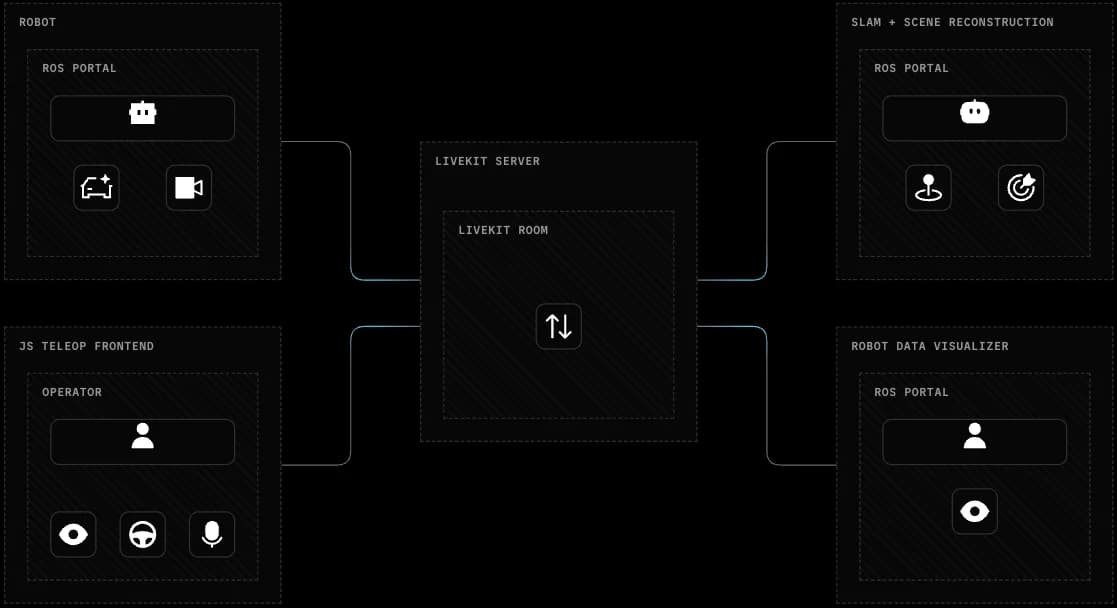
Recall.ai joins the meeting and connects its audio and the agent's media to a LiveKit room. LiveKit handles the conversation, including speech processing, model inference, and tool calls.
There are two processes in the sample: a LiveKit worker running the agent and a small Python launcher that creates the Recall.ai bot.
Recall.ai's Output Media API supports streaming media from a webpage into a meeting. With the LiveKit integration, the bot can receive media directly from LiveKit, without needing a webpage to render the agent's camera output.
Before running the sample, you'll need to enable the LiveKit integration in your Recall.ai workspace under Agents → LiveKit and configure it with your LiveKit project credentials.
Connect a LiveKit agent to a meetingLink to this section
The launcher takes a Google Meet URL and creates a Recall.ai bot using the following configuration from app/recall_client.py:
Two fields matter here:
- output_media.camera.kind is set to livekit, which tells Recall.ai to use the LiveKit integration for the bot's camera output.
- agent_name tells Recall.ai which registered LiveKit agent should handle the session.
On the LiveKit side, the worker registers with that same agent name:
Both the launcher and worker read LIVEKIT_AGENT_NAME from the environment. They also need to use the same LiveKit project configured in Recall.ai.
When the bot connects, Recall.ai includes the bot ID and regional API URL in the LiveKit job metadata. The agent uses those details to send requests back to Recall.ai when it needs to do something in the meeting.
The launcher's URL validation and bot configuration are currently written for Google Meet. The underlying integration supports Zoom and Microsoft Teams too, though the launcher would need a few changes to handle those platforms.
Give the agent something to doLink to this section
Once the agent can join a meeting, the next step is letting it interact with participants.
LiveKit's function tools let an agent call Python functions in response to a request. In this demo, some of those functions call Recall.ai's APIs to share webpages, post chat messages, and control the bot.
For example, someone in the meeting can say:
Assistant, share https://example.com.
Assistant, share https://example.com.
The agent calls a tool that sends a screen-sharing request to Recall.ai:
You might notice that the bot's camera uses livekit, but its screen share uses webpage.
That's intentional. LiveKit provides the agent's speech and avatar, while Recall.ai renders the webpage being shared. Using the direct LiveKit integration doesn't prevent the bot from using webpage-based Output Media for other content.
The demo also keeps track of the last shared URL. If someone says:
Assistant, send that link in chat.
Assistant, send that link in chat.
The agent can post the URL without asking them to repeat it.
Other tools let participants stop sharing, mute or unmute the agent, and tell it to leave.
Since the model is requesting actions that affect a real meeting, the Python functions also need to check what they're being asked to do. The screen-sharing tool, for example, only accepts public HTTPS URLs.
When Recall.ai accepts a request to start screen sharing, the tool doesn't tell the agent that the page is already visible. It reports that the request was made, since the meeting may still be processing it.
Make sure the agent knows when to respondLink to this section
In a meeting, not every question is directed at the agent. If it responds to everything it hears, it can end up interrupting other participants.
The Recall.ai demo uses a simple rule: participants need to address the agent with "Assistant" or "livekit demo."
The sample checks completed speech transcripts for those phrases before passing a request to the agent or allowing it to interrupt an existing response.
It also treats muting and ignoring requests as two separate things.
Muting stops the agent from speaking, but it can still use tools. Someone could mute the agent during a presentation and ask it to post a link in chat.
Ignoring requests stops the agent from responding or performing actions until a participant explicitly tells it to listen again. When listening resumes, the agent stays muted if it was muted before.
These controls are specific to the demo. Other applications might need an agent that participates more actively, or one that only responds to a limited set of commands.
Run the demoLink to this section
Now that we've gone over how the integration works, we'll jump into testing the sample app. The full code is in the .
You'll need Python 3.12 and uv, along with:
- A Recall.ai workspace with the LiveKit integration enabled and an API key
- A LiveKit Cloud project with access to LiveKit Inference
- A Runway API key with Characters access and a character preset
- A Google Meet meeting for testing
Clone the repository and install the dependencies:
Add your credentials and model settings to .env. The LiveKit project credentials should match the ones configured in your Recall.ai workspace.
Start the LiveKit worker:
Once the worker has registered, open another terminal and start the launcher:
Open http://127.0.0.1:8000, enter a Google Meet URL, and click Send agent.
Once the bot joins and the avatar connects, you can try:
- "Assistant, what is two plus two?"
- "Assistant, share https://example.com."
- "Assistant, send that link in chat."
- "Assistant, mute and post 'Hello from the demo' in chat."
- "Assistant, unmute."
- "Assistant, leave."
The launcher is built for local testing and doesn't include application authentication, so don't expose it publicly. The agent also can't read or interact with the contents of webpages it shares.
Extending the demoLink to this section
The demo uses a small set of meeting actions, but you can extend the same pattern to other use cases. An agent could look up documentation and share it during a call, post resources in chat, or help facilitate a discussion.
The LiveKit agent still owns the conversation and tool logic. Recall.ai takes care of getting it into Zoom, Google Meet, or Microsoft Teams and provides the APIs it needs to interact with the meeting.
Check out the sample repository to try it yourself, or read the LiveKit Agents documentation and for more details.