AI accessibility refers to using artificial intelligence (AI) to help people with disabilities read, hear, speak, and move through digital content, and ensuring AI tools are accessible.
This guide covers what AI does for different access needs, best practices for using it to make digital content accessible, how to check the results, how to tell whether an AI tool itself is accessible, and where AI for accessibility still falls short.
What is AI accessibility?
AI accessibility means two things: AI for accessibility and the accessibility of AI.
AI for accessibility is about using AI to make content accessible for users with disabilities and learning difficulties.
AI-powered accessibility tools help users consume content that would otherwise be inaccessible and complete tasks that would otherwise be extremely hard. Or outright impossible.
For example, text-to-speech tools let blind people "read" written text, while dictation and word prediction make it easier for dyslexic people to communicate in writing. And by doing so, they offset some of the disadvantages they face in their personal, educational, or professional lives.
AI tools also help create accessible content, such as image alternative text for blind readers or video captions for deaf and hard-of-hearing viewers.
When we talk about the accessibility of AI, we mean the accessibility of AI tools themselves. For example, whether a person with limited hand dexterity can control it using the keyboard or voice only, or whether all fields and buttons are clearly labelled for screen readers.
How AI supports people with disabilities
Assistive technology has used AI for years, in optical character recognition (OCR), speech recognition, and text-to-speech tools that help users with disabilities and learning difficulties.
Generative AI adds a new layer. It creates new material, such as image descriptions, summaries, or captions.
Here's how AI supports different accessibility needs, from visual impairment to cognitive disabilities, and where it fails:
Need
What AI does
Example tools
Failure modes
Blind and low vision
Describes photos and surroundings, reads text aloud, and identifies products for visually impaired people
Seeing AI, Be My Eyes
Descriptions miss or misstate details
Deaf and hard of hearing
Produces live captions and transcripts of speech and meetings for people with hearing impairments
Live-caption features in video-call apps and phones
Doesn't recognize names, jargon, accents, and speaker changes accurately
Speech disabilities
Recognizes non-standard speech after training on the user's own recordings, or creates a synthetic voice that sounds like the user
Voiceitt, which turns non-standard speech into text or clear computerized speech; Apple Personal Voice, which creates a voice that Live Speech, VoiceOver, and AAC apps can use
Accuracy depends on the user’s training recordings: Voiceitt asks for 50 of them and says it can’t promise 100% accuracy
Mobility and motor
Replaces keyboard and mouse with voice commands and dictation
Built-in dictation and voice control in operating systems, and AI assistants that accept spoken prompts
Voice control can only reach controls it can name, so unlabelled buttons, custom widgets, and apps that don’t expose their controls stay out of reach.
Cognitive, learning, and attention
Summarizes, simplifies, breaks tasks into steps, and builds schedules and reminders
General AI chat assistants
AI solutions drop significant details and hallucinate
How to use AI to improve accessibility of your content
AI tools help content creators and publishers meet accessibility standards laid out in the Web Content Accessibility Guidelines (WCAG). They can draft alt text, captions, and audio description, turn articles into audio, and rewrite complex text in plain language.
Write alt text for images, charts, and infographics
Use an AI assistant, such as Perplexity, to draft alternative text (alt text) for images, charts, and infographics. Screen readers read alt text aloud, so a good description gives blind and low-vision readers the information a graphic carries.
Here’s an example of alt text with a longer description Perplexity generated for a bar chart:
Here's the prompt:
Write alt text for this chart: one or two sentences that state what it shows and its main takeaway. Then write a longer description that covers every trend, value, label, and data point, detailed enough that someone who can’t see the chart understands it fully from the description alone. Finally, list everything you couldn’t read clearly or are unsure about, so I can check it against the source data.
When writing visual alt text:
- Give visuals a short and a long version: Write a one-sentence alt text plus the data or a longer description.
- Write for the purpose: WCAG requires the text alternative to serve the equivalent purpose of the image. To do this, AI assistants may need to understand why the image is in the text, so provide additional context, for example, the article copy.
- Check every value: Compare each figure in the description with your source data, especially small labels and numbers, in case the AI misreads them.
- Mark decorative images as such: Give purely decorative images an empty alt attribute (alt=""), so screen readers skip them. (Leaving the attribute out doesn’t work, because some screen readers then announce the file name, as the W3C images tutorial explains.)
Create video captions and audio transcripts
Many AI assistants now accept audio and video files and transcribe them.
Captions and transcripts make spoken content available to people who can’t hear it. Deaf and hard-of-hearing viewers rely on captions to follow videos, and transcripts for podcasts or recorded calls. They also help anyone who prefers to read or search the content rather than listen.
Perplexity and other AI assistants can transcribe video and audio files and label who said what, but dedicated transcription and captioning tools speed up the process. For example, Otter.ai and Sembly AI transcribe audio files and meetings and mark who is speaking, and video editing tools such as Descript and Tella create captions automatically.
WCAG’s captioning criteria (1.2.2 for recorded video and 1.2.4 for live video) cover dialogue, who’s speaking, and meaningful sound effects, so check that speaker changes and sounds such as laughter are also in the captions
AI tools often get names or product terms wrong, so share a glossary of the names and terms in the recording with your AI assistant, and add those terms to any custom vocabulary your captioning or transcription tool offers.
Add audio description to videos
Audio descriptions, a Level AA requirement for recorded video (WCAG 1.2.5), tell people who can’t see what is happening, for example, actions, scene changes, facial expressions, or on-screen text, that the soundtrack doesn’t convey.
Writing descriptions by hand is slow, so dedicated tools like Verbit, 3Play Media, or ScreenPal now use AI to draft and voice them.
AI drafts still need a human editor. In a 2025 study commissioned by RNIB and conducted by the University of Surrey, AI-generated descriptions of BBC programs “frequently lacked accuracy, cohesion, and contextual awareness,” and misidentified characters.
When editing descriptions, keep them to what viewers need to follow the video, and place them in natural pauses in dialogues.
Rewrite complex written content in plain language
Gen AI tools rewrite, shorten, restructure, and explain text. They can turn dense written content into a clearer version for people with cognitive, learning, or attention differences, such as dyslexia or ADHD, who find long sentences, jargon, and long paragraphs hard to follow.
When text needs more reading ability than lower secondary education, about nine years of school, WCAG recommends providing a simpler version or a supplement (criterion 3.1.5, Level AAA).
Here’s a sample prompt you could adapt to rewrite a document:
Rewrite [the attached parental leave policy] in plain language for employees who may read English as a second language or have dyslexia or ADHD. Aim for a reading level a 12-to-14-year-old could follow. Keep every [eligibility rule, deadline, number of days, and form name] exactly as written. Use sentences of no more than 20 words and one idea per sentence. Start with a two-sentence summary [of who qualifies and how to apply]. Turn the [application] process into numbered steps, add a short heading before each part, and explain or replace technical terms, such as [“accrual”] or [“statutory pay,”] in parentheses the first time they appear. Spell out every abbreviation on first use.
AI can drop important details and change the meaning without looking wrong, so check it against the original, and have someone who knows the subject confirm nothing important was lost before you publish.
Create audio versions of written content
An audio version lets people listen to an article or document, making it more accessible to people with sight loss and with literacy-related learning difficulties, such as dyslexia.
AI voice generators turn text into natural-sounding speech. ElevenLabs Audio Native, for example, creates an embeddable voiceover player for articles, and Amazon Polly converts text into speech files you can publish.
Both let you set how names, acronyms, and product terms are pronounced. Check those first, so they don't confuse listeners.
When you embed the audio version on your page, make sure the audio player works with a keyboard and has clearly labeled controls. Add short summaries to long pieces, and update the audio whenever the text changes.
Improve your website’s accessibility
Automated checkers and AI coding assistants work well together: the checker finds problems in your site’s code, and the assistant fixes them.
Start with an automated web accessibility checker such as Axe, which tests a page against fixed rules and flags failures such as low color contrast, buttons and links without names, and form fields without labels. Then give a coding assistant the report and the page’s code, along with the accessibility rules to follow:
I ran an automated accessibility checker on this page. The report and the page’s code are attached. Fix each failure so the page meets WCAG 2.2 AA, explain each change in one sentence, and leave correct code alone.
When building new sites, feed the rules to the AI assistant upfront.
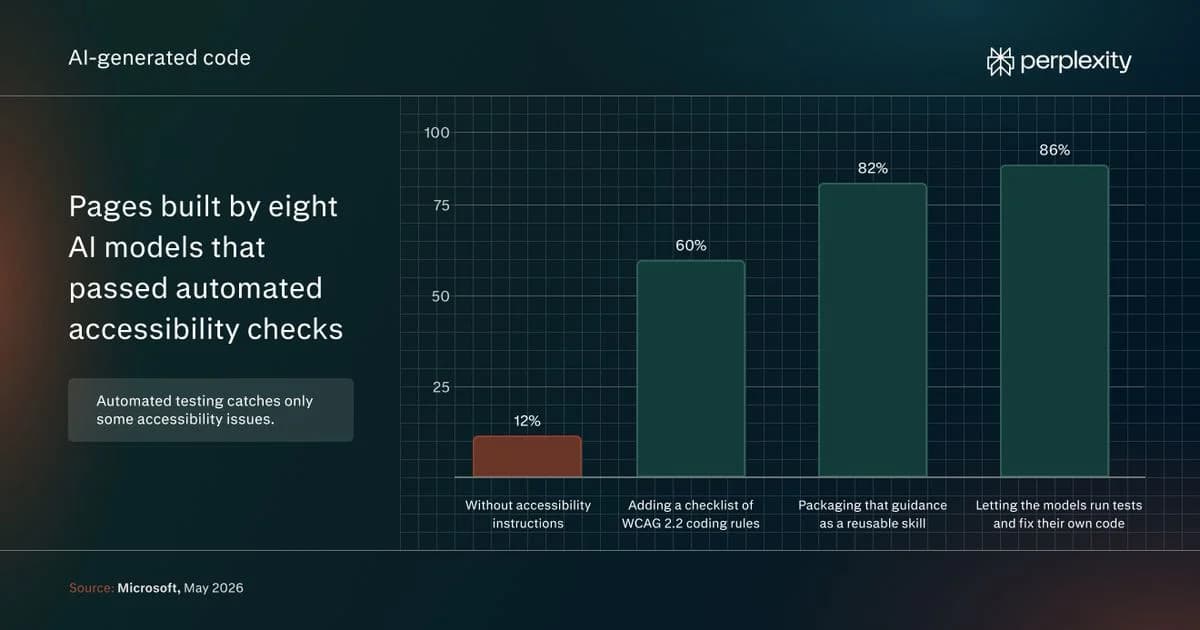
In Microsoft’s May 2026 test of eight AI models, 12% of pages built without accessibility instructions passed its automated checks. Adding a roughly 100-line checklist of WCAG 2.2 coding rules raised the average to 60%. Packaging that guidance as a reusable skill raised it to 82%, and letting the models run tests and fix their own code raised it to 86%.
Automated testing catches only some accessibility issues, as Microsoft’s report notes, so a page that passes every check can still be hard to use.
Be wary of AI accessibility overlays, the one-line widgets that promise to make a site compliant. In January 2025, the US Federal Trade Commission ordered accessiBe to pay $1 million over claims that its AI widget could make any website WCAG-compliant, and the final order of April 2025 bars such claims unless the company has evidence for them.
Limitations of AI for accessibility
AI widens access, but it also creates privacy risks, and its outputs may be unreliable and biased.
Privacy concerns
Assistive AI handles sensitive information: camera views of letters, documents, and medication labels, recordings of conversations, and details that can reveal a disability.
How private that data stays depends largely on where the tool processes it.
Some, like Apple's Personal Voice, process everything on the device, while others rely on the cloud. Be My Eyes' Be My AI, for example, sends photos to an AI provider's servers to generate descriptions.
Another major concern is whether the vendor trains its models on user data.
Reliability issues
AI tools, including AI-driven accessibility technologies, may make mistakes, and those mistakes cause more harm to the disabled.
In a diary study with 20 blind and low-vision people, published in 2026, 22% of answers to follow-up questions contained false information, rising to 35% when the AI was reading text or graphics (most first descriptions from the AI were accurate, though).
When mistakes occur, they can cause real harm. In an American Foundation for the Blind survey fielded in 2025, 21% of blind and low-vision people who use AI image description said an AI mistake had hurt them, compared with 9% of sighted users. Among deaf and hard-of-hearing people who use AI captions, the figure was 24%, compared with 4% of users without disabilities.
The report’s authors suggest two reasons: disabled users often can’t check the output against the original image or audio, and some use these tools in higher-stakes situations, such as reading medication labels or financial documents.
Bias and training data
Certain AI tools, for example, speech recognition ones, may not work as well for people with disabilities, and limited training data is part of the reason
A 2024 paper from the Speech Accessibility Project reports that between 2008 and 2023, the best error rates for recognizing dysarthric speech fell threefold, compared with fivefold for other speakers. Its authors name lack of data as one primary explanation. The project’s 2025 follow-up paper says the gap is partly due to lack of data.
Data isn’t the whole problem, though. It’s also how the models work.
In her keynote at the W3C’s 2023 AI and Accessibility Research Symposium, Jutta Treviranus of the Inclusive Design Research Centre argued that AI systems are accurate for people close to the average and fail for those furthest from it.
In a 2024 article, she added that having more disabled people in the training data doesn’t remove the problem, because the model still favors the average: “Even if we have full and fair proportional representation of disabled people in the training data, the machine will still side with the statistically average.”
How to choose accessible AI tools
When you roll out an AI tool to an organization, it has to work for everyone, including individuals with disabilities or learning difficulties.
Before you commit to a tool, check that it meets these criteria:
- Labeled controls: Every button and field has a name that assistive technology can read, and the name says what the control does: “Send,” not “button” (WCAG 4.1.2 and ).
- Full keyboard operation: You can type and send a prompt, move between responses, and copy them using only the keyboard, with a visible focus indicator showing where you are (WCAG 2.1.1 and 2.4.7).
- Announced status messages: Messages such as “Generating answer…” reach a screen reader without moving focus (WCAG 4.1.3).
- Structured, copyable output: Responses use real headings and lists and keep their formatting when copied, and you can ask for plain text.
- Time: If a session times out, you can turn the limit off, extend it to at least ten times the default, or get a warning with at least 20 seconds to extend it (WCAG 2.2.1).
- Zoom: At 400% zoom (a 320-pixel-wide viewport), content reflows into a single column so you don’t scroll sideways to read it (WCAG 1.4.10).
- Works with each person’s own assistive technology: The tool supports third-party screen readers and settings rather than replacing them with built-in features. This isn’t a WCAG criterion, but it determines whether users can keep the setup they already know.
- Readable contrast: Text in the prompt box, placeholders included, and in the responses meets a 4.5:1 contrast ratio (WCAG 1.4.3).
- Errors you can find: When an upload fails, or a prompt is rejected, the tool says so in text, not only with a colour change or icon (WCAG 3.3.1).
Many vendors publish an Accessibility Conformance Report (ACR), a completed version of the Information Technology Industry Council’s Voluntary Product Accessibility Template (VPAT). It rates the product against each accessibility criterion, which makes it a useful way to compare tools before a trial.
AI accessibility FAQs
What are examples of assistive technology?
Common examples of assistive technologies include screen readers, captioning and transcription tools, speech recognition and voice control, augmentative and alternative communication (AAC) devices, and switch access or alternative keyboards. AI now powers many of them, especially captioning, speech recognition, and image description.
Is WCAG legally required?
WCAG itself is a W3C standard, not a law, but laws reference it or set similar requirements.
For example, in the US, the Justice Department's ADA Title II rule requires state and local governments' web content and mobile apps to meet WCAG 2.1 Level AA by April 26, 2027 for governments serving 50,000 people or more, and April 26, 2028, for smaller ones and special districts. Federal agencies follow Section 508, whose standards incorporate WCAG 2.0.
In the EU, the European Accessibility Act, which applies to products and services such as e-commerce, consumer banking, or e-books, doesn't reference WCAG directly. In practice, most organizations use WCAG and the European standard EN 301 549 to meet it, and the 2026 version of EN 301 549 uses WCAG 2.2.
What are the four principles of accessibility?
WCAG organizes its guidelines under four principles: perceivable, operable, understandable, and robust. WCAG's 13 guidelines sit under those four principles, and each guideline carries the testable success criteria that audits check against.