TL;DR: No-code integration platforms connect your apps and sync data through visual builders and pre-built connectors. The right one depends on where the integration lives, whether that’s between tools you already use or inside an app you’re building. Shortlist two and test them with real data before you commit.
When the apps your business runs on don’t talk to each other, things fall apart. The same customer or order gets typed into three places, and workflows stall at handoffs. Workarounds that held together previously can break when a tool updates its API.
No-code integration platforms fix that, and they’ve grown well past simple app-to-app connections. Which one fits depends on what you’re connecting and who will keep it running six months from now.
In this guide, you’ll see how eight platforms (Zapier, Make, n8n, Power Automate, Workato, Celigo, Unito, and Bubble) compare against six practical criteria, plus how CRM, accounting, and payment integrations work, so you can shortlist two to test.
A no-code integration platform is software that connects your apps, automates workflows between them, and syncs data using a visual builder and pre-built connectors instead of custom code. On most platforms, you pick an event in one app, decide what should happen in another, and map the fields between them. For example, a form submission can become a CRM record, or your database can stay in sync with a SaaS tool.
Most platforms in this guide are built around three core building blocks:
- Triggers: Events in one app that start the workflow, like a new row in a spreadsheet or a form submission.
- Actions: What happens in another app as a result, like creating a record or sending a notification.
- Connectors: Pre-built links to specific apps that handle authentication and data mapping. Logins and field formats are usually the hardest part of a custom integration, and connectors handle both for you.
Automation platforms like Zapier and Make mostly work one way: A trigger in one app pushes data to another, and nothing flows back. Sync tools like Unito offer two-way (or bidirectional) sync, so a change in either app shows up in the other and both teams work from the same record.
App builders like Bubble work differently. Integrations live inside the app you’re building, as part of its workflows, so your app can send data to other services and receive data back from them.
No-code vs. low-code integration: what’s the difference?
The difference between no-code and low-code integration is whether you ever need to write a script. Not every platform in this guide is purely no-code, and integration tools sit on a spectrum:
- Code-based: A developer writes and maintains custom scripts or API calls. You get full flexibility, but every change waits on someone who can code.
- Low-code: Most of the work happens visually, but some edge cases still need scripting. The Code node in n8n, where you write JavaScript or Python for advanced steps, is a typical example.
- No-code: Every step is point-and-click, with no scripting. You build the flow by picking apps, choosing events, and mapping fields.
In practice, the line between no-code and low-code blurs. A tool sold as no-code can still ask for a script once your workflow gets unusual, so try your actual use case before you commit.
Quick comparison of no-code integration platforms
Here’s how all eight compare at a glance.
Pricing models change often, so check each platform’s pricing page before you decide. Competitor features were last checked in October 2026.
What to look for in a no-code integration platform
We picked the platforms below with these six criteria in mind.
Pre-built connectors for the apps you already use
Start with the tools your team relies on every day and check that each one has a maintained connector. Depth matters as much as breadth: A connector that only supports “create record” won’t help if you also need to update or search records. When a connector is missing, look for a generic HTTP or API step as a fallback.
A visual builder someone else can read and fix
Drag-and-drop gets an integration built, and readability keeps it running. When logic reads as plain-language steps, a teammate can open the flow months later, follow what it does, and fix it without asking the person who built it. During a trial, hand a finished flow to a colleague and see whether they can explain it back to you.
Branching logic, data transformation, and AI steps
Simple handoffs only need a trigger and an action, but most business processes need more. Look for:
- Conditional routing: Send records down different paths based on their values. For example, enterprise leads go to one queue and self-serve leads go to another.
- Data transformation: Reshape data as it moves between apps, like splitting a full name into first and last or formatting dates the way the destination app expects.
- AI steps: Hand judgment-based tasks to a language model, like summarizing a support ticket or categorizing feedback.
One-way automation vs. two-way sync
One-way automation moves data from one app to another, while two-way sync keeps both apps matched. For instance, if support updates a ticket in Zendesk and engineering needs to see it in Jira, and the other way around, you need two-way sync. Rigging that up from two one-way automations tends to cause loops and conflicting edits, which is why purpose-built sync tools like Unito exist.
Error handling, logs, and alerts
Integrations break when an API changes or data arrives in a format the next app doesn’t expect. You’ll want run logs that show exactly which step failed and why, along with automatic retries and alerts that reach someone before customers notice. Break a test flow on purpose during your trial to see what the platform tells you.
Governance, compliance, and shared ownership with IT
Integrations often start in operations, but IT is the team that has to approve and audit them. Role-based access control (RBAC) and audit logs let ops keep building while IT keeps track of who changed what. Beyond that, what you need depends on how sensitive your data is:
- Basic: Most platforms here cover the standards: HTTPS/TLS, OAuth or token-based authentication, and encryption in transit and at rest.
- Compliance-driven (SOC 2, GDPR, HIPAA): Ask for documentation like a SOC 2 Type II report, and confirm the platform supports the regulations you work under. Enterprise platforms usually go deeper on audit trails and access controls.
- Data residency or sovereignty requirements: If your data has to stay in a particular region, look for regional storage or self-hosting before anything else.
The 8 best no-code integration platforms in 2026
All eight connect third-party services visually. They’re ordered by fit for the most common job: connecting tools you already use.
1. Zapier: Best for cross-tool automation and third-party app connections
Zapier is built around “Zaps,” automated workflows that connect two or more apps using a point-and-click builder. A Zap has a trigger, which is an event in one app, and one or more actions that fire in other apps as a result. The connector library covers 9,000+ apps, from CRMs and email tools to payment processors and project management apps.
To set one up, you pick an app and a trigger, then map the fields in a visual form. Zapier Agents are available on every plan, including Free, and AI fields are on higher tiers. Check that the AI feature you need is on your plan before choosing.
Best for:
- Small and mid-sized teams connecting everyday tools without engineering help. For example, a new Typeform submission can become a CRM contact and ping your sales channel in Slack.
- Operations leads who are done copying form responses into spreadsheets by hand and don’t want to wait on a developer to fix it.
- Teams testing whether a process is worth automating before they commit to a bigger platform. A working Zap is a quick way to find out.
Limitations:Pricing is task-based, so costs can rise under heavy usage. With pay-per-task billing on, extra tasks cost more than included ones, and Zaps pause at 3x the plan’s task limit. SAML SSO starts on the Team plan, while audit logs, SCIM provisioning, and advanced admin permissions are Enterprise features, so confirm the plan you need during a trial.
Pricing:Free plan available. Professional starts at $19/month billed annually or $29.99/month billed monthly, and Team starts at $69/month billed annually or $103.50/month billed monthly. Enterprise pricing is by request, and task limits and pay-per-task overages apply (Zapier pricing, as of October 2026).
Compare to:Make for more visual, complex branching; n8n for self-hosting; Workato for enterprise governance requirements.
2. Make: Best for visual, multi-branch workflow scenarios
Make (formerly Integromat) lays your automation out as a diagram. You drag modules onto a canvas, each one an app or a logic step, and draw the connections between them. Branching, filters, field mapping, and data transformation all happen on that same canvas, so you can see where each record goes.
Best for:
- Teams with branching logic, like routing support tickets by priority and customer tier, all in one flow.
- Builders who think visually and want the whole automation laid out as a diagram, which makes it easier to debug or hand off.
- Mid-market teams that have outgrown simpler tools and want more control over branching without writing code.
Limitations:Dense canvases can be hard to navigate on large flows, and the learning curve is steeper than on Zapier. Governance features are lighter than on enterprise platforms.
Pricing:Free plan available with up to 1,000 credits/month. For 10,000 credits/month, pricing is Core $12/month, Pro $21/month, Teams $38/month, and Enterprise by quote. Each standard module action counts as one credit, and AI modules can use more based on token usage (Make pricing, as of October 2026).
Compare to:Zapier for breadth and speed of setup; n8n for self-hosting; Workato for enterprise-scale governance.
3. n8n: Best for teams that want to self-host their automations
n8n is a workflow automation tool where you lay out each workflow like a flowchart, with a node for every app or step. Hundreds of built-in integrations cover the common apps, and an HTTP request node reaches almost anything else. AI nodes bring language models into a workflow.
You can run n8n in its cloud or self-host it on your own servers, which appeals to organizations with data residency rules or strict IT policies.
It sits closer to low-code than the other automation tools here. Many workflows stay visual, but advanced ones often use the Code node, where you write JavaScript or Python.
Best for:
- Organizations that need integration data on their own servers, where IT decides where it lives and who can reach it.
- High-volume teams with technical help that have outgrown task-based pricing and don’t mind owning more of the setup.
- Teams bringing AI into their workflows, like having a language model sort incoming emails and route each one to the right queue.
Limitations:If you self-host, your team owns updates, security patches, and uptime. The learning curve is steeper than Zapier or Make, and some use cases will need code, so it’s a weaker fit for teams without technical help.
Pricing:The Community Edition can be self-hosted free under n8n’s fair-code Sustainable Use License, which covers internal business and non-commercial use. Cloud plans are priced by monthly workflow executions; check n8n’s pricing page for Enterprise and self-hosted plan details (n8n pricing, as of October 2026).
Compare to:Zapier for broader connector coverage and simpler setup; Make for visual branching without managing your own servers.
4. Microsoft Power Automate: Best for Microsoft-first teams
Power Automate is Microsoft’s automation platform, with deep connectors into Microsoft 365, Dynamics 365, SharePoint, Teams, and Azure. It shares identity and permissions with the rest of the Microsoft stack, so teams already on it have less to configure.
You build flows step by step, picking triggers and actions from a connector library. Paid plans include cloud flows, desktop flows (RPA), and standard, premium, and custom connectors, and the Premium plan adds process and task mining. Outside Microsoft, connector quality is more uneven than on Zapier or Make.
Best for:
- Organizations that run on Microsoft 365 and Dynamics. When a Dynamics record changes, for example, a flow can update a SharePoint list and post in Teams.
- IT teams that want one admin center to control who builds and runs flows.
- Organizations connecting Azure services to on-premises systems through a data gateway.
Limitations:Licensing is complex, and the learning curve is steep for people who don’t work in Microsoft tools every day.
Pricing:Paid yearly, Power Automate Premium is $15/user/month, Process is $150/bot/month, Hosted Process is $215/bot/month, and the Process Mining add-on is $5,000/tenant/month (Premium plan only) (Power Automate pricing, as of October 2026).
Compare to:Workato for cross-ecosystem enterprise automation; Make for visual control without Microsoft dependency.
5. Workato: Best for enterprise automation governance
Workato is an enterprise iPaaS, short for integration platform as a service. Teams build multi-step automations, called recipes, from 1,200+ pre-built connectors. It also handles API management and document processing.
Its governance goes further than the lighter tools here, with role-based access control (RBAC), audit logs, and centralized connection management that control who can build and run automations.
Best for:
- Automation teams and Centers of Excellence running hundreds of integrations across departments under one set of governance rules.
- Organizations with compliance requirements like SOC 2 Type II, HIPAA, or GDPR that need RBAC, SSO, and audit logs. Workato can sign a Business Associate Agreement (BAA) for HIPAA workloads.
- Programs where several departments, like HR and finance, share the same automations.
Limitations:Enterprise pricing is by quote, and the platform requires dedicated admin expertise to set up and maintain. It’s designed for enterprise-scale programs rather than teams connecting a handful of apps.
Pricing:Workato Pro starts at $75/month for 2,500 credits, and a free tier includes a one-time grant of 50,000 credits. Enterprise pricing is by quote (Workato pricing, as of October 2026).
Compare to:Power Automate for Microsoft-centric enterprises; SnapLogic or Boomi for hybrid and B2B integration patterns.
6. Celigo: Best for e-commerce and back-office integrations
Celigo is built for e-commerce and back-office work, especially for teams that run NetSuite (an ERP system) alongside Shopify. You start from a pre-built template and adjust it visually, mapping fields and setting conditions without code.
Templates already know how Shopify and NetSuite structure their data, so you configure your specifics instead of building the connection from scratch.
Best for:
- E-commerce brands running Shopify alongside an ERP like NetSuite. A new Shopify order, for example, can create a fulfillment order in NetSuite automatically.
- Mid-market ops teams that would rather start from a template than build integration flows from scratch.
- Finance teams tired of retyping order totals between their storefront and accounting system, a common source of errors.
Limitations:Celigo works best inside its core e-commerce and ERP domains. Teams with needs outside that scope may need a more general-purpose platform alongside it.
Pricing:Celigo offers Standard, Professional, and Enterprise editions. Pricing is flat-rate based on endpoints and flows, with no overage fees. Dollar amounts aren’t published, so contact Celigo for current plans (Celigo pricing, as of October 2026).
Compare to:Jitterbit or Boomi for hybrid and B2B patterns; Make for custom visual logic outside e-commerce.
7. Unito: Best for two-way sync between work management tools
Unito is built for two-way sync, so a change in either connected app shows up in the other, often within minutes. It works with tools like Jira, Asana, Trello, GitHub, Notion, and Zendesk, but check that your exact pair is supported.
Setup is visual: You pick two tools and the records to sync, like tasks or tickets, then set the rules and field mappings. During a trial, test what happens when both sides edit the same field at once.
Best for:
- Engineering teams in Jira working with support teams in Zendesk. Unito keeps tickets matched, and neither team has to switch tools.
- Departments that use different project management tools but need to see the same work without copying updates by hand.
- Teams whose one-way automations keep missing updates that need to flow back to the source.
Limitations:Unito focuses on sync between two tools and doesn’t support multi-step flows, so it isn’t built for general workflow automation.
Pricing:Unito prices plans by tools, items in sync, and features. Basic and Pro are self-serve, Enterprise is quote-based, and a 14-day free trial is available (Unito pricing, as of October 2026).
Compare to:Exalate or ONEiO for cross-company ITSM sync; Zapier or Make for general workflow automation.
8. Bubble: Best for integrations built into the app you’re creating
Bubble is the fully visual app builder where anyone can build software, understand every part of it, and control every detail without code.
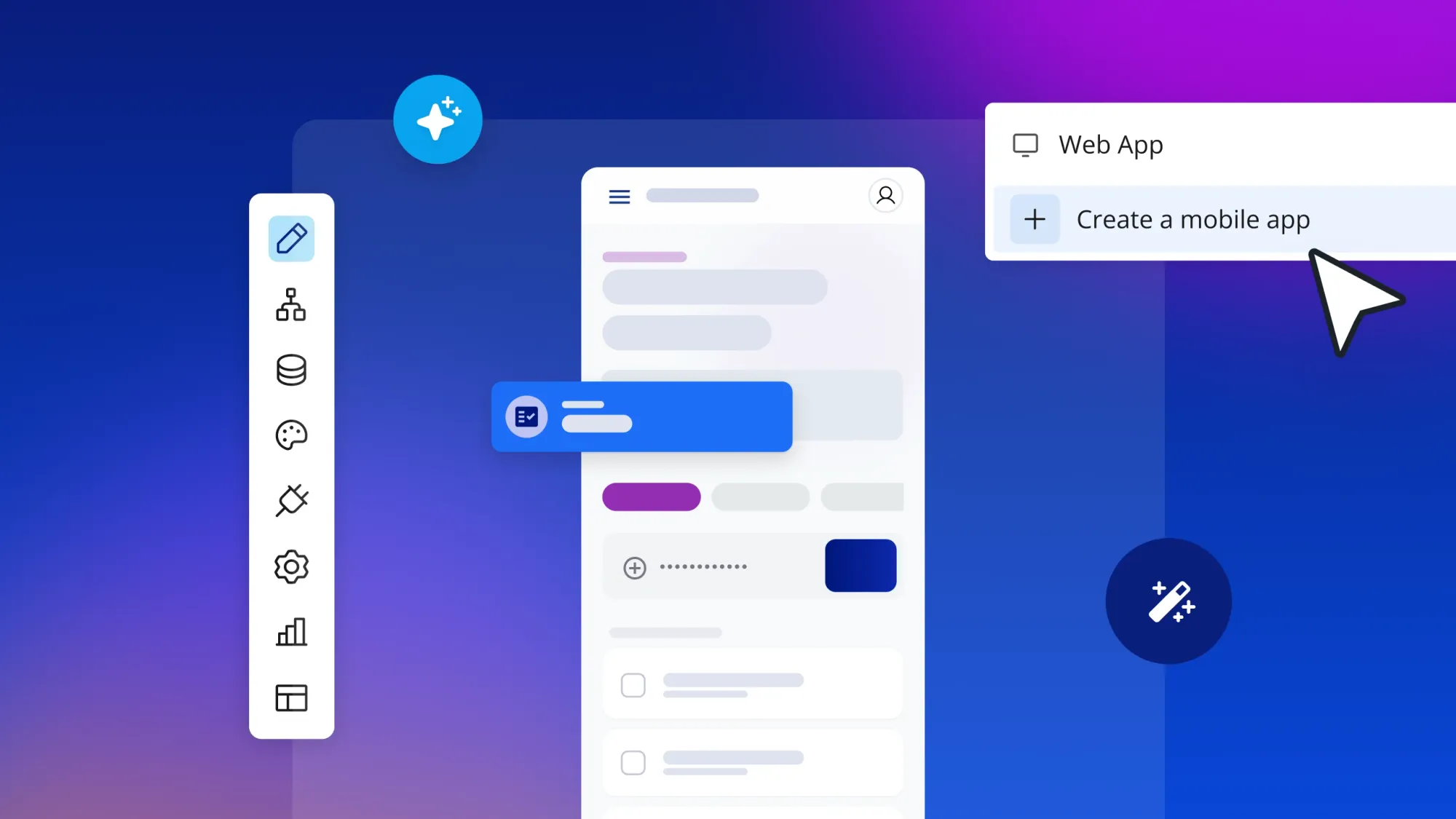
On Bubble, integrations are part of the app itself. You connect a service through the API Connector, which works with almost any external API and turns its responses into data your app can use, or through a plugin from the Bubble Marketplace, like the Stripe plugin.
Each integration then becomes a step in a workflow that reads in plain language: “When a user subscribes, call the Stripe API.” You can see exactly what it does and change it whenever you need to. Your app’s database and logic live on Bubble too, so everything an integration touches is in one place.
If endpoints and API keys are new to you, ask the Bubble AI Agent to set up the call or install a plugin. It shows what it’s about to do first and explains each step in plain language. Everything it builds stays visible and editable, so you learn as you go.
If you’d rather work from an AI tool you already use, like Claude or Codex, the Bubble MCP (beta) connects it to your Bubble app. It’s for building the app itself, and third-party services still connect through the API Connector or plugins.
Larger teams build this way too. Seagate’s Lyve team built an app on Bubble that connects to Salesforce, Zuora, and SAP and passed Seagate’s security review.
“It’s a testament to Bubble that a very small team was able to displace a large group of outsourced third-party contractors,” says Michael Ong of Seagate.
Best for:
- Founders and product teams building web or native iOS and Android apps. Ask the Agent to add Stripe checkout or an OpenAI feature, then adjust anything it built in the visual editor.
- Teams whose product depends on outside services, like payments or AI services. A subscription signup can charge a card and turn on premium features in the same workflow.
- Teams that want the integration and the interface on one platform, without a separate automation tool to maintain.
- Builders who want security built in. The security dashboard, included on all paid plans, flags exposed secrets and privacy rule gaps before you go live.
Limitations:Bubble isn’t built for automating workflows between tools you already use, so pair it with Zapier or a similar platform for that. Workload-based pricing rewards designing efficient workflows early.
Pricing:Every plan includes a monthly allowance of AI credits. Generating your app with the Agent doesn’t use them, but building and editing features with the Agent afterward does, and so does generating images.
Editing in the visual editor never uses credits, so you can always keep building without them. Paid plans can buy more credits.
Getting started is free, and you can build and test on the Free plan, though going live takes a paid plan. Starter Web is currently $29/month billed annually or $32/month billed monthly, and on October 20, 2026, it increases to $32/month billed annually or $39/month billed monthly. Existing Starter Web plans move to the new price at renewal, and you can keep $29/month for a year by buying the annual plan before October 20.
Growth, Team, and Enterprise plans sit above Starter, and Mobile and Web & Mobile plans are priced separately (Bubble pricing, as of October 2026).
Compare to:Zapier or Make for cross-tool automation outside your app; Workato for enterprise automation programs.
Common integration use cases and which platforms fit
The most common integrations follow a few patterns, whichever platform you choose.
CRM integrations with Salesforce and HubSpot
Most CRM integrations start outside the CRM, with something like a form submission or a demo booking. The flow then maps the person’s details onto a contact or deal.
The most common problem is duplicate contacts. A “find or create” step keyed on email updates a returning visitor’s record instead of adding a new one. Decide early, too, whether sales updates like lifecycle stage need to flow back to marketing.
Zapier, Make, and n8n all handle form-to-CRM flows well, and Workato suits Salesforce programs that span many teams. If the CRM connection is part of an app you’re building, like a client portal, you can connect your Bubble app to Salesforce or HubSpot through the API Connector.
Accounting integrations with QuickBooks and Xero
Accounting integrations usually kick in when a deal closes or a payment comes through. The flow then creates or updates an invoice in QuickBooks or Xero, filling in the customer and line items.
Most errors come down to two details:
- Customer matching: Match on a stable ID or email so invoices don’t land on the wrong account.
- Invoice status: Draft, sent, paid, and void each mean something different, and marking an invoice paid in two places can double-count revenue.
If finance also wants payment status back in the CRM, plan for that as its own flow.
Zapier, Make, and n8n all have QuickBooks and Xero connectors, and Celigo is the stronger choice when NetSuite runs your books. If you’re building on Bubble, your app’s own workflows can send accounting updates as orders and payments happen.
Payment integrations with Stripe
Stripe integrations run on webhooks: messages Stripe sends when something happens, like a successful checkout or a failed payment. Your integration listens for those messages and acts on them.
Stripe sometimes sends the same event twice, so make sure your flow can’t grant access or create an invoice more than once. Test failed and canceled payments in a Stripe sandbox before going live, too, since those are the cases customers notice.
Zapier and Make work well for routing Stripe events to Slack or your accounting software. Taking payments inside a product is a different job, because each payment has to change what a user can do. On Bubble, you can use the Stripe plugin or ask the Agent to “call the Stripe API when a user subscribes,” then review and adjust what it sets up.
How to choose the right no-code integration platform
Three questions narrow it down quickly.
Where does the integration live?
- Between two existing tools: If you’re connecting apps you already use, a pure iPaaS like Zapier, Make, n8n, or Workato is the right starting point.
- Inside a product you’re building: If the integration is part of your app’s user experience, a fully visual app builder like Bubble handles both the interface and the connection in one place, with workflows, data, privacy rules, and API calls visible and editable.
- Across company boundaries: If your data has to sync with a partner’s or customer’s tools, cross-company sync tools like Exalate or ONEiO handle the separate authentication and governance on each side.
Who maintains it?
What are your security requirements?