Over 79% of online shoppers prefer to make purchases on their smartphones. If your product videos buffer, load slowly, or drain data on mobile, customers leave before they see the product. In the retail space, that directly impacts conversion rates.
Cloudinary’s Video Player SDK solves this with a lightweight HTML5 player that handles adaptive streaming, responsive resizing, and format optimization automatically. In this tutorial, you’ll set up a mobile-optimized video player in a React app that loads fast, scales across screen sizes, and adapts to network conditions.
- Source Code: https://github.com/ugwutotheeshoes/cloudinary-video-player-react
By the end of this tutorial, you’ll have a video player component that:
- Plays videos from your Cloudinary Media Library.
- Scales responsively across phones, tablets, and desktops.
- Streams adaptively based on the customer’s network speed.
- Delivers videos in the optimal format (MP4, WebM) and compression level automatically.
- Meets WCAG 2.1 AA accessibility standards out of the box.
Here’s the finished player running on both desktop and mobile:
Shoppers rely on video for quick product decisions. Demos, how-to content, and customer testimonials build the trust that drives purchases. On mobile, customers expect those videos to start playing within seconds on smaller screens, lower bandwidth, and less powerful hardware.
A mobile-first video player is designed to:
- Play videos on slower networks without buffering.
- Adapt to different screen sizes and orientations automatically.
- Improve SEO performance, particularly for mobile-first indexing.
- Provide engagement metrics such as watch time and drop-off points.
With that context, you can start building the player.
Before you start, make sure you have:
- A free Cloudinary account. Note your cloud name from the dashboard.
- Node.js installed on your computer.
- Basic knowledge of React.
Note:
This tutorial uses React, but the Cloudinary Video Player SDK works with any JavaScript framework (Vue, Angular, Svelte) or plain HTML.
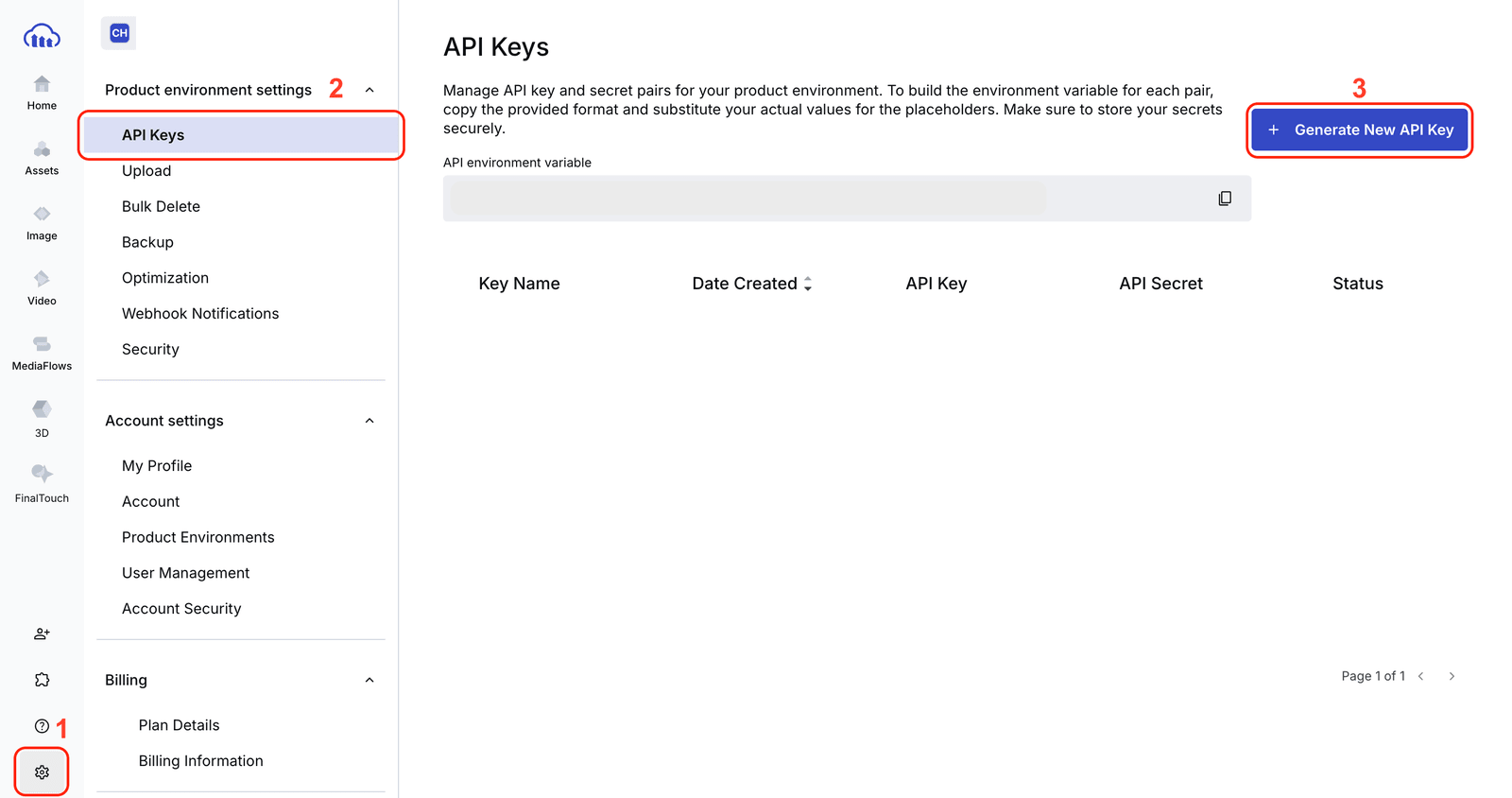
Start by uploading a video to your Cloudinary Media Library:
- Log in to the Cloudinary console.
- Navigate to the Media Library tab.
- Click Upload, choose your video file, and wait for the upload to complete.
Note the video’s public ID. You’ll use it in Step 4 to load the video in your player component.
Navigate to your Cloudinary dashboard and copy your cloud name. You’ll need it to connect the video player to your account.
Create a new React app with Vite and install the Cloudinary Video Player package:
That gives you a working React app with the video player SDK ready to use.
Create a new file at src/components/VideoPlayer.js. This component initializes the Cloudinary Video Player and renders a responsive video element:
Here’s what each part does:
- useRef() keeps references to both the Cloudinary instance and the <video> DOM element. This prevents re-initialization on re-renders.
- videoPlayer() initializes the Cloudinary player with your cloud name and enables playback controls.
- player.source() loads the video by its Cloudinary public ID.
- cld-fluid makes the player responsive. It scales to fit its container while maintaining the video’s aspect ratio.
Replace your-cloud-name with the cloud name you copied in Step 2.
Import the component in your App.js file and pass your uploaded video’s public ID as a prop:
Replace Sport_Training and demo-video with the public IDs of videos from your Cloudinary account.
The cld-fluid class handles basic responsive scaling, but you can add CSS for finer control over the player’s appearance:
The max-width: 100% and height: auto rules ensure the player never overflows its container, and the border radius and shadow give it a polished look that fits a retail product page.
Run your app to see the player in action:
Open the app in your browser and resize the window to confirm the player scales correctly. Then open your browser’s device toolbar (or test on an actual phone) to verify the mobile layout.
Check these during testing:
- The video starts playing without long buffering delays.
- The player fills its container width on both desktop and mobile.
- Playback controls are visible and tappable on mobile screens.
- The video maintains its aspect ratio at every screen width.
With the player running, here are seven practices to keep your mobile video delivery fast and reliable.
- Use lazy loading. Load videos only when they enter the viewport. This improves initial page load time significantly, especially on pages with multiple product videos.
- Enable adaptive streaming. Adaptive bitrate streaming (ABR) adjusts video quality based on the customer’s network speed. Cloudinary’s Video Player supports this automatically. Customers on fast connections get high quality. Customers on slower networks get a lower resolution that still plays without buffering.
- Compress and optimize video files. Serve videos in formats like MP4 or WebM. Cloudinary applies compression and format optimization automatically through its transformation system, reducing file size without visible quality loss.
- Design for responsive layouts. Make sure the player scales across screen sizes. The cld-fluid class handles this, but always test on real devices. Emulators can’t replicate real-world network conditions and touch interactions.
- Monitor Core Web Vitals. Track Largest Contentful Paint (LCP), Cumulative Layout Shift (CLS), and First Input Delay (FID) using Google’s PageSpeed Insights. Video players that aren’t optimized are a common cause of poor LCP scores on product pages.
- Add structured metadata. Implement VideoObject schema markup on pages with video. This helps search engines understand your video content and can improve visibility in search results.
- Test on real devices. Run your player on actual phones and tablets across different network conditions (WiFi, 4G, 3G). Real-device testing catches performance issues that browser emulators miss.
You built a lightweight, mobile-first video player using Cloudinary’s Video Player SDK in a React app. The player scales responsively, streams adaptively, and delivers videos in the optimal format and quality for each device. All optimization happens on Cloudinary’s servers and CDN. No client-side video processing required.
Here are a few ways to take this further:
- Add video analytics. Use the Cloudinary Video Player’s analytics events to track watch time, engagement rates, and drop-off points for your product videos.
- Implement playlists. Create product video playlists that auto-advance through demos, testimonials, and how-to content on a single product page.
- Add custom branding. Customize the player’s skin, colors, and logo overlay to match your retail brand.
- Try shoppable video. Use Cloudinary’s interactive video features to add clickable product links directly inside the video player.
Sign up for a free Cloudinary account and try it with your own product videos.
Resources:
- Full source code on GitHub
- Cloudinary Video Player SDK documentation
- Cloudinary video transformations
- Google PageSpeed Insights
- WCAG 2.1 accessibility guidelines
Yes. The Cloudinary Video Player SDK is framework-agnostic — it works with Vue, Angular, Svelte, or plain HTML, in addition to React. The core setup is the same across frameworks: initialize the player against a video element and pass a Cloudinary public ID as the source. See the Cloudinary Video Player documentation for framework-specific guidance.
The cld-fluid class tells the Cloudinary Video Player to scale to fit its container while preserving the video’s aspect ratio, so it adapts automatically across phones, tablets, and desktops without extra media queries. You can combine it with your own CSS (like max-width: 100%) for finer control, and layer on additional customization through the Video Player customization options.
Yes. The Cloudinary Video Player is built to meet WCAG 2.1 AA standards, including keyboard navigation, screen reader support, and caption/subtitle handling, so users with visual, auditory, motor, or cognitive impairments can engage with your videos using assistive technologies. See the Video Player accessibility documentation for the full feature set.
No. Cloudinary applies format and compression optimization automatically through its transformation system, delivering each visitor the smallest file that still looks sharp on their device and browser — no need to store or manage multiple format variants yourself. This is covered in the video optimization documentation.
Yes. Cloudinary’s Shoppable Video feature, included in the standard Video Player package, lets you add a clickable products bar and on-video hotspots that link viewers directly to a product page as they watch. Setup and configuration options are in the Shoppable Video documentation.