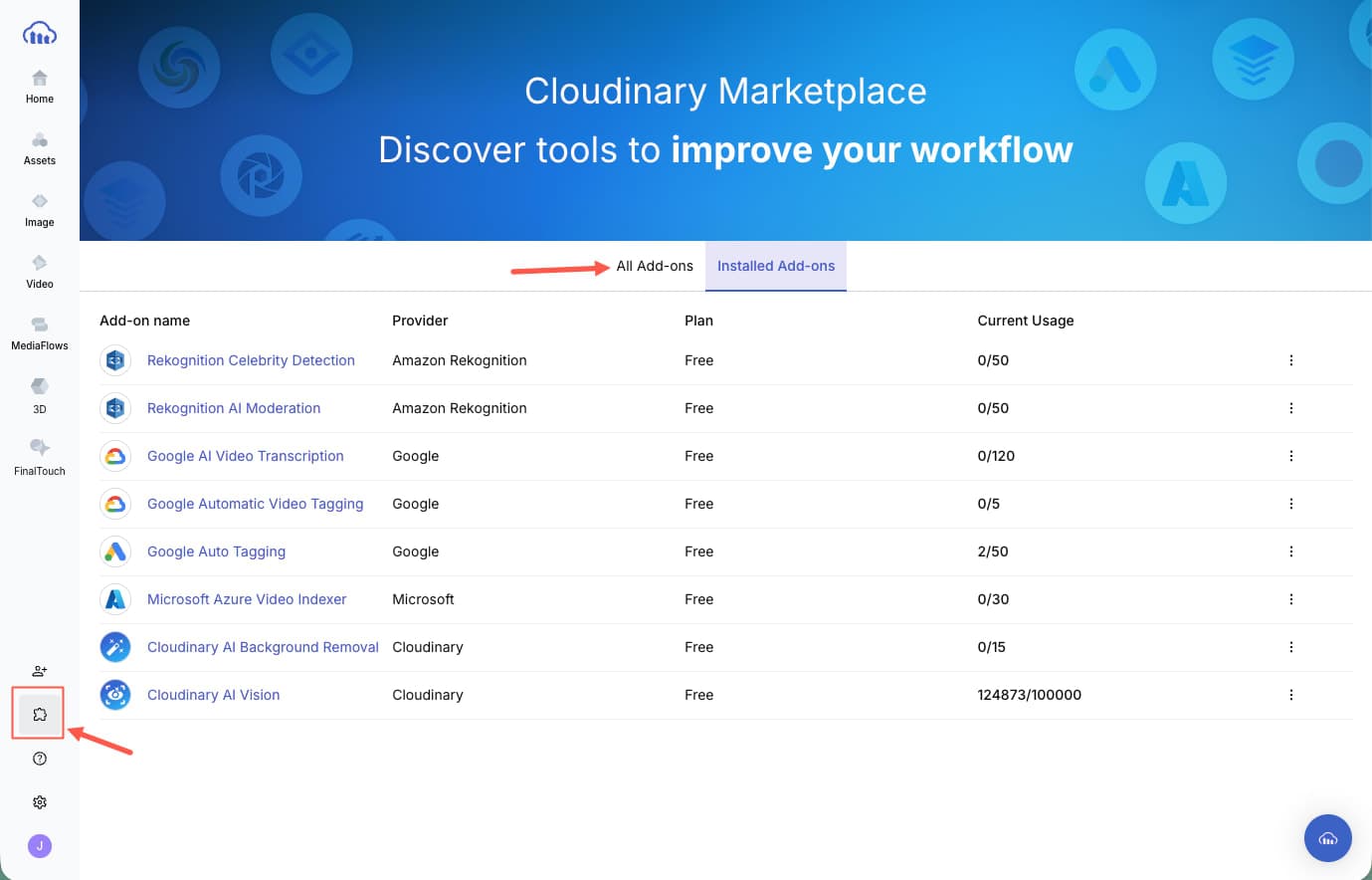
A social preview can be the first part of an article that a reader sees. This tutorial builds those previews from page data instead of exporting a new image whenever a title, author, or background changes.
The working project uses Cloudinary to crop a source asset, darken it, add text layers, optimize delivery, and return one shareable URL. A Vite studio makes the transformation visible, while the included Next.js recipe connects the same idea to page metadata.
TL;DR: Store each source image in Cloudinary, then keep its public_id with your article data. Build a Cloudinary delivery URL from that ID, the article title, and your brand settings. In a Next.js App Router project, return that URL from generateMetadata. In a Pages Router project, use CldOgImage.
This approach keeps the original asset unchanged. Cloudinary creates the requested derivative and distributes it through its global delivery infrastructure. You maintain one transformation recipe instead of a static social-image file for every page.
- Open the live Edge OG Studio.
- Browse the GitHub repository.
- Read the complete Next.js production recipe.
The Vite studio generates Cloudinary URLs and illustrates Facebook, X, LinkedIn, and Slack previews. The Next.js recipe emits the production metadata.
The studio combines five parts of a social-image workflow:
- A Cloudinary asset library and browser upload
- A 1200 x 630 transformation with automatic gravity
- Dynamic text layers for the series, title, and author
- An editable alt-text field stored as upload context
- Feed previews that reuse the same generated URL
Open the complete editor in StudioPage.tsx and the platform cards in SocialPreviews.tsx.
Open the complete editor in and the platform cards in .
When you share an article on Facebook, X, or LinkedIn, the platform does not take a screenshot of the page. It reads the page’s Open Graph metadata. One field, called og:image, tells the platform which image to show with the article title and description.
In this project, Next.js creates a different og:image value for each article. That value is a Cloudinary URL built from the article’s hero image, title, and author. When a social platform requests the URL, Cloudinary crops the hero image, places the article details on top, and returns the finished 1200 x 630 social card.
This process gives every article its own preview while keeping one reusable design. You update the article data, and the generated social card reflects that change.
The Cloudinary image URL is an address that also contains transformation instructions. It tells Cloudinary which source asset to use, how to crop it, and which text to place on top. The Vite studio displays that same URL so you can preview the result before connecting the recipe to Next.js metadata.
In this tutorial, “at the edge” means the completed transformation is distributed through Cloudinary’s global delivery infrastructure. It does not mean that the example runs in the Next.js Edge Runtime.
You’ll need:
- Node.js 22
- A Cloudinary account and product environment
- A Next.js project for the production metadata integration
- Basic React and TypeScript knowledge
- A Netlify account only if you want to reproduce the demo deployment
Clone and run it:
An upload preset stores upload rules in Cloudinary. The browser sends the preset name, and Cloudinary applies the preset’s folder, naming, format, size, and security settings.
Open Cloudinary Console > Settings > Upload > Upload Presets, then select Add Upload Preset. Use these values for this build:
Cloudinary documents these controls in its upload preset guide. Preset names remain visible in browser code, so apply the listed restrictions.
Add edge-og-studio and blog-hero under Manage and Analyze > Tags. You can also add an incoming c_limit,w_2400,h_2400 transformation to reduce oversized originals before storage.
Don’t add f_auto to an incoming transformation. Automatic format selection depends on the delivery request, so it belongs in a delivery URL.
Use an unsigned preset for a controlled public demo where preset restrictions define the allowed upload behavior. Use a signed upload for authenticated authors, private workflows, tenant-specific folders, or server-approved parameters.
A signed Next.js upload needs a server route that reads CLOUDINARY_API_SECRET. Never place that secret in a Client Component or a NEXT_PUBLIC_ variable.
The Vite demo reads two public values from .env.example:
Vite includes variables prefixed with VITE_ in browser code. A cloud name and unsigned preset are designed for that boundary. An API secret is not.
The Next.js equivalent uses:
Public delivery and getCldOgImageUrl need the cloud name. Add the secret only when a server route signs uploads or calls a protected management API. See the Next Cloudinary installation guide.
A Cloudinary transformation URL describes the source, crop, dimensions, effects, layers, format, and quality.
The project creates one configured Cloudinary instance:
See the complete configuration in src/lib/cloudinary.ts.
See the complete configuration in .
The transformation starts with a fixed social-card canvas:
- How: fill covers the complete canvas, while automatic gravity selects a crop around visually important content. The brightness adjustment creates contrast behind white text.
- Why: Every card needs predictable dimensions and readable typography, even when source images have different aspect ratios.
- When: Use fit instead of fill when showing the complete source matters more than filling the canvas. Use a manual gravity value when an editor must control the crop.
Cloudinary’s image transformation guide describes resize and crop behavior.
Cloudinary’s image transformation guide describes resize and crop behavior.
Cloudinary treats text as a generated layer. You can style and position that layer like an image overlay.
The title layer from the build looks like this:
- How: The layer uses Arial, a variable font size, white text, a `950 × 310` fitting box, southwest gravity, and explicit offsets. The SDK encodes special characters for the delivery URL.
- Why: The fitting box constrains long titles, while gravity and offsets keep the text aligned to a stable layout.
- When: Use a custom font when brand typography matters. Cloudinary supports uploaded custom fonts. Test every expected language and title length before publishing.
The builder also adds a series label and author line. The same pattern can render a description, date, category, price, or brand element. This build keeps the description in page metadata.
Read the official Cloudinary layer guide, text layer options, and Next Cloudinary text overlay guide.
Read the official Cloudinary layer guide, text layer options, and Next Cloudinary text overlay guide.
The browser studio applies f_auto and q_auto.
`f_auto` selects a supported delivery format from the request’s browser capabilities. q_auto analyzes the image and format to choose compression settings. Read the automatic format documentation and automatic quality documentation.
Use this pair for browser-rendered previews and page images. For social metadata, format support depends on the crawler. getCldOgImageUrl uses JPEG by default to favor social-crawler compatibility, while still applying automatic quality. Choose an explicit format when a platform’s crawler does not send normal browser headers.
The studio keeps the editable values in React state and recalculates the URL when an input changes:
- How: React passes the selected `public_id` and page data to the Cloudinary builder.
- Why: The preview always represents the current editor state, and each platform card receives the same URL.
- When: In a content management system (CMS), build the URL from saved post data on the server instead of interactive browser state.
The project loads Cloudinary’s Upload Widget script and configures one image per operation:
Before opening the widget, the component calls the documented widget `update` method to replace context.alt with the current reviewed text.
See the complete UploadWidget.tsx.
See the complete .
- How: Cloudinary stores the original asset, tags, folder placement, and contextual metadata. The callback returns the asset’s `public_id`.
- Why: Later transformations need the stable `public_id`, not an uploaded file object or a local path.
- When: Use the unsigned widget for public demos with restricted presets. Use signed uploads for authenticated publishing tools.
The demo stores returned public IDs in localStorage, then requests those images from Cloudinary after refresh. The browser list is not an authenticated Cloudinary search.
For a multi-user library, add a server route that calls the Cloudinary Search or Admin API and verifies folder access. Keep its API secret on the server.
Open Graph metadata describes a shared page. Social crawlers read tags such as og:title, og:description, and og:image. Use Next.js generateMetadata when those values depend on a route parameter, database record, or CMS response.
Install Next Cloudinary in the Next.js application:
Build the social URL from the current post:
This is the Next Cloudinary equivalent of the Vite URL builder.
Review the official getCldOgImageUrl guide and the repository’s .
Review the official getCldOgImageUrl guide and the repository’s .
After building imageUrl with the previous call, return it for both Open Graph and X metadata:
- How: Next.js converts the returned object into page-specific <meta> tags.
- Why: A crawler receives the article title, description, image URL, dimensions, and reviewed alt text from the page response.
- When: Use generateMetadata for an App Router page whose metadata depends on the current post. Use a static `metadata` object when every page in a segment shares the same values.
The Next.js Metadata API documentation explains metadata resolution, Server Component requirements, and generated tags.
The explains metadata resolution, Server Component requirements, and generated tags.
CldOgImage creates Cloudinary-powered social tags for the Next.js Pages Router:
Place the component outside `next/head`. It does not render a visible `<img>` element. It injects social metadata into the document.
CldOgImage doesn’t support the App Router. Use getCldOgImageUrl with generateMetadata there. The official CldOgImage documentation states this router boundary.
Use the smallest approach that matches your publishing model:
Next.js documents both static files and generated opengraph-image routes.
Cloudinary fits systems that need reusable crops, overlays, and optimization. Use a custom route for JSX composition and a static file for stable artwork.
Test the transformation URL before testing a social crawler:
1. Run npm run dev.
2. Change the title, author, accent, font size, and source asset.
3. Select Copy delivery URL.
4. Open the URL in a private browser window
5. Confirm the image returns, the title fits, and the subject remains visible
6. Inspect the URL for the crop, layer, format, and quality instructions
Test the production Next.js metadata from a deployed article URL:
Confirm that:
– og:image contains an absolute Cloudinary URL.
– og:image:width and og:image:height match the output.
– og:image:alt contains reviewed text.
– twitter:card equals summary_large_image.
– The Cloudinary URL returns HTTP 200 without authentication.
Then submit the article URL to the Meta Sharing Debugger and LinkedIn Post Inspector. Both can request a new scrape. Existing posts can retain older previews.
The Vite studio deploys to Netlify with the checked-in netlify.toml:
The rewrite keeps /about available during direct navigation. Netlify recommends npm run build and dist for Vite deployments.
Add these build variables in Netlify:
After deployment:
1. Open the home page and /about.
2. Refresh /about to verify the single-page application rewrite.
3. Upload one disposable test image.
4. Confirm its asset folder, tags, and context in Cloudinary.
5. Copy and open the generated transformation URL.
6. Remove the disposable asset from Cloudinary when testing finishes.
The live Vite deployment verifies the editor and image-generation workflow. A production blog must also deploy the Next.js metadata integration and verify the emitted tags on an article route.
The finished workflow turns article data into a Cloudinary delivery URL, then uses Next.js metadata to publish that URL to social crawlers. Text layers keep the title, series, and author synchronized with the page, while delivery transformations handle crop, placement, format, and quality.
Use getCldOgImageUrl with the App Router, CldOgImage with the Pages Router, and static images when the content does not change. Keep upload permissions and API secrets on the correct side of the browser boundary, then verify both the image response and the generated metadata after deployment.
Ready to start building with Cloudinary? Sign up for a free account and build better visual experiences today.
A dynamic Open Graph image is a social image whose URL or rendered content depends on page data. This project combines a Cloudinary source asset with the article title, series, author, typography, and brand color.
No. CldOgImage supports the Pages Router. Use getCldOgImageUrl inside generateMetadata for the App Router.
No. Delivery transformations create derived versions from URL instructions. The original asset remains available unless an upload-time incoming transformation changes it.
No. The preset name appears in browser code. Restrict the preset by format, size, folder, and public-ID behavior. Use a signed server endpoint when uploads require authorization.
Browser previews benefit from automatic format selection. Social crawlers do not always advertise the same format support as browsers, so getCldOgImageUrl defaults to JPEG for broader crawler compatibility.