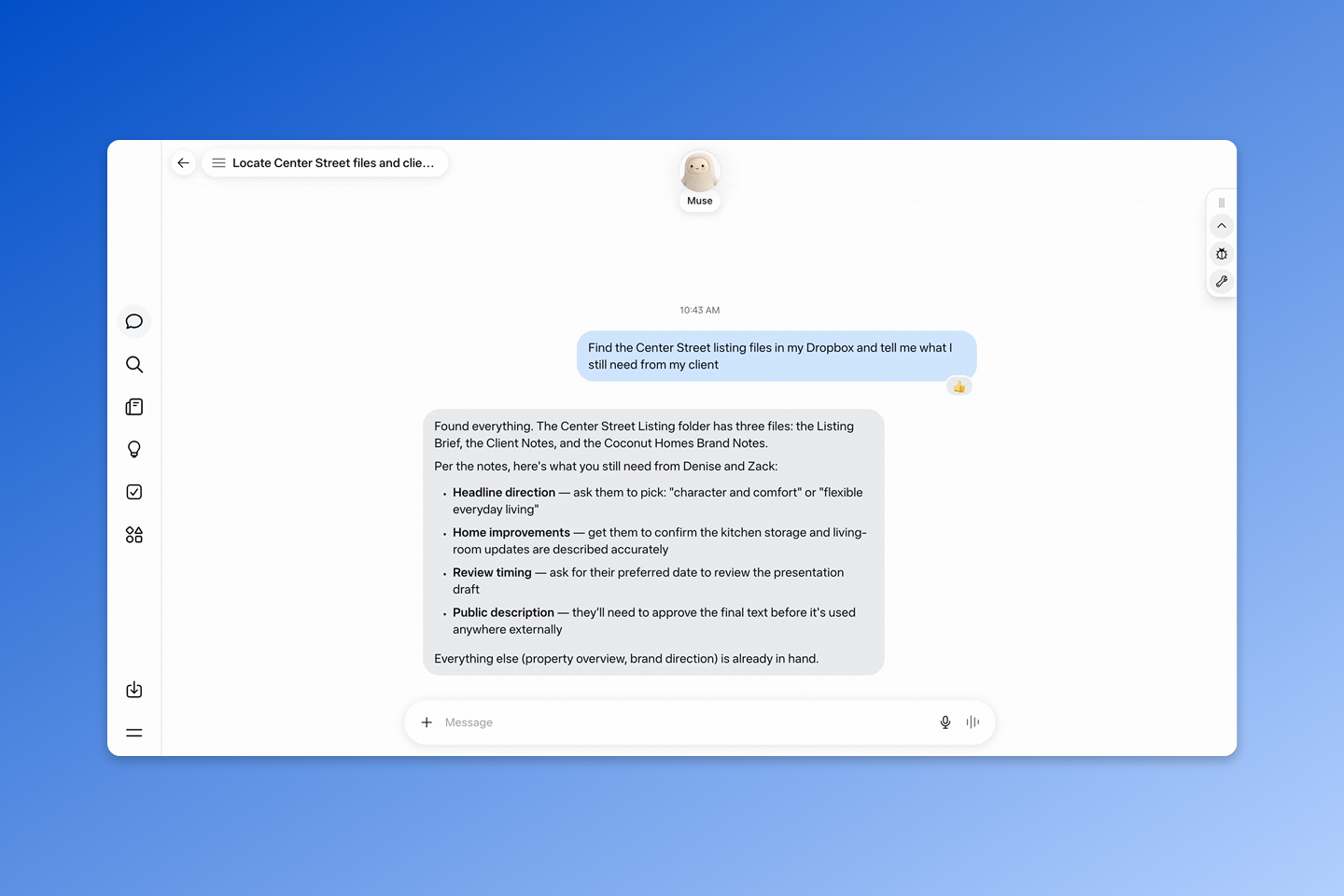
Give Muse the goal. Start with the work already in Dropbox.
Say you run a small business and you’re onboarding a new customer. Your onboarding checklist, welcome materials, service information, and project templates are already in Dropbox. Instead of managing every step separately, you could ask Muse: "Onboard this customer using our materials in Dropbox."
With the Dropbox connector enabled, Muse can use those materials to identify the required steps, information, and project milestones. It can create a customer folder, organize the relevant documents, set up a file request for anything that’s missing, and prepare a shared link for the customer. Muse can also draft a welcome note and kickoff checklist or coordinate next steps with other connected apps, where supported.
Dropbox gives Muse more than the document that starts the process. It provides the source materials and project history behind the work, connecting what was agreed to incoming assets, new work, and final deliverables as the project moves forward. That means Muse doesn’t have to start with an isolated prompt or ask you to reconstruct the background every time.
Muse can help plan and coordinate the steps using the context available through Dropbox. For supported workflows, Muse is designed to continue working after you close the app and return when it needs your input or approval.
Build on the work you've already created
The same applies to creative work. A long-form video in Dropbox might sit alongside brand guidelines, past scripts, campaign plans, and reference assets. Ask Muse to "turn this into a week of content," and it can work from that existing body of work instead of starting from a blank prompt.
Muse can identify key themes and help prepare a video description, newsletter copy, social captions, and short-form concepts. Through the Dropbox connector, it can organize those materials into a campaign folder alongside the original recording, keeping the source, brand context, and new work together.
For freelancers and small-business owners managing several projects at once, Muse can also help create a clearer view of what needs attention. Ask it to surface missing client inputs, upcoming deliverables, and decisions that need your attention using the project materials in Dropbox. You spend less time reconstructing where each project stands and more time acting on what needs to happen next.
How Muse accesses and actions on your Dropbox content
When you authorize the Dropbox connector, you grant Muse permission to access the files and folders available through the Dropbox account you connect. Connecting Muse does not change your existing Dropbox sharing settings. When you connect Dropbox to Muse, Meta's terms and privacy policies apply to how Muse accesses and uses your content. Dropbox keeps your source files safe in your account, while Meta governs how its AI agent interacts with them.
Muse can search and retrieve your Dropbox content in the connected account and use Dropbox tools to create and organize files and folders, create shared links, and set up file requests as part of the workflows you request. Your Dropbox content should only be used by Muse in accordance with how you instruct Muse to do so.
Actions that change your Dropbox content — such as creating files, folders, or shared links, or moving, copying, or deleting content — will prompt Muse to request additional confirmation. You can review and change these permissions in your Muse account settings.
Getting started
The Dropbox connector for Muse is available in English to users in the United States and Canada. It works with all Dropbox accounts and is available across all Muse plans.
To connect your Dropbox account, log in to Muse, open the menu in the bottom-left corner, and select Settings. Go to Connectors, search for Dropbox, and click Connect. Review the connection details and click Connect again, then sign in to Dropbox and authorize Meta Muse to access your account. Once you approve access, your Dropbox account will be connected to Meta Muse.
Learn more about using Dropbox with Muse.
Need help? Visit our Help Center for additional information.