AI coding agents don’t have to run only on a developer’s machine. You can also make them part of your CI/CD workflows to review code, investigate failed builds, update documentation, or handle other repository tasks.
The new experimental AI Agents plugin for TeamCity lets you run Codex and Claude Code directly in TeamCity builds and connect them to the LLM provider of your choice.
The plugin installs the coding agent on the TeamCity build agent, provides credentials safely for the duration of the build, and collects usage statistics and agent trajectories.
When a build starts, the plugin checks whether the selected client is available and installs it if necessary. You can then call codex or claude from a regular TeamCity Command Line build step.
Install the plugin
What does the AI Agents plugin do?
The plugin handles much of the setup needed to run coding agents reliably in CI.
Connect to your preferred LLM provider
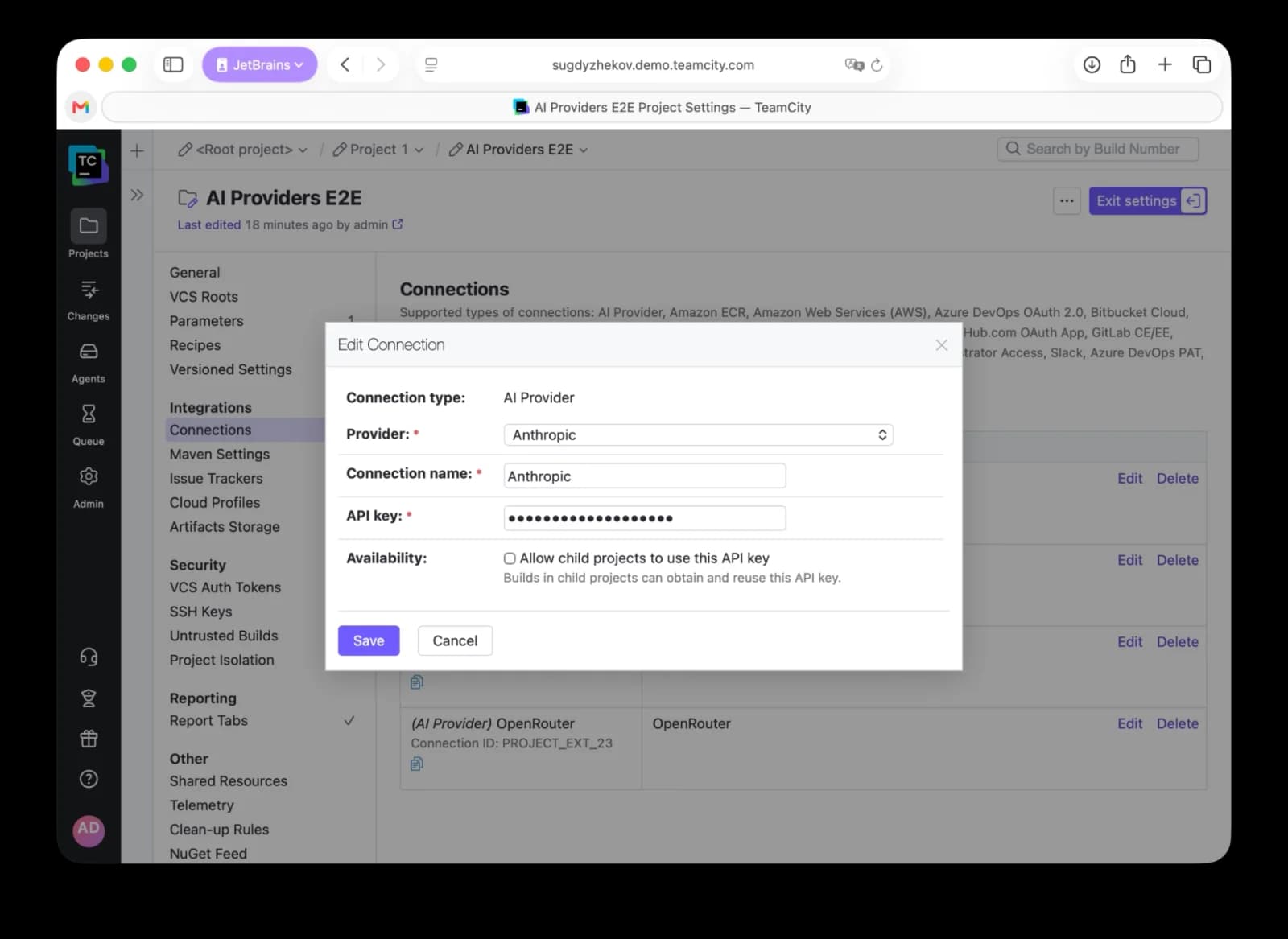
The plugin stores your provider credentials as a TeamCity connection. It currently supports:
- JetBrains Air
- OpenAI
- Anthropic
- LiteLLM
- OpenRouter
This is not limited to models provided directly by these services. Gateways such as OpenRouter and LiteLLM give you access to a much wider range of models, so you can choose models and providers that make sense for your team.
Run Codex and Claude Code without preinstalling them
You don’t have to install Codex or Claude Code manually on every TeamCity build agent. When a build starts, the plugin checks whether the selected client is available and installs it if necessary. You can then call codex or claude from a regular TeamCity Command Line build step.
Keep provider credentials out of your build agents
TeamCity build agents are often reused across builds, so leaving provider credentials on an agent can be a security risk. The plugin provides the necessary credentials to the TeamCity agent only for the duration of the build and removes them afterward.
Your provider credentials are managed through the TeamCity connection rather than permanently stored on individual build agents.
Track token usage
The plugin collects usage statistics from agent runs and publishes them as TeamCity statistical values, including prompt, completion, cached, and total token counts.
Because these are regular TeamCity statistics, you can use them to track AI usage over time and create charts. This can also help you spot unexpected changes in token consumption and investigate possible cost anomalies.
Inspect and analyze agent trajectories
When an AI agent does something unexpected, seeing its final response is often not enough. You need to understand what happened along the way.
The plugin records the agent trajectory and makes it available in two formats:
- HTML gives you a readable view of the agent’s messages, tool calls, and token usage.
- JSON makes trajectories available for programmatic analysis.
The JSON format is especially useful when you want to analyze multiple agent runs together, like to understand why an agent behaves a certain way or how to adjust the original prompt to get better results.
You can also use a local coding agent together with the TeamCity CLI to retrieve trajectories from multiple builds and analyze them in batches. This gives you a practical feedback loop: run an agent in CI, collect its trajectories, analyze what happened across multiple runs, adjust the prompt, and try again.
This makes trajectories useful both for debugging individual builds and improving the agent workflows you run in CI.
Set up the plugin
Install the plugin from JetBrains Marketplace and add it to your TeamCity server.
1. Create a connection
First, you need to set up a connection. The plugin supports various LLM providers and gateways. Open Project Settings | Connections.
Supported providers:
- OpenAI
- Anthropic
- OpenRouter
- LiteLLM
- JetBrains Air
Enter the credentials required for your connection and save it.
If you’re using JetBrains Air, enter your service account client ID and client secret. Each team can use its own service account, which makes it possible to track shared AI usage and spending.
2. Add the AI Agent build feature
Open the build configuration where you want to use the coding agent and add the AI Agent build feature.
Select Codex or Claude Code, then select the provider connection.
3. Add your prompt
Add a Command Line build step and call codex or claude as usual.
With Codex:
codex exec --ephemeral --skip-git-repo-check "summarize this repository"
With Claude Code:
claude -p "summarize this repository"
The plugin finds or installs the selected client and prepares its configuration for the build. You can replace these example prompts with whatever task you want the agent to perform as part of your build.
Review what the agent did
After the build finishes, the plugin publishes telemetry and agent trajectory files as hidden build artifacts under: .teamcity/ai-agents/.
It also publishes statistical values, such as prompt, completion, cached, and total token counts.
For a more convenient view, the plugin generates an HTML report showing the agent’s messages, tool calls, and token usage.
You can make this report available directly from the TeamCity build results.
Go to Project Settings | Report Tabs, create a build report tab, and use: .teamcity/ai-agents/trajectory.html as the start page and “AI Agent Trajectory” as the name. This gives you a tab where you can inspect what the agent did during the build.
A note about sensitive data
The generated artifacts may contain prompts, source code, and model output. Treat them the same way you would other sensitive build artifacts and make sure access is appropriately restricted.
Try the plugin
The plugin is currently experimental, and its functionality may change as we continue developing it.
You can install it from JetBrains Marketplace and try running Codex or Claude Code in your TeamCity builds.
Install the plugin
We’d love to hear how you’re using it and what you’d like us to improve. Share your feedback in the TeamCity Slack community.