By the Krea Team. Published October 20, 2026.
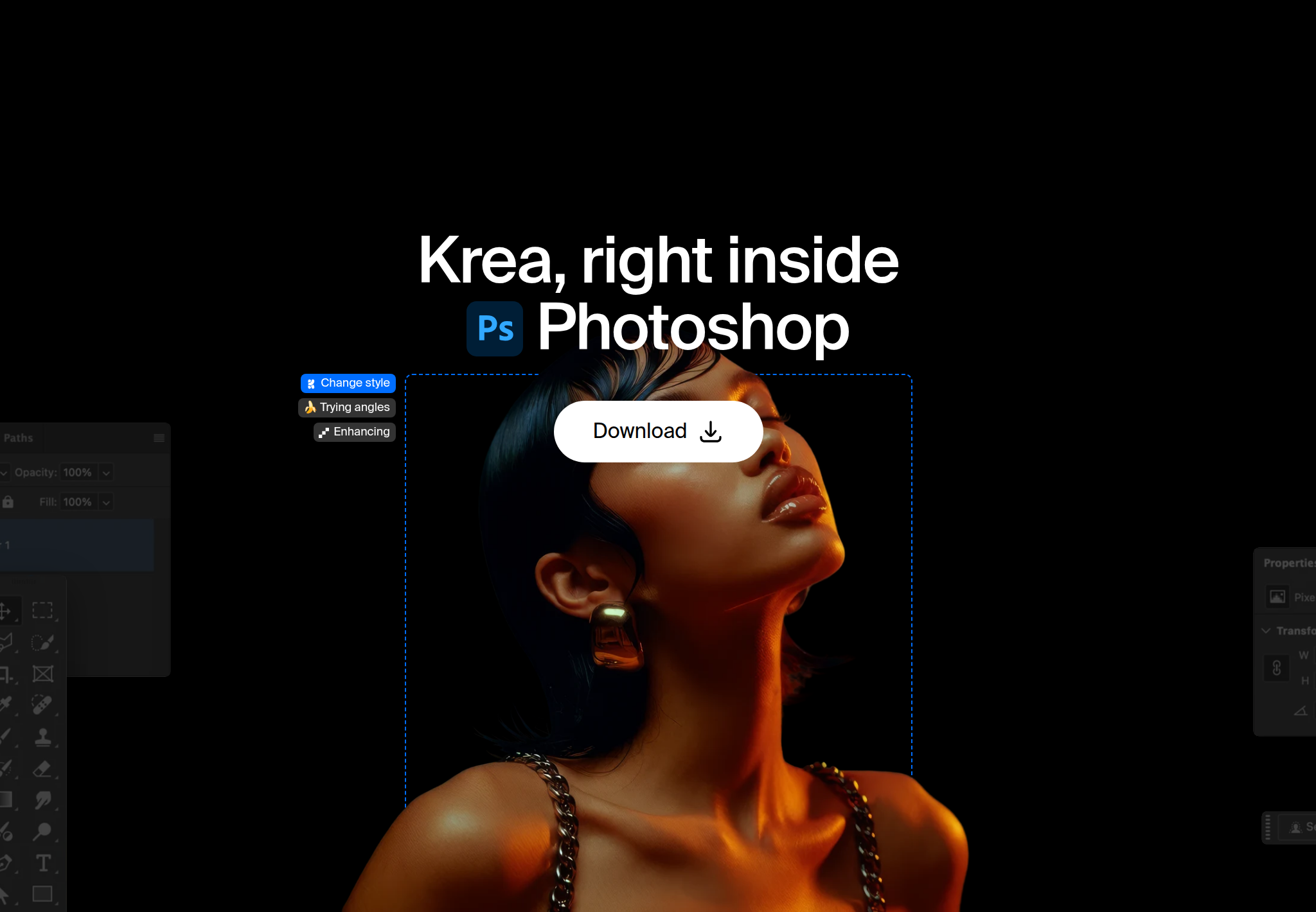
Krea for Photoshop puts Krea’s image and video generation in a panel inside your Photoshop document. Swap a background, relight a shot, turn one image into a multi-shot layout, sketch on a realtime canvas, or drop a product into a scene. Every result lands as a regular layer, so you keep working the way you already do.
Get Krea for Photoshop
Generate, relight, and swap backgrounds without leaving your document.
Open the plugin page
Is there an AI plugin for Photoshop besides Generative Fill?
Yes. Generative Fill is Adobe’s built-in tool. Krea for Photoshop sits next to it and adds Krea’s own models: background replacement, relighting, multi-shot layouts, image and video generation, a realtime canvas, and product mockups.
Generation runs on Krea’s servers, so you need an internet connection and a Krea account. You sign in the first time you open the panel.
Looking for ways to use Photoshop itself for free? Read can you use Photoshop for free. This guide covers the plugin.
How do I install Krea in Photoshop?
Krea ships a signed installer, Krea-Photoshop.ccx, for macOS and Windows. It supports recent versions of Photoshop; the plugin page lists exact requirements next to the download.
- Download the installer from the Photoshop plugin page.
- Double-click Krea-Photoshop.ccx. Creative Cloud installs it for you.
- Open the panel. On macOS, go to Window → Plugins → Krea. On Windows, go to Plugins → Krea.
- Sign in with your Krea account.
Krea also has plugins for other creative apps. See them all on Krea plugins.
How do I remove and replace a background?
Krea lifts your subject out and drops in a new background that matches the scene’s lighting and perspective. The result is a regular layer, so masking, retouching, and type stay in Photoshop’s hands.
- Open your document and select the shot you want to keep.
- In the Krea panel, describe the new background, including the light and camera angle it should match.
- Place the result as a new layer.
- Refine it like any other pixel layer.
How do I relight a shot?
Relight changes the lighting and mood of an existing shot. Try a new time of day or a different key light without a reshoot.
Reach for it when the frame is right but the light is wrong: a packshot that needs a warmer key, a portrait that needs a cooler rim, or a scene that has to sit next to differently lit art in a layout. Since the relight comes back as its own layer, you can mask it to the subject and keep the logo or label untouched on the original.
How do I make a multi-shot layout from one image?
Multi-shot layouts turn a single image into a set of consistent angles and crops, ready to place.
Use it for a campaign grid, a product page set, or a story sequence where every frame needs to look like it came from the same shoot. Each view arrives as a layer you can crop, stack, and set type on.
How do I make a product mockup?
Start from the product shot in your document, describe the scene you want, and Krea places the product into it, ready for an ad or a mockup.
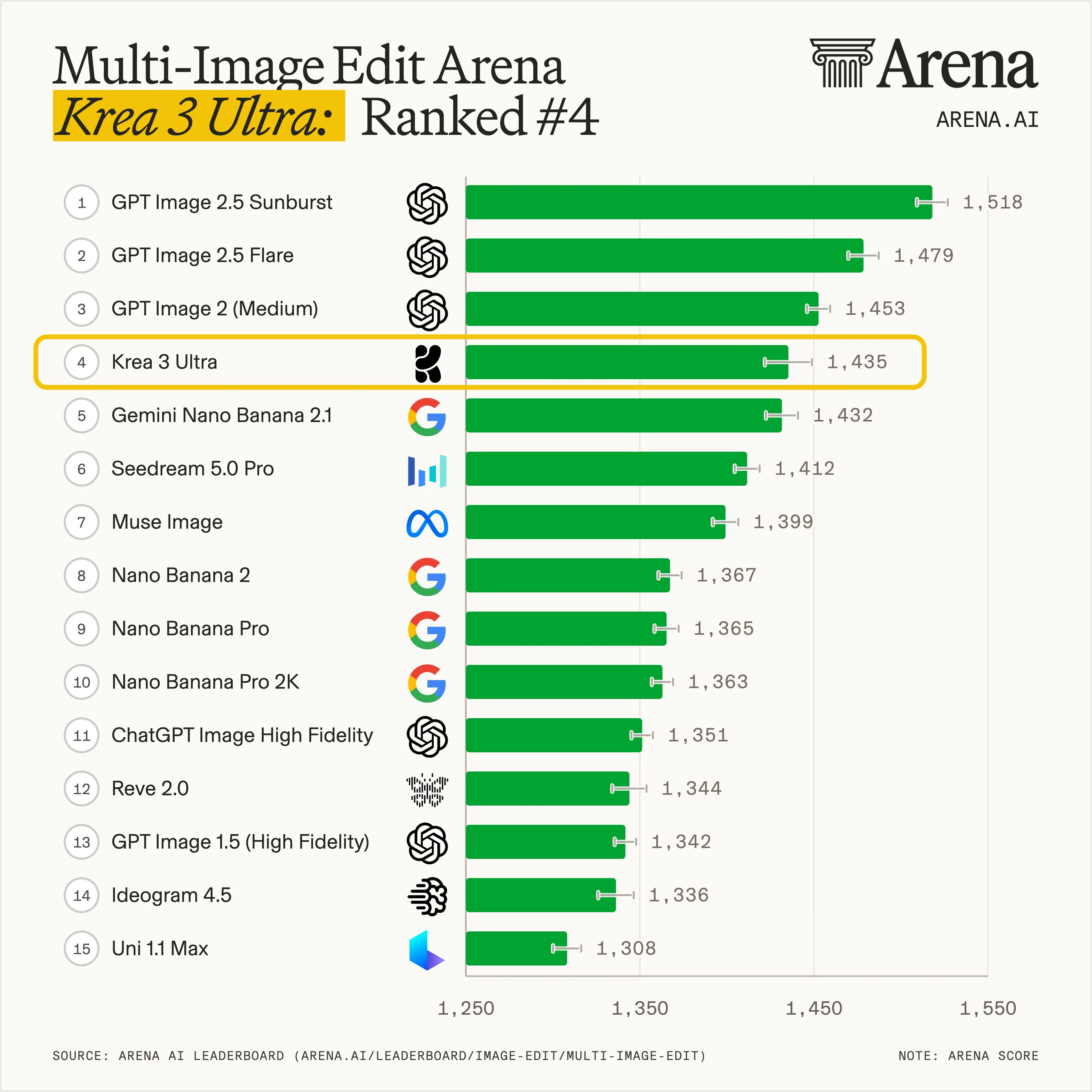
For heavier product editing, try Krea 3 on the web. It takes up to 8 reference images per edit and keeps the product intact down to the label and logo. Krea 3 is 10× faster and 3× cheaper than GPT Image 2 and Nano Banana Pro, with fast, high, and ultra modes. See how it ranks in Krea 3 benchmarks.
How does the realtime canvas work?
Sketch or type, and the image updates live as you go. It’s the same idea as Krea Realtime on the web: iterate fast while you find the direction, then generate a final version as a layer.
How does Krea compare with Generative Fill?
They work together. Krea doesn’t replace Generative Fill; it adds a second set of models to the same document.
Keep using Generative Fill for the edits you already rely on it for. Open the Krea panel when you want Krea’s models, a live canvas, or video, without exporting to another app.
Need to upscale a finished image? Use the Krea Enhancer on the web.
What other Krea plugins are there?
Krea has seven plugins. The desktop ones all work the same way: install, sign in with Krea, and generate in the app you already use.
- Krea for After Effects: plates and motion concepts in your comp.
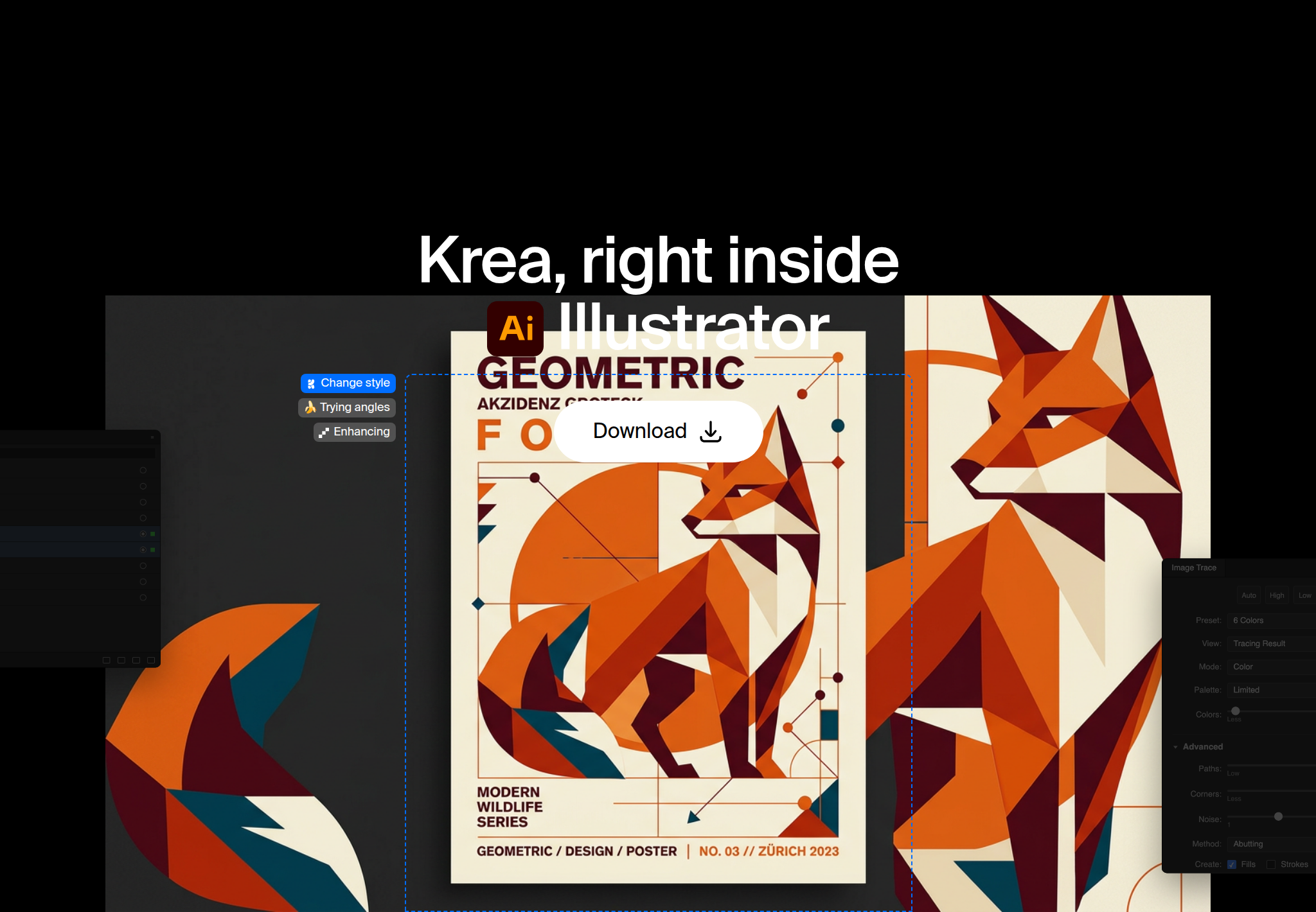
- Krea for Illustrator: artwork, Image Trace, and Krea Agent.
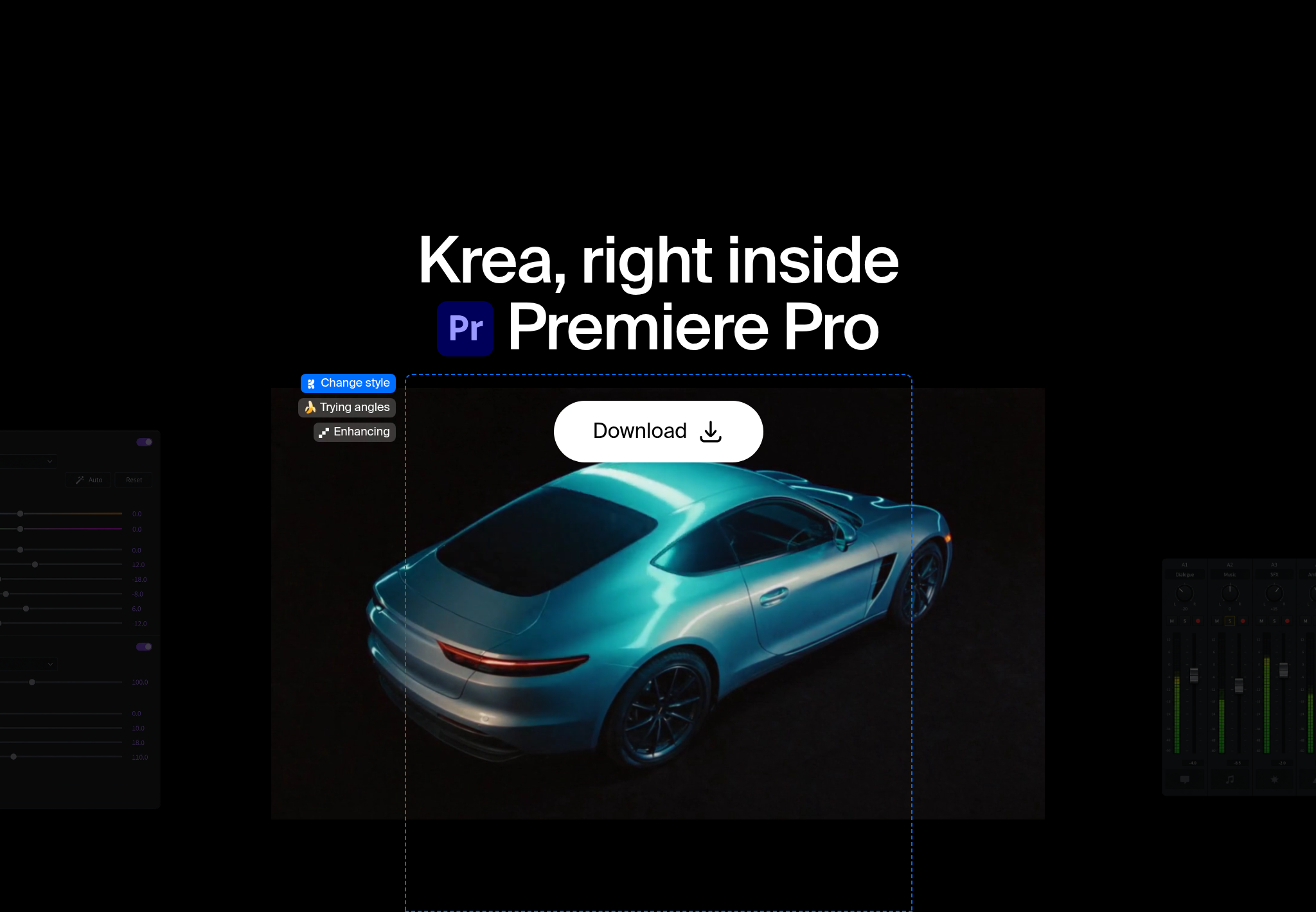
- Krea for Premiere Pro: shots, inserts, and plates on your timeline.
- Krea for DaVinci Resolve: looks and grade references (macOS and Resolve Studio only).
- Krea for Blender: materials, lighting, and render exploration.
- Krea for ChatGPT: images, edits, and video in a chat.
Yes. Krea for Photoshop runs inside your document alongside Generative Fill. It adds background replacement, relighting, multi-shot layouts, image and video generation, a realtime canvas, and product mockups. Results come in as regular layers.
Download the signed installer (Krea-Photoshop.ccx) from the Photoshop plugin page and double-click it. Creative Cloud installs Krea. Then open Window → Plugins → Krea on macOS, or Plugins → Krea on Windows, and sign in.
Krea supports recent versions of Photoshop on macOS and Windows. Exact requirements are listed with the download on the plugin page.
Yes. Generation runs on Krea's servers, so you need to be online and signed in to your Krea account.
Yes. Every result comes in as a regular layer you can mask, retouch, and edit like anything else in the file.
No. Generative Fill is still Adobe's built-in tool. Krea adds its own models alongside it for tasks like background replacement, relighting, and multi-shot layouts.
Yes. You can generate both images and video from the Krea panel without leaving your document.
Krea 3 is Krea's image model on the web. It is 10× faster and 3× cheaper than GPT Image 2 and Nano Banana Pro, takes up to 8 reference images, and offers fast, high, and ultra modes. See the Krea 3 benchmarks.
Yes. Krea's free plan includes 100 compute units a day, with no credit card required. Compare plans on Krea pricing.
Get Krea for Photoshop
Install it in a minute, then open the panel inside Photoshop.
Get the plugin