Sending an SMS is simple; verifying it actually arrived is another story.
After sending an SMS message, it's good to validate that the message actually reached its destination.
With the Vonage Messages API, every change in a message state (submitted, delivered, rejected) triggers a status webhook to your application.
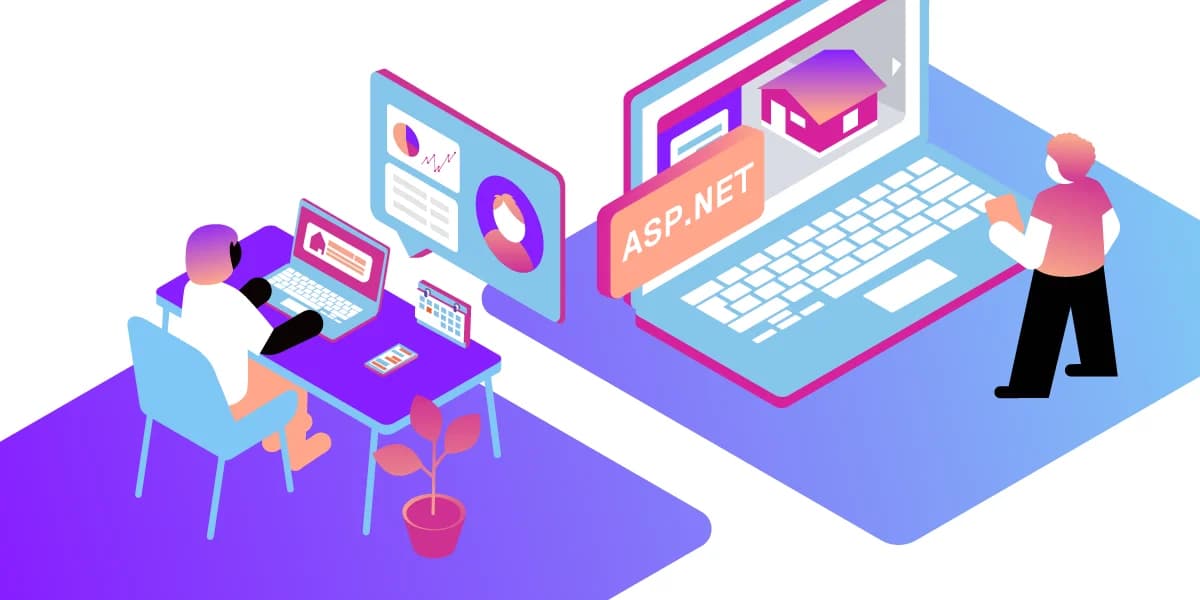
In this tutorial, we'll build an ASP.NET Core MVC app on .NET 10 that receives those status callbacks and prints them to the console. Along the way, we'll expose the app to the public internet with ngrok and wire up a Vonage Application, so the callbacks reach our webhook.
Sample Repo
The code is available on GitHub.
Prerequisites
- The latest .NET 10 SDK, make sure to download the SDK (not just the Runtime), as it includes the ASP.NET Core Runtime needed to build and run this app
The latest make sure to download the SDK (not just the Runtime), as it includes the ASP.NET Core Runtime needed to build and run this app
- Visual Studio 2026, Visual Studio Code, or JetBrains Rider (I'll be using Visual Studio 2026)
Visual Studio 2026, Visual Studio Code, or JetBrains Rider (I'll be using Visual Studio 2026)
- The Vonage CLI (npm install -g @vonage/cli) for sending a test message
The Vonage CLI (npm install -g @vonage/cli) for sending a test message
- ngrok to expose your local app to the public internet
ngrok to expose your local app to the public internet
Build the App
Create the App
Open your console and navigate to the directory where you'd like to create the project. When you're in the correct directory, run:
Creating the MVC project with the .NET CLIAlternatively, you can use the Visual Studio 2026 Wizard to create the equivalent project, as you can see in the screenshots:
Creating the project in Visual Studio 2026
Configuring the project name and location
Selecting .NET 10.0 (Long Term Support) as the target framework
Now cd into ReceiveMessageStatus and open the directory in VS.
Notice there's no Startup.cs anymore; since .NET 6, ASP.NET Core uses the minimal hosting model, so all startup configuration lives in Program.cs. For this tutorial, the default MVC template is all we need.
Add a Model for the Status Callback
The Messages API sends a consistent JSON payload to your status webhook regardless of channel. A typical SMS status callback looks like this:
Rather than manually reading the request stream, we'll leverage ASP.NET Core's model binding. Create a file called Models/MessageStatus.cs:
The error object is only used when something goes wrong. Common rejected reasons include an invalid destination number or a carrier-level block, the detail field will tell you exactly what went wrong.
Add the Route
Next, we'll add the status webhook route to our home controller. Open Controllers/HomeController.cs and add the following action to the HomeController class:
You'll also need to add using ReceiveMessageStatus.Models; to the top of the file (Visual Studio 2026 will typically do it for you).
Two things to note here.
First, returning a 2xx response promptly is important; if Vonage doesn't receive one, it will retry the callback, and repeated failures can lead to a backlog of queued webhooks.
Second, in a real application you'd persist these statuses keyed by message_uuid (the same UUID returned when you send a message), which lets you correlate every callback with the message that triggered it.
ASP.NET Core MVC's anti-forgery middleware does not apply to [FromBody] JSON endpoints, so no extra configuration is needed to accept webhook POST requests.
Test
From a development perspective, that's all we needed to do, so let's get into testing. We'll use ngrok, which builds a publicly accessible tunnel to our app, exactly what we need for Vonage's servers to reach a webhook running on localhost.
Pin the Port
Modern ASP.NET Core templates pick a random port when the project is created. Open Properties/launchSettings.json and check the applicationUrl in the http profile, or simply force the issue by running the app with an explicit URL:
You can also launch your project from within Visual Studio, selecting the run option:
Pinning the port in launchSettings.json and selecting the http launch profileStart ngrok
In a second terminal, start ngrok:
ngrok will display a forwarding address like https://random-subdomain.ngrok-free.app (the subdomain will vary on the free plan).
Note: On the free plan, it assigns a new subdomain every time you restart it, you'll need to update your Vonage Application's Status URL each time.
Note: On the free plan, it assigns a new subdomain every time you restart it, you'll need to update your Vonage Application's Status URL each time.
ngrok forwarding a public address to localhost:5000If you navigate to that address in your browser, you'll see the generic ASP.NET Core welcome page; your app is up and publicly accessible.
The default ASP.NET Core welcome page confirming the app is running
Create a Vonage Application and Configure Your Webhooks
The Messages API sends status callbacks to the Status URL of a Vonage Application. We can create one, webhooks included, with a single CLI command (replace the ngrok subdomain with your own):
This creates an application with the Messages capability, saves a private key file locally, and prints an Application ID, note it down.
An inbound URL is required for the Messages capability even though we're only handling statuses in this tutorial.
Or you can head to the Vonage Dashboard, create a new application under Applications, generate a key pair, toggle on the Messages capability, and enter the same Inbound and Status URLs there. Either approach produces the same result.
Next, link your Vonage virtual number to the application:
(You can also do this from the application page in the dashboard.)
Finally, check that your account's Default SMS Setting (under dashboard settings) is set to Messages API. This ensures SMS delivery receipts are routed through the Messages API webhook format to your application's Status URL.
Send an SMS Message
To see status callbacks in action, send an outbound message with the Messages API. Start by scaffolding a new console app (dotnet new console -n "SendSmsMessage"), navigate into the directory, and add the Vonage SDK package (dotnet add package Vonage).
From there, we'll authenticate using the credentials you just created:
Note that the Vonage Messages API authenticates with your Application ID and private key (JWT) rather than the API key and secret. The MessageUuid returned here is the same UUID you'll see arriving in your status webhook moments later.
Send the message, and in the console where your app is running, you'll see something along the lines of:
with the additional information that accompanies them (from, timestamp, channel, etc.)
The app logging submitted and delivered status callbacks for the same message UUIDYou'll typically receive a submitted callback first (when the message is handed to the carrier), followed by delivered once the handset confirms receipt. If delivery fails, you'll get a rejected status with an error object explaining why.
Conclusion
With under 30 lines of C#, your app now has full visibility into every SMS you send. You now have an ASP.NET Core MVC app that receives delivery receipts from the Vonage Messages API and can tell you, in real time, whether a message was submitted, delivered, or rejected.
From here, a natural next step would be persisting the callbacks to a database keyed by message_uuid, so you can track the full delivery history of every message you send.
And because the Messages API uses the same status webhook across channels, the exact same endpoint will handle delivery updates for MMS, WhatsApp, and RCS too.
Resources
- The code for this tutorial can be found on
The code for this tutorial can be found on
- Messages API status callbacks documentation
Messages API status callbacks documentation
- Messages API getting started guide
Messages API getting started guide