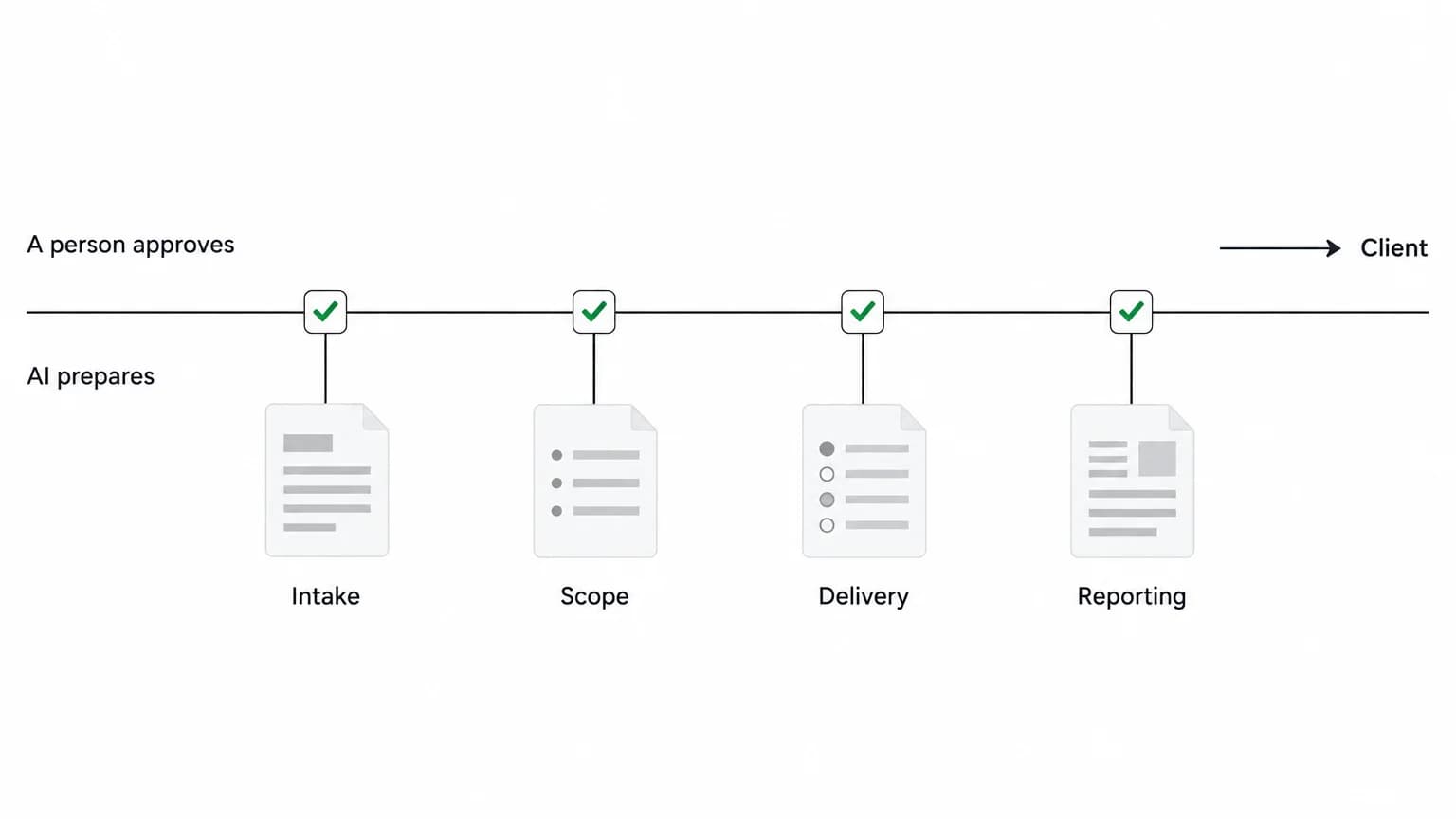
When there is no master calendar and no traffic manager, campaign requests can arrive without the details or decisions needed to plan them. The fix is one agreed intake process, not necessarily one form: a named intake steward checks each request, returns missing details, and routes complete requests to the people authorized to decide priority and capacity. The shared calendar shows only work the team has approved and dated.
Anonymized September 2026 marketing-call excerpts supplied for this guide describe the problem plainly: “There’s not really a master calendar across teams.” Another person said, “We don’t have a traffic manager, somebody to review the requests, push back if the information is not enough.” The method below makes that review someone’s job without turning it into a new full-time role.
Key TakeawaysOne intake steward checks completeness and routes requests. That role can rotate.The requester can state urgency, but an authorized marketing lead decides priority and tradeoffs.A requested due date is context, not a delivery commitment.Only approved work with a confirmed date belongs on the shared calendar.
Key Takeaways
- One intake steward checks completeness and routes requests. That role can rotate.
- The requester can state urgency, but an authorized marketing lead decides priority and tradeoffs.
- A requested due date is context, not a delivery commitment.
- Only approved work with a confirmed date belongs on the shared calendar.
Why campaign requests miss the calendar
A calendar cannot fix a request that has no owner, goal, deadline reason, or decision path. It can only show what the team has entered, and teams cannot plan reliably from requests that are missing the information needed to assess them.
The supplied call excerpts point to a recurring tangle: teams do not see one calendar, details can be missed, work arrives late, and nobody has an agreed job to return incomplete requests. Those are different symptoms of the same missing handoff. A request needs a clear route from submission to review, from review to a priority decision, and from an approved plan to a calendar entry.
The process does not require a dedicated traffic manager. It does require someone to own the next decision at each point.
Assign the decisions before you build the form
Keep four responsibilities visible, even if one person holds more than one of them:
- Requester: explains the business need, the intended audience, what is known, and why a date matters.
- Intake steward: checks whether the request is complete enough to review, asks for missing information, and routes work to the right people. Rotate this responsibility if a permanent role does not exist.
- Priority owner: decides what should move ahead when demand exceeds capacity. This is usually a marketing lead or another person already authorized to make the tradeoff.
- Calendar steward: records confirmed work in the shared calendar and keeps the owner, channel, status, and dates current.
The intake steward does not need authority to approve every campaign. They need authority to say, “This request is missing the audience and the reason for the deadline. Please add those before we schedule it.” The priority owner decides whether the work should happen. The person responsible for capacity confirms when the team can take it on.
Keep priority and scheduling as separate decisions. A request can matter and still wait for a capacity slot.
Copy and adapt this campaign intake template
Use this template when a request is new, spans teams, or needs a date on the shared calendar. Trim fields that do not help your team make a decision. Do not ask requesters to invent answers that another role must supply; let them mark those items as unknown and route them for scoping.
Keep one agreed intake process, even if marketing and creative requests use separate Form views. Different forms can ask for the details each request type needs; they are entry points to the same decision process, not separate triage systems. Each submission creates a task in a chosen List, so decide where each Form should send requests and who checks them. For the available question types, see Forms for marketing teams and Intro to Forms and Form view.
Make only the fields that are essential to a decision mandatory. A small request may need a short brief. A cross-channel launch may need a scoping conversation before anyone can estimate the work. The form should reveal what is known and what decision comes next, not force every request into the same level of detail.
Triage requests with a clear return path
The intake steward can use four checks to decide where each submission goes:
Is the request complete enough to review? Check for a business need, audience, known deliverables, a date reason, and a business owner. If an essential item is missing, return the request with the exact questions and the person who can answer them. Keep it out of the committed calendar until the information arrives.
Does the work need scoping? If the requester knows the outcome but not the right channel, deliverable, or dependencies, route it to the people who can shape the plan. Mark it as needing scoping, not as approved work.
Who can make the priority decision? Compare the request with current commitments using criteria the team has agreed to, such as business impact, fixed external dates, dependencies, and effort. The requester’s preferred priority helps explain their case. It does not decide what moves ahead.
Can the team commit to a date? A requested date becomes a commitment only after the responsible capacity owner agrees to the scope and timing. If the answer is no, return a realistic next action: reduce scope, move the date, defer the request, or decline it.
Keep the language simple. A useful set of intake outcomes is: Needs information, Needs scoping, Ready for a priority decision, Approved for scheduling, Deferred, or Declined. Adapt those labels to your existing workflow instead of adding a second status system.
This fictional example shows how the form and triage rules work together. It is not a customer story or a report of a real campaign.
The request has enough context to see what is missing, but not enough to promise a launch date. Once the event details are approved, the priority owner can assess it against other work. The capacity owner can then confirm whether the requested timing is possible.
Roll approved work into one calendar
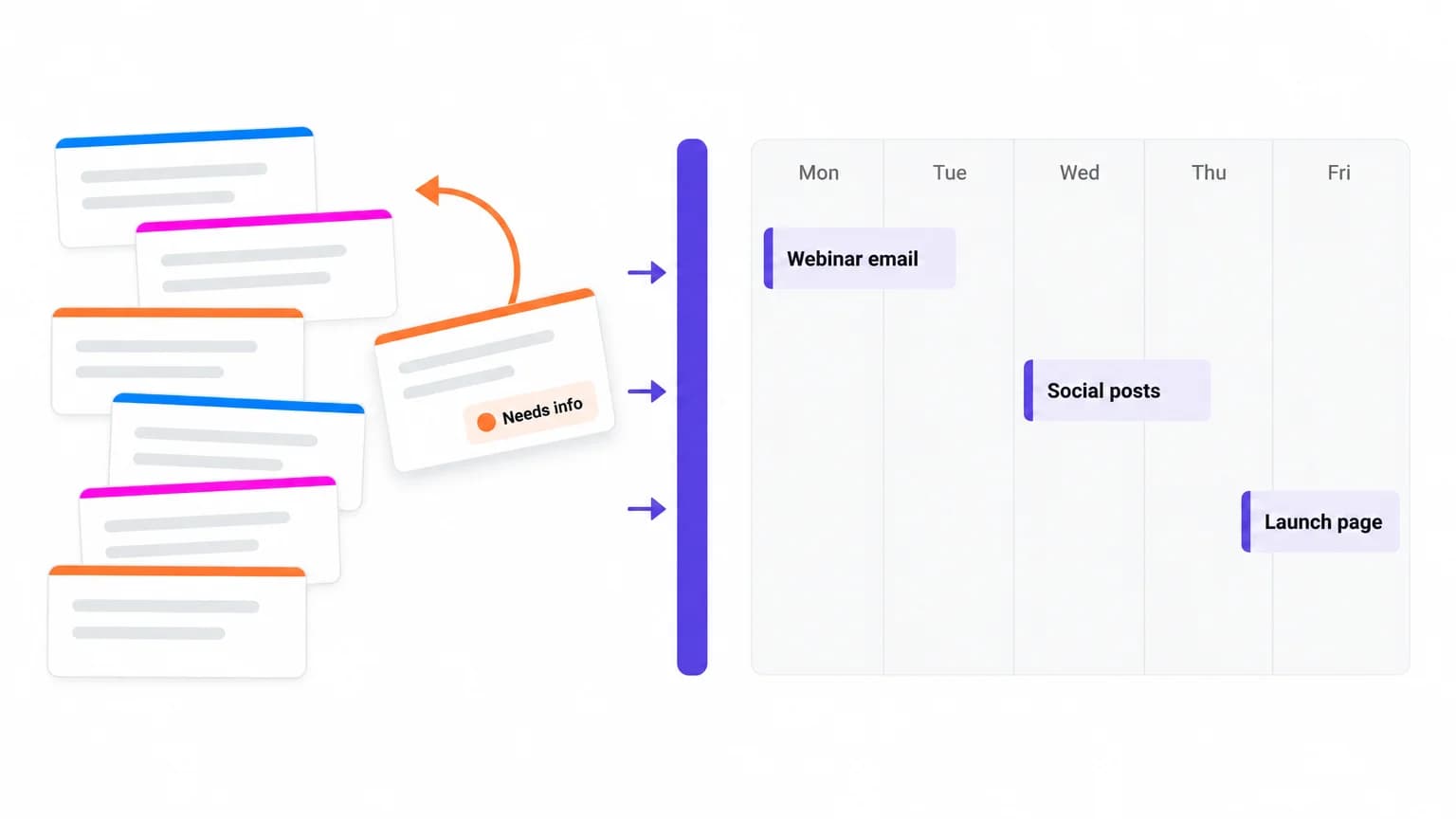
Keep the intake queue and the calendar connected, but do not treat them as the same thing. The queue holds requests and decisions. The calendar shows what the team has agreed to deliver and when.
Create one calendar item for each deliverable that needs its own owner or date. Link each item to its parent campaign so people can see both the campaign and its work. Every scheduled item should carry:
- A clear deliverable name
- The parent campaign or initiative
- One accountable owner
- Channel or destination
- Current status
- Requested date, if it differs from the confirmed date
- Confirmed delivery or launch date
Use the confirmed date for the calendar commitment. Keep the original requested date and its reason in the intake record so the team can explain what changed. When a date moves, record who made the decision and which other work it affects. Do not quietly overwrite the request and lose the history.
When the team is ready, put only approved work with confirmed dates on the shared planning calendar. ClickUp Calendar view displays tasks with a start or due date and offers day, four-day, week, or month views. See Intro to Calendar view. Check that the view includes each team’s approved work before treating it as the cross-team calendar; the view alone does not decide priority or confirm capacity.
For more on coordinating marketing projects, see marketing project management. If your team is still choosing planning software, use the separate marketing planning software guide for that decision. Those pages cover adjacent jobs; this guide focuses on how a request becomes approved work on the calendar.
Put the method in place over two weeks
Week one: agree on the decisions. Choose the intake steward and backup rotation. Name who can make priority decisions and who confirms capacity. Review the last few requests your team can access and use them to set the minimum information needed for review. Adapt the template and label outcomes using the workflow you already have.
Week two: use it on incoming work. Route new requests through the agreed entry point. Return incomplete requests with a specific question and next owner. Hold a triage review on a cadence the team can actually cover. Add only approved, dated work to the shared calendar. At the end of the week, note which fields were unclear and which decisions had no owner, then revise the instructions before adding more complexity.
The first pass is a working agreement, not a promise that every request will be accepted or scheduled. Keep a short decision note when you defer or decline work. That makes the tradeoff visible to the people affected by it.
Start with a template, then set your own rules
If your team wants a starting structure for campaign work, adapt the Marketing Campaign Management Template to match your intake fields and decision rights.
Sources
- Forms for marketing teams, ClickUp Help, retrieved November 5, 2026. Recommends separate marketing and creative Form views, Custom Field questions, and submissions creating tasks in a chosen List.
- Intro to Forms and Form view, ClickUp Help, retrieved November 5, 2026. Supports using task fields and Custom Fields as questions and creating submission tasks at the selected location.
- Intro to Calendar view, ClickUp Help, retrieved November 5, 2026. Supports planning with tasks that have start or due dates and day, four-day, week, or month views.
Everything you need to stay organized and get work done.