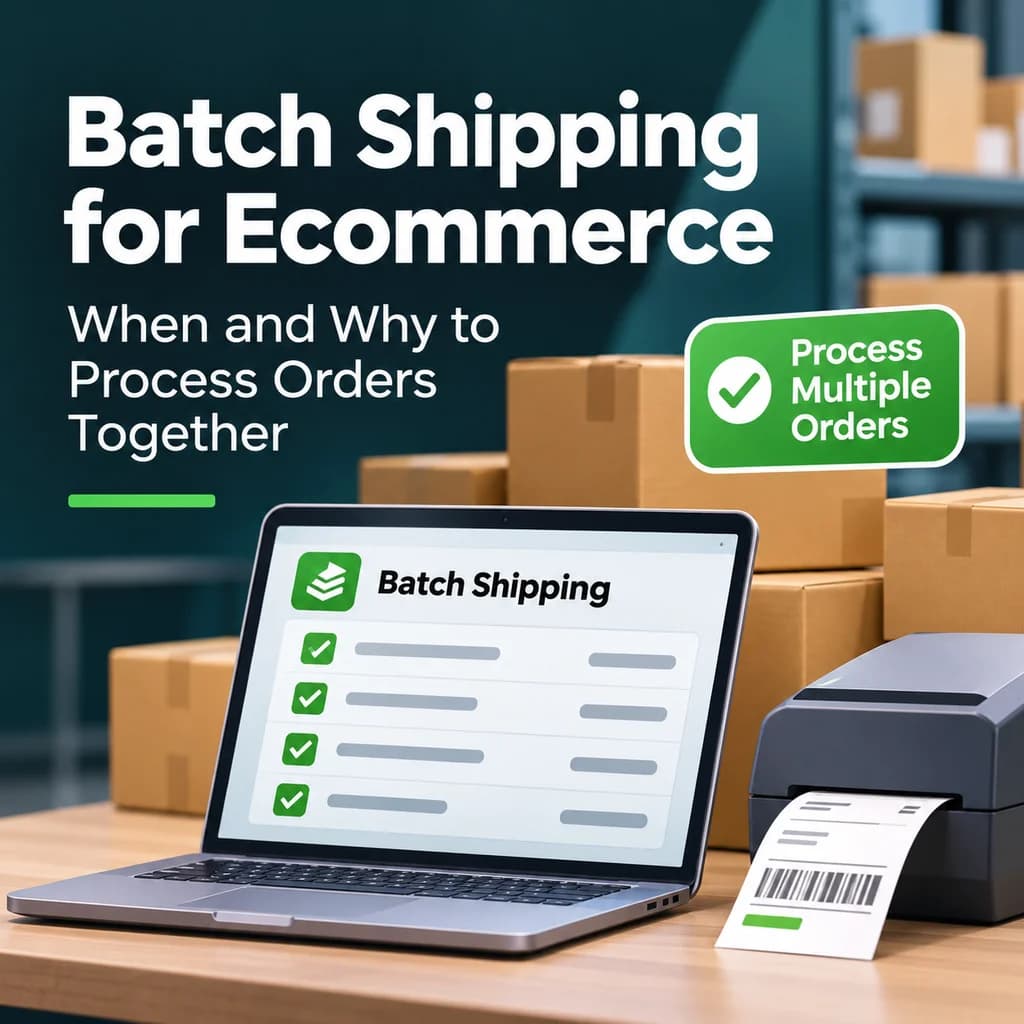
Batch shipping is the process of grouping eCommerce orders with similar shipping needs and processing them together, applying the same settings and creating all their labels at once instead of one order at a time. It cuts repetitive work while leaving room to catch the orders that need special attention.
Shipping one order at a time works fine with a handful of orders. Then 10 orders become 200, and 200 a day become 2,000. Opening every order, choosing a carrier, entering package details, and printing labels one by one starts eating the day.
Batch shipping means processing multiple orders or shipping labels as a group. Instead of repeating every step per order, you handle the repeated work once for the whole group.
Batch shipping is one part of a larger eCommerce shipping workflow. Routing, picking, packing, rate selection, carrier handoff, and tracking still happen; batching makes the repetitive parts faster.
When Should You Use Batch Shipping?
Use batch shipping when several orders share the same shipping requirements. If 75 orders ship in the same box with the same service, there’s no reason to enter those settings 75 times. Ship one at a time when an order is unusual enough that it needs individual attention.
Most operations do both. Shipping 95% of orders in standardized batches and handling the other 5% individually is a successful batch workflow.
How to Batch Ship eCommerce Orders in 5 Steps
- Organize fulfillment before the label stage
- Group orders that share shipping requirements
- Apply shipping presets to the group
- Automate repeat decisions as orders arrive
- Review the batch, then create labels
Step 1: Organize Fulfillment Before the Label Stage
Batches go smoothly when the upstream work is already sorted: each order is routed to the right location, inventory is available, and products are picked accurately. That’s why batch shipping depends on order routing and picking and packing.
A batch can be built around a fulfillment rule, such as:
- Warehouse A + standard ground shipping
- Orders containing Product X + small-box packaging
- Rush orders + expedited service
Step 2: Group Orders That Share Shipping Requirements
Group orders around something operationally meaningful, not every unshipped order on the screen.
The right grouping depends on the business. A single-product brand might batch by package and service; a multichannel retailer might split batches by warehouse.
Step 3: Apply Shipping Presets to the Group
A shipping preset saves a combination of settings you use regularly, such as:
- USPS Ground Advantage + small box
- UPS Ground + signature required
- FedEx 2Day + large package
In Ordoro, you can apply a preset to many selected orders at once. Before you do, confirm the preset’s dimensions, weight, carrier, and service fit every order in the group. A preset repeats a decision you’ve already made; it doesn’t check whether that decision still fits.
Step 4: Automate Repeat Decisions as Orders Arrive
The fastest batch is one that’s mostly prepared before anyone opens it. Ordoro’s automation rules use an IF → THEN structure and run when an order is imported or created. A rule can apply a shipping preset, add a tag, assign a warehouse, or allocate inventory.
- IF the order weighs less than 3 lb → THEN apply the Small Box preset
- IF the order came from a specific sales channel → THEN assign it to Warehouse A
By the time your team starts shipping, the routine decisions are made and only the exceptions are left.
Step 5: Review the Batch, Then Create Labels
One wrong setting on one order is one mistake. The same wrong setting on 200 orders is 200 mistakes. Check the settings with the biggest impact before you create labels:
- Ship-from location
- Package dimensions and weight
- Carrier and service
- Additional options (signature, insurance, customs)
Rate shopping still happens here. Shipping rate shopping decides how an order should ship; batch shipping processes many of those decisions efficiently. Orders with very different rate needs belong in separate batches.
How Batch Shipping Works in Ordoro
Ordoro offers two ways to batch ship: bulk label creation for quick groups of orders, and Batches for larger, structured fulfillment runs.
To create labels in bulk:
- Select the unshipped orders you want to ship together.
- In the Shipping Label panel, apply a preset or bulk options like weight, dimensions, or ship-from warehouse.
- Click Update Orders so Ordoro recalculates rates for the group. The total shows the cost to ship every selected order.
- Review the orders.
- Create the labels and print them as one multi-page file.
With Batches, you group orders into a saved batch, then create its pick lists, packing lists, and labels. You can bulk-update a batch’s shipping settings, show the batch ID on packing lists so the team knows which batch an order belongs to, and filter orders by whether they’re in a batch. If an order is missing something required, like customs information or a valid ship-to address, it’s flagged so you can fix it.
Batch Picking vs. Batch Shipping
Batch picking groups orders so products can be collected from the warehouse in one trip. Where as Batch Shipping groups orders to apply settings and create labels together. They work best as one flow: a warehouse might group 40 orders with overlapping SKUs, pick them together, then pack and ship them as a batch. See How eCommerce Picking and Packing Works for the picking side.
Keep each order’s identity clear as the group moves through the warehouse. Faster picking doesn’t help if products land in the wrong box.
Which Orders Should Stay Out of the Batch?
Pull an order out of the batch when it:
- Requires international customs information
- Contains hazardous materials
- Needs special packaging
- Requires signature confirmation or insurance
- Ships from a different warehouse
- Has an address problem or is missing required information
- Is unusually large or heavy
- Needs a different carrier or rush handling
Forcing every order through the same batch turns a time-saver into a source of mistakes. A good batch workflow makes normal orders fast and unusual orders obvious.
What Are the Benefits of Batch Shipping?
The main benefit of batch shipping is less repetitive work: teams apply settings once to a group instead of making the same selections on every order. That leads to:
- Fewer repetitive clicks
- Faster label creation
- More consistent shipping settings
- Easier warehouse organization
- More time for unusual orders
Batching matters most during sales, holidays, product launches, and other volume spikes, when one-at-a-time shipping can’t keep up.
Batch Shipping Across Multiple Sales Channels
Orders in a batch don’t need to come from the same storefront. A Shopify order and an eBay order that ship from the same warehouse in the same box with the same service belong in the same batch.
Once every channel feeds into centralized multichannel order management, your team can batch by fulfillment requirements instead of by where the order came from. Sales channels decide where orders come from; fulfillment requirements decide how they’re processed.
How Ordoro Supports Batch Shipping
Ordoro connects batch shipping to the rest of fulfillment. Teams can bulk-update shipping settings, apply presets across a group, recalculate rates, and create labels together. Ordoro Batches group larger runs and generate pick lists, packing lists, and labels. Automation rules prepare qualifying orders as soon as they import, so batching starts the moment an order arrives rather than at the end of the day.
Learn more about Ordoro’s Shipping and Order Management tools and Automated Shipping.
Frequently Asked Questions About Batch Shipping
What is batch shipping?
Batch shipping is grouping eCommerce orders with similar shipping needs and processing them together, applying settings and creating labels for the whole group instead of one order at a time.
How does batch shipping work?
You group orders with similar requirements, apply shipping settings or a preset to the group, review it, and create all the labels in one step.
Is batch shipping the same as bulk shipping?
The terms are often used interchangeably. Both mean creating shipping labels for many orders at once rather than individually.
When should you use batch shipping?
When several orders share the same carrier, service, package, weight range, ship-from location, or product. Ship unusual orders individually.
How many orders can you batch ship at once?
It depends on the software. In Ordoro, you can bulk-update up to 100 orders at a time, and the Batches feature can group more than 100 orders when needed.
Can Ordoro handle high-volume batch shipping?
Yes. Ordoro supports merchants shipping up to 80,000 orders a month, with Batches that group more than 100 orders at a time and automation rules that prepare orders as soon as they import.
Can you batch orders from different sales channels?
Yes. If orders from different channels share the same shipping requirements, they can be processed together in a centralized workflow.
What’s the difference between batch picking and batch shipping?
Batch picking groups orders to collect products from the warehouse efficiently. Batch shipping groups orders to apply settings and create labels together. They work well as one flow.
Can shipping presets be applied to multiple orders?
Yes. In Ordoro, you can apply a preset to multiple selected orders at once. Confirm the preset fits every order before creating labels.
Can batch shipping be automated?
Partly. Automation rules can apply shipping presets, assign warehouses, add tags, and allocate inventory as orders import, so batches are mostly prepared before your team starts.
What happens if an order in a batch has an error?
In Ordoro Batches, orders with errors, like missing customs information or an invalid address, are flagged so they can be reviewed and fixed.
Ship More Orders Without More Work
Batch shipping turns repeated shipping decisions into a repeatable workflow. Similar orders move together, presets handle everyday settings, automation prepares orders before anyone reaches the shipping station, and exceptions get pulled aside instead of slowing everything down.
Ready to spend less time repeating the same shipping steps? Start a free trial of Ordoro and bring batch shipping, presets, automation, and order management into one workflow.