IntelliJ Platform
Working on a remote machine should feel just like working on a local project: open it, start coding, and pick up where you left off. In 2026.3, JetBrains IDEs move closer to that goal. You can now start and manage remote sessions directly inside the IDE, connect over SSH using native OpenSSH, and begin working on a remote project while the full remote IDE is still being prepared.
Remote development sessions are now part of your IDE
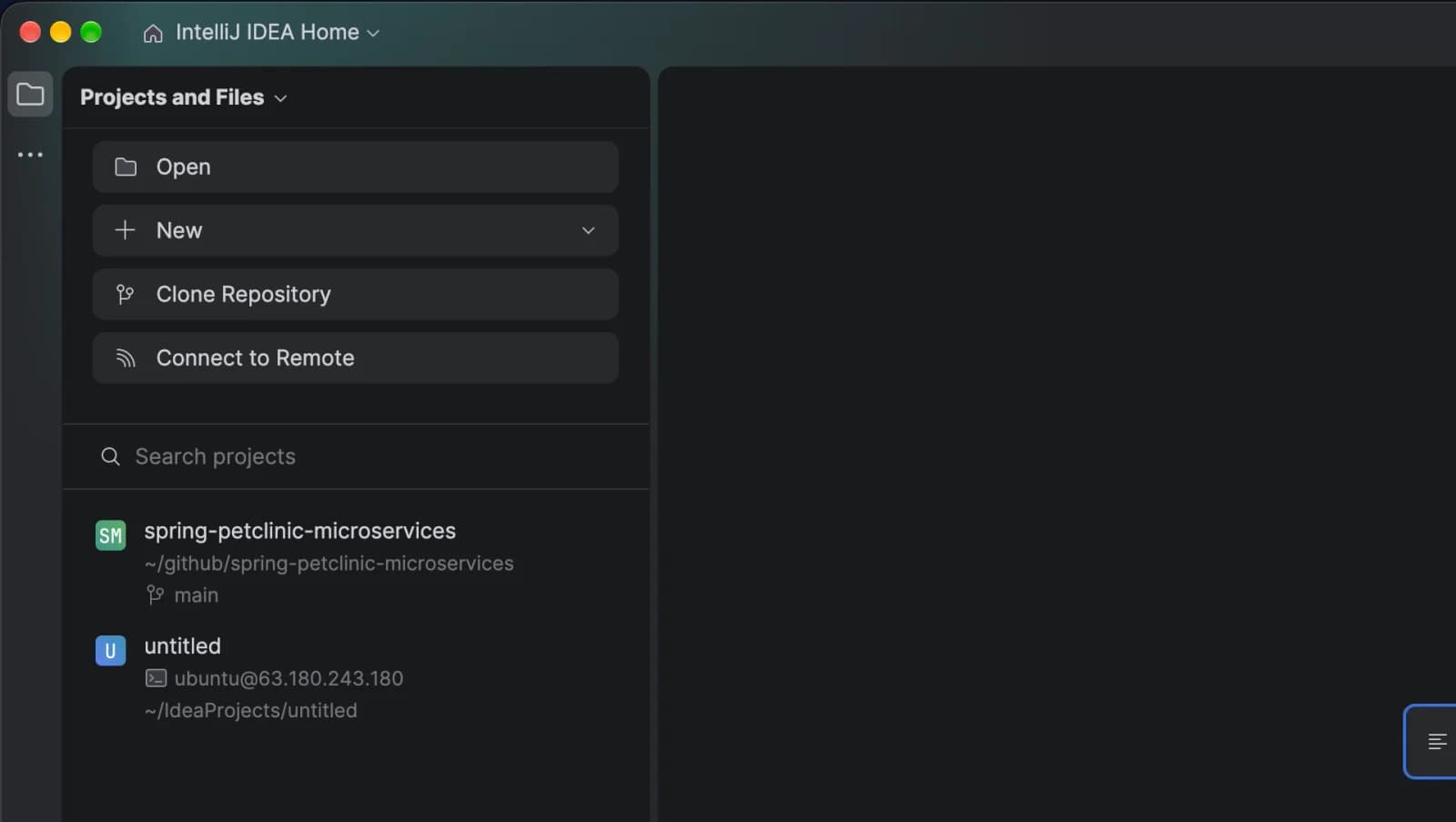
You no longer need to open JetBrains Gateway or use the Toolbox App as a separate starting point for remote development. From the Home screen, your recent remote projects now appear alongside your local ones – marked with a “terminal” icon so they are easy to spot.
First-time connections to a remote host can be initiated from the top menu, under File | Connect to Remote, or from the Home screen. The Connect to Remote option in the Projects widget starts a simple two-step dialog:
After connecting to a remote host, you can either open a specific project residing on a remote machine or launch the IDE right away.
If this is your first time connecting, the remote backend will be installed automatically, or updated to a new version if needed.
You will be guided through this setup, getting you into your code faster than before. While the existing remote backend model remains unchanged, the entire connection and session management experience now lives inside the IDE.
The new in-IDE workflow also includes a few practical path-handling features: paths beginning with ~ are now correctly interpreted as remote home directories in both the full connection flow and Light Mode. Together, these updates make it easier to select project directories using familiar syntax without accidentally resolving paths against your local machine.
Note: This initial implementation focuses on SSH connections to supported remote environments.
Our goal was simple: make your IDE the single place where you start, manage, reconnect, and return to remote projects – no additional tools or applications required. Your daily remote development workflow is now available in one click: Just open your remote project from the Recent Projects list, and you are good to go.
Connect with the SSH setup you already use
SSH is fundamental to many JetBrains IDE workflows, including remote development, terminal access, and remote host integrations. In v2026.3, JetBrains IDEs introduce native OpenSSH support as an option for SSH connections.
This update eliminates the need to rely exclusively on a custom JetBrains SSH implementation. Instead, you can take advantage of the compatibility, ecosystem, and maintenance of OpenSSH. Building on a broadly adopted and actively maintained ecosystem means we no longer need to independently implement, patch, and track every single SSH compatibility and security concern within the IDE.
Additionally, the new in-IDE Remote Development picker brings together connections from your recent history, Toolbox, OpenSSH, and IDE settings, making it easier to reuse existing SSH setups and connect quickly.
Native OpenSSH support extends the range of authentication mechanisms and SSH features available to JetBrains IDE users. As this integration matures, OpenSSH will become the default SSH implementation in upcoming releases.
Start working while the remote IDE gets ready
Starting a remote project usually involves a waiting period while the remote IDE is downloaded, installed, and launched. In v2026.3, we are cutting down this downtime: When you connect to a remote project using the new in-IDE flow, the IDE immediately launches an embedded client and starts the session in Light Mode while the remote IDE is downloading, installing, and launching.
Light Mode gives you instant access to the project and provides the essential tools you need right away. You can explore the remote project, open and edit files, use the terminal, and search through files and their content. The IDE remains responsive from the moment the connection is established, giving you useful access to your workspace.
Light Mode intentionally focuses on the basics. Once the remote IDE is ready, your IDE will transition seamlessly from Light Mode to Smart Mode. All work started in Light Mode will be preserved. You can continue working without closing the project, repeating actions, or restarting your workflow manually.
In this release, Light Mode is supported exclusively on Linux remote hosts in GoLand, IntelliJ IDEA, PhpStorm, PyCharm, RubyMine, RustRover, and WebStorm. CLion and Rider are not yet supported.