When a Purchase Order arrives, receiving the inventory is only part of the job. Before those products make it onto a shelf, into a bin, or on to the next step in your warehouse, they may need to be labeled.
That can turn one receiving process into several separate tasks: record what arrived, figure out which products need labels, generate the right number of barcodes, print them, and then get everything where it needs to go.
Ordoro’s Goods Receipt barcode printing brings receiving and labeling closer together. You can now generate product barcode labels directly from the Goods Receipt section of a Purchase Order, using the quantities you actually received.
Print Barcodes From a Goods Receipt
When you receive inventory against a Purchase Order in Ordoro, the Goods Receipt creates a record of what actually arrived. Now, that same Goods Receipt can also be the starting point for printing your product barcode labels.
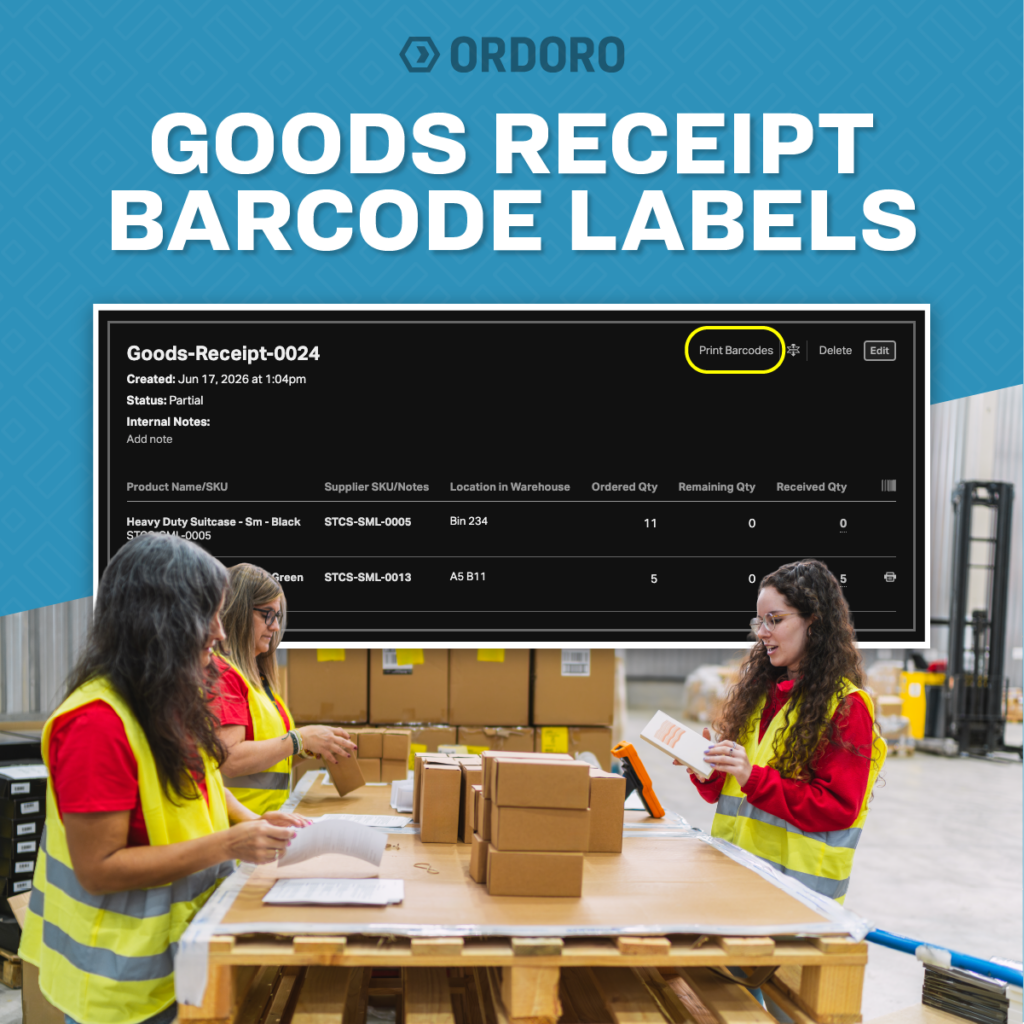
From PO Details > Goods Receipts, you can open the barcode label tool using the products and quantities recorded on the Goods Receipt. That means you can move from receiving inventory to preparing labels without having to start the barcode process separately. There are two ways to do it.
Print Labels for an Entire Goods Receipt
If several products arrive together, you can generate barcode labels for all of the received products at once. The Print Barcodes action at the top of the Goods Receipt collects the SKUs that were actually received into a single printout. Products with a received quantity of zero are excluded.
The number of labels generated for each SKU is based on:
Received quantity × No. of CopiesFor example, say you receive:
- 2 units of SKU A
- 3 units of SKU B
If No. of Copies is set to 1, Ordoro generates two labels for SKU A and three for SKU B.If you change No. of Copies to 2, Ordoro generates four labels for SKU A and six for SKU B.
This gives you control over the number of labels while keeping the received quantities from the Goods Receipt at the center of the process.
Print Barcodes for a Single Received Product
You do not always need labels for everything on a Goods Receipt. Each received product line also has its own barcode action. Select it and Ordoro opens the barcode label modal for that SKU only.
If you received five units of a product and select three copies, for example, Ordoro generates 15 barcode labels for that SKU. This can be useful when only one product needs to be labeled or when you want to handle products individually as they move through receiving.
What Happens if a Received Quantity Changes?
Sometimes the quantity recorded on a Goods Receipt needs to be corrected. If you edit a received quantity and save the Goods Receipt, Ordoro uses the updated quantity when calculating barcode labels.
So if a quantity changes from five units to seven, the next barcode printout is based on seven received units. You do not have to work from the quantity that was originally entered.
Keep Receiving and Labeling in the Same Workflow
Receiving inventory often sits between purchasing and everything that happens next in the warehouse. A Purchase Order tells you what you expected. The Goods Receipt records what actually showed up. Barcode labels can then help identify and organize those products as they move into stock.
Bringing barcode printing into the Goods Receipt workflow connects those steps more naturally. Instead of receiving products and then starting a separate process to prepare their labels, your team can work directly from the inventory it just recorded.
For businesses receiving Purchase Orders regularly, especially those using barcode labels for stocking and organization, that can make a routine warehouse task a little easier to manage.
How to Print Barcode Labels From a Goods Receipt
To get started:
- Open the Purchase Order in Ordoro.
- Go to Goods Receipts.
- Open the Goods Receipt containing the products you received.
- Select the top-level Print Barcodes action to generate labels for all received products, or select the barcode action on an individual product line.
- Review the products, quantities, and No. of Copies in the Barcode Label modal.
- Create your barcode printout.
For a complete walkthrough, visit our Goods Receipt barcode printing support guide.
Frequently Asked Questions
Can I print barcode labels for everything on a Goods Receipt?
Yes. The top-level Print Barcodes action generates a single printout containing the products received on that Goods Receipt. Products with a received quantity of zero are excluded.
Can I print a barcode for only one product?
Yes. Individual received product lines have their own barcode action, so you can generate labels for a single SKU without printing labels for the rest of the Goods Receipt.
How does Ordoro determine the number of barcode labels?
The label count for each SKU is based on the quantity received multiplied by the No. of Copies selected in the Barcode Label modal.
What if I change the received quantity?
If a Goods Receipt is edited and the received quantity changes, barcode labels generated afterward use the updated received quantity.
Do products with a received quantity of zero get barcode labels?
No. Products with zero received are excluded when generating barcode labels for the Goods Receipt.
Receive It. Label It. Keep It Moving.
Purchase Orders help you plan what is coming in. Goods Receipts record what actually arrived. Now barcode printing can be part of that same receiving workflow. Receive your inventory, generate the labels you need, and keep those products moving toward the next step.
Receive it. Label it. Keep it moving.
Ready to bring purchasing, receiving, inventory, and fulfillment together? Start a free trial and see how Ordoro can help simplify your eCommerce operations.