When the Razer Tartarus V2 Pro launched, one topic came up consistently in community discussions: thumbstick customization.
Many of you wanted the flexibility to switch between left and right stick assignments and adjust the thumbstick orientation to better suit your preferred controls. We heard that feedback, and these options are now available with the latest firmware update through Razer Synapse.
With both settings now in your hands, you have more freedom to configure the TMR thumbstick around how you play. Let’s take a closer look at what’s new.
Choose Your Stick Assignment
One of the most discussed aspects of the Razer Tartarus V2 Pro was its thumbstick assignment.
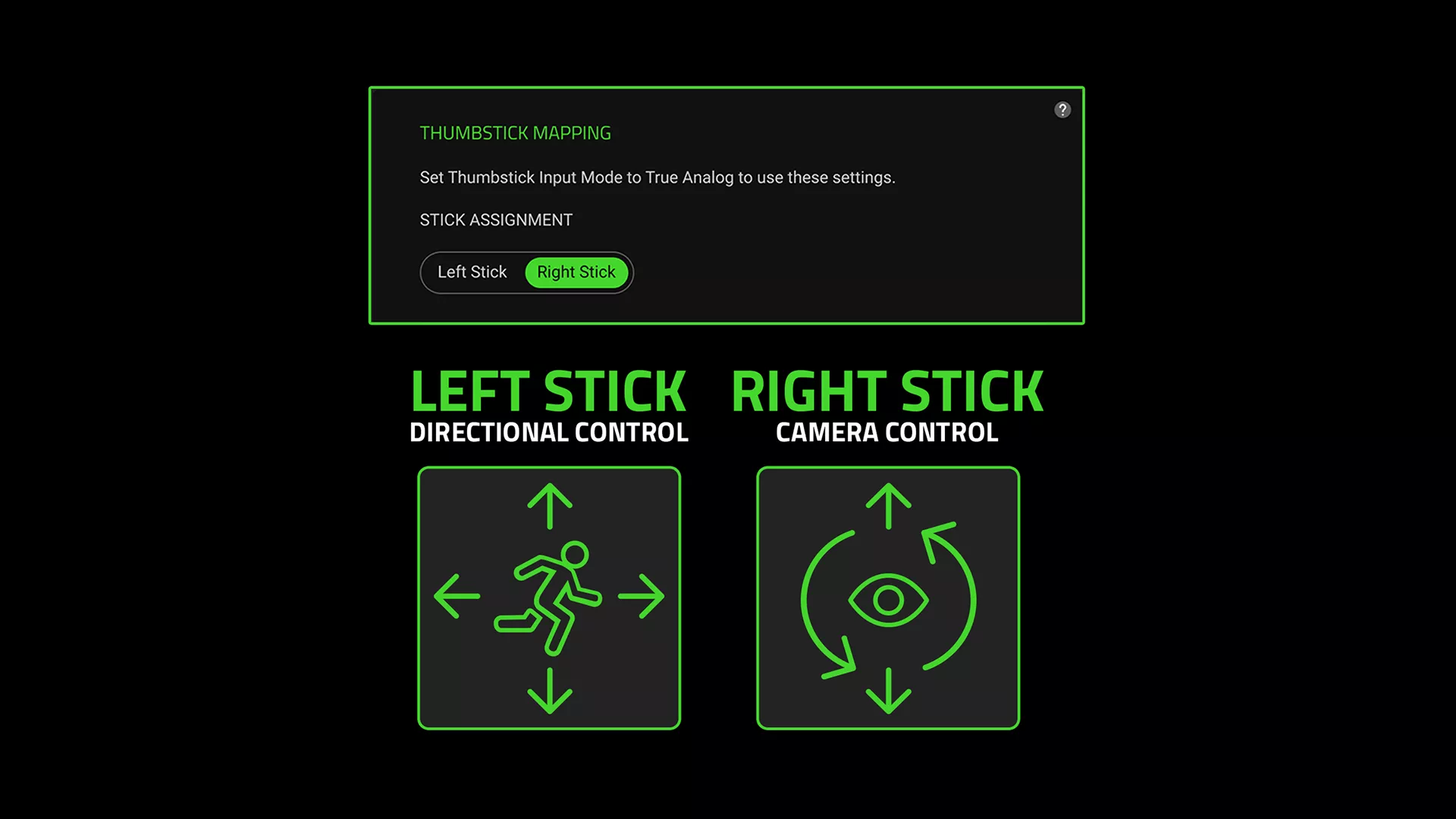
Building on feedback from players, the thumbstick can now be assigned as either the left or right analog stick directly in Razer Synapse, giving users greater flexibility to tailor controls to their preferred playstyle.
For those who prefer using the thumbstick for character movement while aiming with a mouse, selecting the left-stick assignment gives you that option in games with compatible controller support. If you prefer the existing right-stick configuration, you can keep it.
This gives you more flexibility to set up your controls around the games you play and how you prefer to navigate them.
Choose Your Thumbstick Orientation
Alongside stick assignment, you can now customize how the thumbstick’s directional inputs correspond to its physical movement.
Razer Synapse offers two orientation settings, each with a visual diagram to help you understand how the directions are mapped.
Default: Directions match the physical movement of the thumbstick. Push it toward the top of the device for Up, right for Right, down for Down, and left for Left.
Rotated: The directional mapping is shifted by 90°. Pushing toward the top registers as Left, toward the right as Up, toward the bottom as Right, and toward the left as Down. The Rotated mode retains the thumbstick’s original behavior, so if you’ve already grown accustomed to that layout, you can continue using it. If you prefer a more direct directional mapping, Default gives you that choice.
With both options available, you can choose the orientation that feels most natural for your grip and gameplay.
How to Get Started
Getting started with the new thumbstick options is straightforward:
- Connect your Razer Tartarus V2 Pro and make sure it’s updated to the latest firmware
- Open Razer Synapse and select your Razer Tartarus V2 Pro.
- Under the thumbstick mapping settings, choose your preferred left or right stick assignment.
- Under Orientation, choose Default or Rotated.
The on-screen diagram updates as you change the orientation, allowing you to check the directional mapping before heading into your next game.
Continuing to Refine the Razer Tartarus V2 Pro
The Razer Tartarus V2 Pro brings together Razer Analog Optical Switches Gen-2, 8000 Hz Razer HyperPolling, a TMR thumbstick, and 31 programmable controls to give you more ways to personalize your gameplay.
These latest thumbstick options build on that foundation, giving you greater flexibility over how the keypad works with your preferred games and control schemes.
We appreciate everyone who shared their feedback and experiences with the Razer Tartarus V2 Pro. Your input is an important part of how we continue refining the experience, and we’re glad to bring these additional options to your setup.
Update your Razer Tartarus V2 Pro through Razer Synapse, explore the new thumbstick settings, and find the configuration that works best for you.