5.0 lets you give real work to a model you run yourself. Ask for a one-page summary of the notes in a folder, for example, and the chat reads them and saves a Word file in your Files. If you don’t like what it did, the History tab has an Undo for that change.
Run open models for chat, images, speech and video on your own machines. The API speaks the OpenAI and Anthropic formats. Your team gets chats, files and documents on top, and the assistant can write and run code. It runs on a laptop, a server, in a container or on Kubernetes. No GPU needed, though a GPU makes it faster. 5.0 adds Projects, a desktop app for macOS and Linux, and documents, files and team sharing.
The full notes list every change. Here’s what’s new since 4.x.
Hand it over
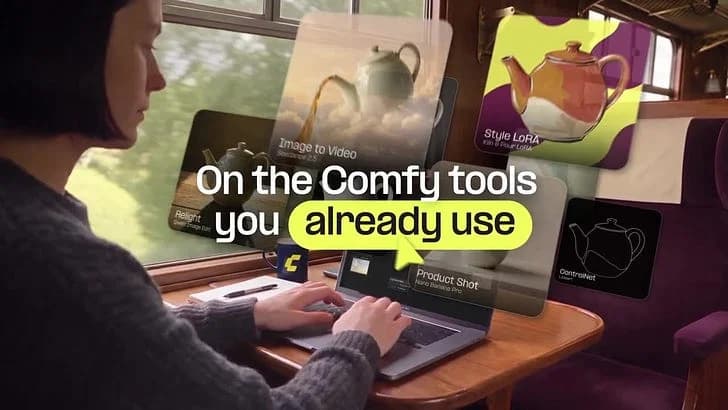
We made the film with LocalAI: the pictures, the voices and the music. It shows five jobs that 5.0 does: a press article, a budget, slides, a poster, and work with the network down.
One API for every kind of model
One server runs text, image, video, music and speech models. Each has its own endpoint:
- Text and vision: chat, completions, tool calls, image understanding and object detection. Besides the OpenAI API, LocalAI answers in the Anthropic format (/v1/messages).
- Images and video: generate images from a prompt, and video with the /video endpoint.
- Music and sound: make music and sound effects from a text prompt with /v1/sound-generation.
- Speech: text to speech, transcription, voice activity detection and speaker recognition. The Realtime API takes voice in and gives voice back. Text to speech and sound generation also accept the ElevenLabs format.
- Search: embeddings and a reranker, for retrieval over your own data.
A model runs on a backend. LocalAI downloads the backend the first time you use a model that needs it. The library has more than 80. The compatibility table lists which backend runs which model family, and What models can do has a page for each kind. For several machines, distributed mode spreads models over a cluster.
Projects
A project groups chats around one folder in your own files. The folder holds the material and a memory/ folder of notes that the project’s chats read. The model can propose a note, and you confirm it before it’s saved. A project can set defaults for new chats (skills, add-ons, MCP servers, connections and Knowledge). You can make an agent from a project, and share the folder with a teammate as read only or read and write. Projects is in the sidebar, and the Project chip on Home starts a chat in one. Projects organise chats. They don’t restrict access: a chat outside the project can still open these files from your home folder. Read the Projects docs.
The desktop app
LocalAI now has a desktop app for macOS and Linux. It installs, updates, starts and stops the LocalAI server on your computer, and shows the web interface in its own window with a status bar for the server. On the first start you choose to run LocalAI on this computer or to connect to a server that runs somewhere else. You can keep several servers and pick a default. It checks for a new server version once a day and never installs one without asking.
On an Intel Mac, use a container, because there is no macOS binary for Intel. Download LocalAI.dmg for a Mac with Apple silicon, or the x86-64 AppImage for Linux. The ARM64 AppImage is LocalAI-Launcher-arm64.AppImage on the release page. The desktop app guide has the first start, update channels and troubleshooting. It reads the same ~/.localai folder as the older launcher, so your models stay.
Make documents from a chat
Ask for a one-page summary of the notes in a folder, and the chat reads the notes and saves a Word file. The Simple Office add-on has 11 tools: read, edit and create for Word, Excel and PowerPoint, and read and create for PDF. Files are saved in your Files. If you create a file and the name is taken, the new file is saved next to the old one and the old one is not changed (#13029).
What it does not do: it does not edit PDF files, its PDF writer takes Latin-1 characters only, and the layouts are basic. For charts or exact layout, use the Sandbox below.
Keep your files in LocalAI
There is now a Files page. Upload files and folders, drag rows between folders, preview a document and extract an archive. ZIP and TAR (also with gzip, bzip2, xz, zstd, brotli, lz4 or snappy) work out of the box. 7z and RAR stay off until an administrator turns them on. You can search by name and by the text inside your documents. Deleting moves a file to the Trash, and the History tab undoes a change.
A chat uses the same files. Attach a file to a message, or ask the model to read and write files in your folders. What the model changes goes into the same history as your own changes, so you can undo it.
Run Python on your files
The Sandbox add-on gives a chat a bash tool that runs in an isolated runtime with your files mounted. Ask for “a bar chart of the numbers in sales.csv as a PNG”, and the model reads the file, runs a Python script and saves the image in Files. What a command changed is saved as one change that you can undo.
The Sandbox has no network by default, so pip install fails until an administrator allows package registries or public sites. A chat can ask for a wider setting, but never for more than the administrator allows. The Sandbox add-on is for Linux today. Its macOS package for Apple silicon is built but not released yet.
With user accounts on, there are admin and user roles. Each person has their own files, chats and saved agents, and nothing is shared until its owner shares it. You can share a folder, a saved agent, a Knowledge collection or a connection with one person or with everyone. An administrator can also make shared folders and choose who uses them (#13130).
Only you can share a folder, from your own browser. No model, agent or add-on can share anything or take access away.
Pages and Home
Ask the assistant to “make me a task board”, and it writes a small HTML page that keeps its data in your files. The page runs in a sandboxed frame with no network access. A Home widget can show a list from a file, and a trigger you confirm can rewrite that file every morning.
For ordinary users on a server with accounts, Pages are off until an administrator switches them on. The same is true for saved agents, triggers and connections. Each scheduled run is a normal chat turn, so it uses model tokens.
Add-ons
An add-on is a separate program that gives LocalAI new tools. An administrator installs it from the library, and its tools show up in the chat’s Tools menu, where you can switch them off for a chat. The library has Tables, for typed databases that a chat can read and change, and chat-app add-ons, such as Slack and Discord, that let people talk to a saved agent from those apps. There are more, and you can build your own.
An add-on runs as the operating system user that runs LocalAI. Install only add-ons you trust. Only the Sandbox isolates what it runs. A chat-app bot answers nobody until you add allowed senders.
Chats that live on the server
Chats now run on the server, so a chat keeps working when you close the tab. The model can hand work to sub-agents, and a long chat is compacted for you (#12918). The OpenAI-compatible /v1/chat/completions endpoint is unchanged.
A new look, and Home suggests a model for your machine
5.0 has a new theme, logo and mascot (#13187). On a fresh install, Home suggests models for the hardware it detects (#13199).
Try it
The easiest start is the desktop app above. To install a server, on Linux or macOS:
Or with a container:
Open http://localhost:8080. For your first document, install the Simple Office add-on from Add-ons and ask a chat for a Word file. With authentication off you are the administrator and can do all of it. A small model on a CPU is slow to load and slow to answer.
Known limits
- A release build reads the add-on library that was built and signed with that release. A source build reads the development channel, which can change.
- The Sandbox add-on is for Linux today, and its macOS package for Apple silicon is not released yet. No add-on is built for Windows yet.
- The add-on library needs a network connection. Without one, use a private library or an add-on zip file.
If something does not work for you, open an issue or ask in the Discord.