An AI tool fills in a prospect’s work email. Where did it get the address? Did it find one the company published, or work one out from the company’s email format? Both look the same in a cell.
This is the core debate of AI data enrichment. AI can connect data miraculously. But where does it come from? And is it accurate?
So we’ll cover both halves in this guide—how to use AI to enrich your data, and how to verify the same AI-enriched data.
What is AI data enrichment?
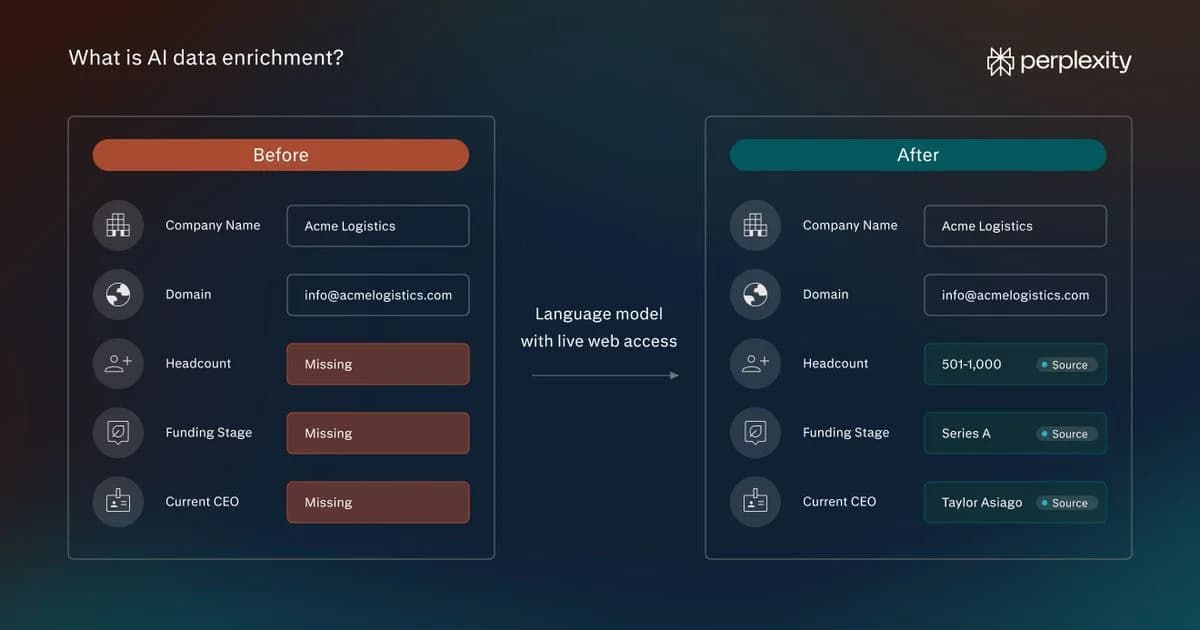
AI data enrichment means using a large language model, usually one with live web access, to fill in, update, or correct records you already have. You hand it a row—a company name, a domain, a contact—and it returns the fields you’re missing: headcount, funding stage, the current CEO, whatever you asked for.
The traditional way to enrich data is to perform a lookup. Your record gets matched against a vendor’s database, and you receive whatever that database holds. If the company isn’t in there, or the entry is a year old, that’s what you get.
AI enrichment is closer to research. The model reads sources at the moment you ask, so it can answer questions you may not even have a column for yet.
When you use a search API, the model can research a question no vendor ever made a column for. And it can also help when two sources give you different answers about the same company.
Take Metal, an investment intelligence platform built mainly for private equity firms. Their customers’ deal teams pull from CRMs, SharePoint, PitchBook, Crunchbase, data rooms, and more, each with its own opinion about the same company.
Metal uses Perplexity’s Sonar—now part of Agent API—to reconcile discrepancies between those sources, update records with real-time web search, and enhance reports automatically.
So AI enrichment covers three jobs: filling gaps, refreshing stale fields, and deciding which of two conflicting values to keep.
How does AI data enrichment work? A step-by-step process
Say you’re about to email a buyer you met at a trade show last year. Your CRM says she was a purchasing manager. Is that still how you should address her?
We’ll use a fictional contact, Nina Vale at Alderwick Supply, to walk through the process. You can follow the same steps in a spreadsheet with an AI research tool or build them into your CRM.
1. Start with a row you already have
Here’s what you collected at the trade show:
Contact ID
Name
Company
Title on file
Last checked
C-104
Nina Vale
Alderwick Supply
Purchasing Manager
You want to update one field: Nina’s job title. Her name and company give the tool enough to start searching. Keep the contact ID so you can put the answer back in the right row. Your notes from the conversation can stay in the CRM.
2. Tell the tool exactly what to find
We made Nina up. So what should go in the “current job title” field? We’d leave it blank. Let’s see what the tool does when we ask for a title and the source to back it up.
Here’s the prompt we used:
Find Nina Vale’s current job title at Alderwick Supply. Start with the company’s website. Return the title as written, the source URL, and the passage that supports it. If you can’t confirm she works there or the source doesn’t give a title, leave the title blank.
3. Read what the search turned up
When we ran the prompt in Perplexity, it left all three fields blank: title, source URL, and supporting passage. It did, however, turn up a third-party listing for “Alderwick Supply LLC” in Ohio. The listing didn’t mention Nina.
That’s why we asked for a supporting passage. A company name in a directory can get you partway there. But you still need a source that connects the person to the company and gives their title.
4. Record whether you found a match
You can borrow the three labels we use in Perplexity’s customer enrichment cookbook. Use “matched” when you can confirm the person works at the company, “ambiguous” when you find a plausible profile but can’t tell whether it’s the right person, and “not_found” when you find no matching profile.
We’d mark Nina’s row as “not_found.” Perplexity surfaced a listing for Alderwick Supply LLC, but the listing never mentions Nina. There’s no profile to check, so the current title stays blank.
5. Check whether the title is current
With a real contact, you might have a November 2025 trade show program that lists them as “Purchasing Manager.” That tells you what to put beside “Title at trade show.” What about “Current title”?
If you’re about to use it in an email, check the company’s staff page or the contact’s own LinkedIn profile. Look for the title they list under their current role at that company. If you find it, save the link and the date you checked. If the trade show program is still your best source, leave “Current title” blank.
6. Record what you found in the same row
In your spreadsheet, find Nina’s row. Label the existing title column “Title at trade show” and keep “Purchasing Manager” there. Add four columns to its right. In a CRM, you can add the same fields to Nina’s contact record.
Title at trade show
Current title
Search status
Date checked
Research note
Purchasing Manager
not_found
Nov. 14, 2026
Found a company listing—it didn’t mention Nina.
Enter the date you ran the search. The blank under “Current title” means you couldn’t confirm Nina’s role. The status and note tell the next rep that someone already checked and what they found. If the rep emails Nina, they can refer to meeting her at the trade show and leave her job title out.
What are the common challenges in AI data enrichment?
AI enrichment can match the wrong person, pull an outdated fact, or fill a blank with a value the source never gave.
In Validity’s State of CRM Data Report 2026, 62% of surveyed marketers said poor CRM data had cost their organization revenue, and nearly a third said their teams spent at least six hours a week fixing records. Further, two in three organizations had also handed more marketing decisions to AI agents over the previous year.
If you want to know which fields trigger an action, ask which fields cause the agent to act. Then watch out for four possible errors in a field:
- The right name on the wrong record: A study of how language models match products shows the problem with two rolls of DYMO D1 label tape. Both are seven meters long—one is 19 mm wide, and the other is 12 mm. If you copy the dimensions across, you’ve given someone the wrong tape. Check the detail that distinguishes one record from the next. For a product, that might be a model number. For a contact, it might be their employer.
- A source that was once true: Russell Reynolds tracked 171 CEO appointments in the first nine months of 2026. “The data points to a more long-serving cohort of outgoing CEOs in 2026.” An old appointment announcement can still turn up in a search after someone else has taken the job.
- A precise answer with no evidence behind it: In a study of AI-enriched product listings, a model correctly identified a sofa as leather. But it also supplied a size of 88.5 inches, a measurement the source listing never gave. Require evidence for each field you plan to publish, and leave the dimensions blank until you have them.
- A batch average that hides which record changed: Moody’s studied more than one million US residential properties. And after it added details like roof age and maintenance, the portfolio’s modeled average annual loss from severe convective storms fell 5%. Yet for nearly half the properties, the estimate rose or fell by more than 15%. When you review a batch, check which records changed most in each direction.
What would make marketers more confident in their CRM data? In Validity’s survey, 39% chose continuous, automated monitoring, the most popular answer.
Gartner’s VP analyst Carlie Idoine makes a related point about the agents doing the work. As teams put them in charge of more data tasks, she says, “establishing strong governance and continuously monitoring performance will be essential.”
Apollo, the AI sales platform, for example, runs 5.6 million enrichments a month through Perplexity’s API. When Tyler Phillips, Apollo’s Director of Product Management, tested other tools, some returned claims his team couldn’t verify. Apollo wanted reps to be able to open a source and check, say, what a prospect’s CEO actually said on a podcast before quoting them in an email.
“You should be able to take 1,000 accounts, run research on all of them, and see which are showing signals of fit for your product,” says Tyler.
The sources are only half of it. When a rep spots a questionable result, Apollo flags it in real time and works with our team over Slack to investigate. Tyler also knows exactly what people expect from AI in sales: ”...people assume it’s just going to churn out spam.”
Within months of the integration, Apollo reported that its users were booking 46% more meetings with Apollo AI Research.
How to verify AI-enriched data
Your sales team emails companies with 500 or more employees. An AI tool changes a prospect’s headcount from 499 to 501. They’re on the list. Should they be?
Open the source. Does 501 mean people at that company or across its whole parent group? Check the numbers that would change who gets an email first. Then spot-check a few other rows.
1. Count the matches before you start opening links
Group the results by status. Rows marked “matched” are ready for review. For “ambiguous” rows, check whether another detail, like the employer, would help identify the person. For a row marked “not_found,” leave the profile fields blank.
Our customer enrichment cookbook’s verification query checks one demo customer. If you want to use it on a batch, filter for the runs you want to review and compare the counts. Every matched row should have a search result ID and a profile URL. The other two statuses should have neither. If all 1,000 rows come back matched, open a sample and see how the model handled common names.
2. Check each field against what the source says
Say you’re building a sales list of companies with at least 500 UK employees. The company’s website reads, “We’re headquartered in Leeds and employ 501 people worldwide.”
Can you put Leeds in the headquarters field? Yes. Can you put 501 under UK headcount? Not so fast.
Save the link beside Leeds. Leave UK headcount blank until you find a source that gives you the UK figure.
3. Cross-check the details you’ll act on
Our Talent Sourcer cookbook shows how this works for a recruiting shortlist:
- People Search finds candidates.
- A web search then checks each candidate’s current role, employer, location, and time at the company.
- If the agent can’t confirm a requirement or a requested link, it marks the candidate “verified=false.”
The published run checked about 40 people and returned 25 marked verified, at a total cost of about $1.88.
When you make that second search, look at where the information originated.
4. Read the changes that could trigger a decision
Compare the old and new values. Check the biggest changes first.
A small change is worth checking, too, if it puts a company on your campaign list. Say your cutoff is 500 employees and a company goes from 499 to 501. Open the source. Does it count employees at that company or across the whole group?
Check a few details that stayed the same, too. If the model returns the job title already in your CRM, look at the employer’s website to see whether the person still holds it.
5. Write back only what you verified
Save each run in a separate table, which gives you room to review a proposed update before it reaches the CRM.
Decide who can approve changes to fields that trigger outreach. If you confirmed someone’s title but couldn’t establish their location, update the title and leave the location flagged for review.
6. Recheck a field when you’re about to rely on it again
Keep the source and the date you last checked it. The cookbook appends a new entry each time it runs, so you can compare today’s result with the one you approved last time. Set the timing by field. A founding year can usually wait, whereas a list of current CEOs you plan to email on Monday needs another look before Monday.
To try this on your own data, pick 10 contacts whose roles you can confirm and adapt our customer enrichment cookbook to your table. Include someone who recently changed jobs. Does the model find the new title?
Open the link it returns and see whether the source backs it up. If you already host ClickHouse online, you can connect it through an authenticated MCP server with tools to read customer records and insert the results.
When you’re ready for a longer list, give each customer ID its own run and have your script track which records it’s already processed.
AI data enrichment FAQs
What is an example of data enrichment?
Say your spreadsheet lists a company’s name and website. You use AI to find its latest funding announcement, then add the round size, the date, and a link to the announcement.
Check the wording before you save the figure. For instance, a $20 million round can bring total funding to $65 million, and those numbers belong in different columns.
What is the best tool for data enrichment?
That choice depends on what’s missing. A CRM enrichment tool works well for standard fields like industry or company size. To update a contact’s job title, use Perplexity’s People Search to find their professional profile.
And to research a company’s latest funding round, use Web Search to find the announcement and check the amount. If you have a whole spreadsheet of companies, our Batch API cookbook shows how to run one search request per row.
What's the difference between enhancement and enrichment?
Enhancement is the broader term for improving data. Enrichment is one way to do it.
For example, standardizing the phone numbers already in your CRM is enhancement, but looking up a company’s missing phone number and adding it to its record is enrichment.