While rolling out a new Ubuntu long-term support (LTS) image on our Amazon Elastic Compute Cloud (EC2) instances at Datadog, we found that some services could no longer retrieve AWS credentials. A change in the image unexpectedly required Instance Metadata Service Version 2 (IMDSv2), and those services still depended on IMDSv1. We worked with Ubuntu to roll back the change so we could identify and update those workloads before enforcing IMDSv2 across our fleet.
If you’re preparing to require IMDSv2, finding those dependencies is a key part of the migration. Applications, agents, and scripts that still use IMDSv1 can lose access to the metadata or credentials they need once you enforce the setting. Before making that change, you need to identify the software making those requests and test whether your workloads still function with IMDSv1 disabled.
In this post, we’ll show you how to use Datadog to identify IMDSv1 callers, work with their owners on a fix, and test enforcement on a small group of instances. Along the way, we’ll share how we worked through those steps during Datadog’s own migration.
Check which instances still allow and use IMDSv1
An attacker who exploits a server-side request forgery (SSRF) vulnerability may be able to make an application retrieve credentials for the instance’s AWS Identity and Access Management (IAM) role through the metadata service. Requiring IMDSv2 helps prevent this type of credential theft by requiring a session token that many SSRF attacks can’t obtain. However, legitimate software that still uses IMDSv1 also loses access, so you need to identify those callers before enforcing IMDSv2.
During our rollout, request metrics helped us find the instances where workloads were still making IMDSv1 calls. We then traced those requests to individual processes so we could identify which software needed updating.
Understand IMDSv1 metrics and what to do next
You can configure Amazon EC2 instances to allow both IMDS versions or to require IMDSv2, and AWS provides metrics to help you see how workloads respond to each setting. With the HttpTokens=optional configuration, an instance accepts both versions, and the MetadataNoToken metric counts successful IMDSv1 requests. When HttpTokens=required, only IMDSv2 is accepted, and the MetadataNoTokenRejected metric counts rejected IMDSv1 requests.
You should monitor each instance long enough to track patterns in its startup, deployments, scheduled jobs, and credential refreshes. A startup script or scheduled job may make only a few metadata requests, so even low request counts deserve investigation. For example, monitoring during business hours could miss a nightly job that retrieves instance role credentials when it starts.
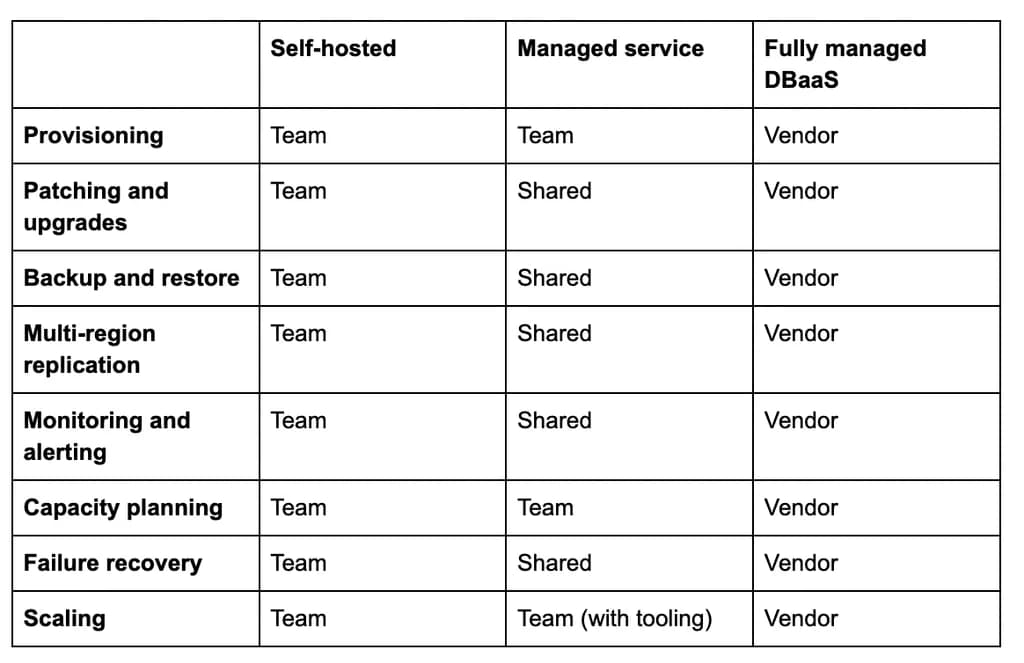
The following table summarizes how monitoring metadata service activity can help you choose which callers to investigate and which instances to test with IMDSv2 enforcement enabled:
Find EC2 instances that allow IMDSv1
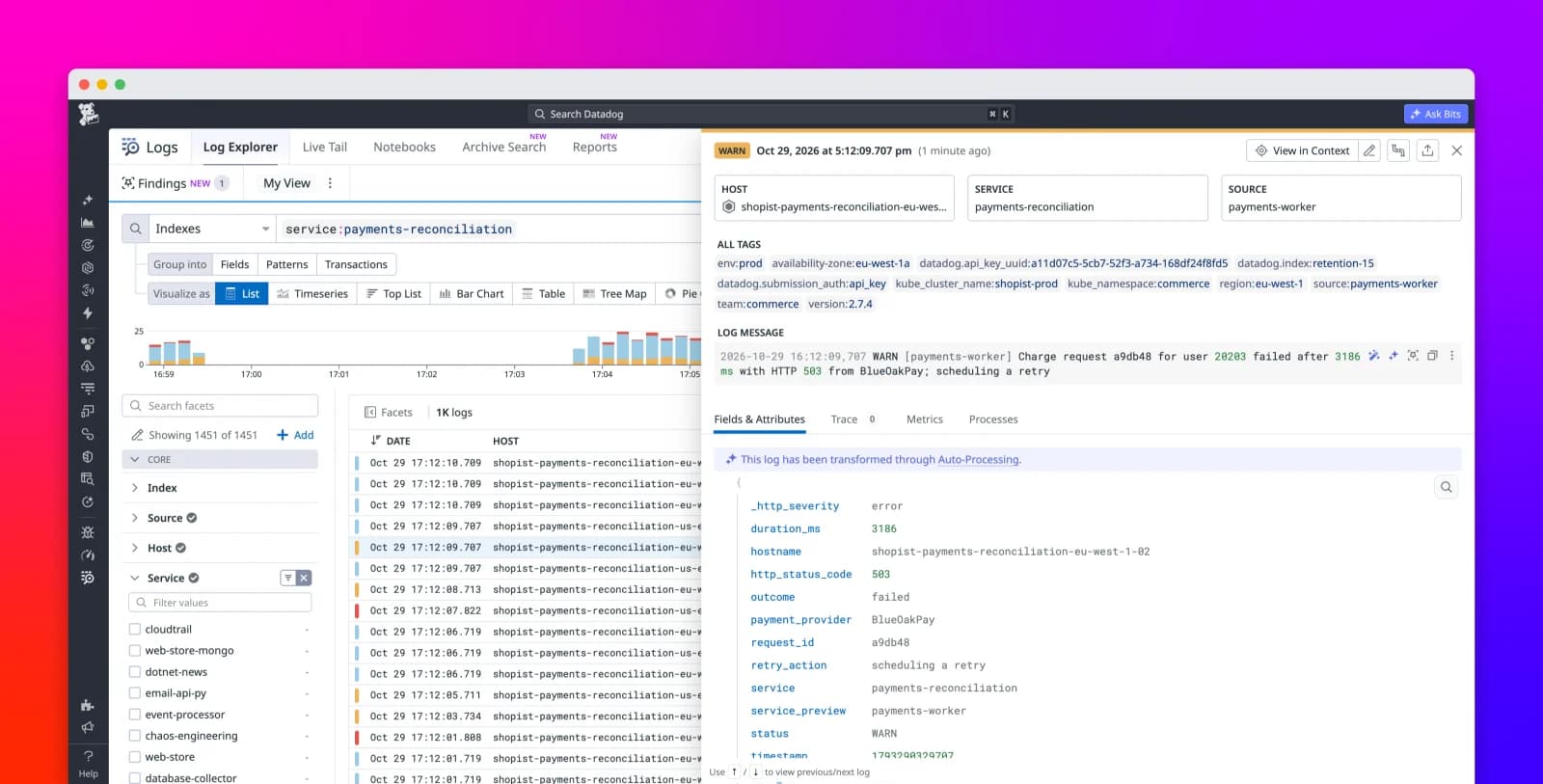
Datadog Cloud Security’s Misconfigurations explorer helps you find instances whose configuration still allows IMDSv1. In the Misconfigurations explorer, you can use the @compliance.evaluation:fail (@rule.name:*IMDS*) query to find failed IMDS configuration checks.
Check which instances actually use IMDSv1
For the instances that allow IMDSv1, you can use Datadog’s Amazon EC2 integration to find which ones are still actively using it. For example, you can monitor the aws.ec2.metadata_no_token.sum metric to find instances serving requests without a token. Where your instance tags identify a service or owner, grouping the metric by those tags can give you a starting point for contacting the responsible team. The following example graph groups IMDSv1 request counts by team name:
For instances that already require IMDSv2, the aws.ec2.metadata_no_token_rejected.sum metric shows requests that are failing because they lack a token. You can compare rejected requests with workload errors to investigate whether failed metadata access is disrupting the application. For example, rejected requests that coincide with a scheduled job reporting that it couldn’t retrieve instance role credentials give you a caller to investigate.
In addition to monitoring these metrics, you can use Cloud Security’s built-in IMDSv1 dashboard to further investigate the cause of the activity, breaking down usage by host, URL, service, and other request details. If you’ve already identified a caller through the dashboard, you can start investigating it directly. As you update software and require IMDSv2, the CloudWatch metrics show whether instances are still serving IMDSv1 requests or rejecting them after enforcement. Reviewing those outcomes alongside application errors and service health helps you determine whether the change is disrupting workloads.
Regardless of whether requests are still succeeding or are already being rejected, identifying the underlying process making them will help you determine what needs to change. During our migration to IMDSv2, we used MetadataNoToken to identify instances with IMDSv1 activity. We found that most were Kubernetes nodes tagged “Compute,” so the instance tags didn’t tell us which containers were making the requests or which teams maintained them. We decided to then use Workload Protection to identify the individual processes and containers that were responsible so we could bring the findings to the right owners.
Find the process or container making IMDSv1 requests
An instance with IMDSv1 activity may run several applications, agents, or containers, so tracing requests to the software responsible helps you identify a fix. On supported Linux hosts, Workload Protection can capture IMDS requests by monitoring process and container activity. Before investigating callers, you should confirm that Workload Protection and the relevant IMDSv1 collection and finding rules are enabled.
You can inspect theAgent event details to trace an IMDSv1 request to the software making it. In the screenshot below, the process tree shows /app/cloud-access.sh launching curl to request instance role credentials without a token. The script’s path and the command arguments give its owner a specific place to look for the code that needs updating.
If the caller runs in a container, updating its SDK may not be enough to prepare it for enforcement. The container also needs to receive the IMDSv2 token response before it can make requests with that token. For containers intended to access instance metadata, you should check the EC2 instance’s HttpPutResponseHopLimit setting, which controls how many network hops the token response can make. A value of 1 can prevent it from reaching a container, so the network path may require a value of 2. Checking that path helps you determine whether the fix belongs in the application or the instance’s metadata configuration.
Once you’ve identified the caller and the likely cause of its IMDSv1 use, you can bring those details to the engineers who maintain it. When we migrated our workloads to IMDSv2, we used Datadog’s Internal Developer Portal to find service owners and often approached them with a proposed code or dependency change. Even when our initial fix needed adjusting, a pull request gave the owner something specific to review. For example, if the process arguments show a script using curl to retrieve metadata without a token, its owner could update the script to obtain an IMDSv2 token and include it in subsequent requests. For an AWS SDK caller, the owner could check whether its version or configuration needed updating.
Test IMDSv2 enforcement before expanding it
After fixing the callers you’ve found, you can test whether the workloads still function with IMDSv1 disabled. AWS recommends confirming that MetadataNoToken has reached zero before requiring IMDSv2, then monitoring for rejected calls and software issues. Starting with a small group of instances gives you a chance to find remaining dependencies before expanding the change.
You can set HttpTokens=required on existing instances or launch replacements with that setting. If you use an Auto Scaling group, you can update its launch template and confirm that the group uses the intended version. That change applies to new instances, so your test needs to run on a replacement instance or an existing instance whose metadata setting you’ve updated.
When we migrated our fleet, we limited the initial rollout to use cases that our platform team knew well and could troubleshoot quickly. We also tested unusual cases early to identify potential failures before expanding enforcement. We then applied the change through our existing fleet maintenance process. After updating our Auto Scaling groups’ configuration, we relied on regular instance rotation to replace existing hosts with ones that required IMDSv2. And when a change needed to happen sooner, we could mark instances for earlier replacement.
Prevent a return to IMDSv1 after migration
Once you’ve updated the callers and verified that workloads function with IMDSv2 required, you can work with your security teams to enforce that requirement across the AWS accounts you’ve migrated. AWS service control policies (SCPs) can block new EC2 instances from launching with IMDSv1 enabled, which helps prevent future deployments from undoing that work.
Because these policies apply across accounts or organizational units, you should test their effects before expanding them to more accounts. Our Security Labs migration guide explains how you can use SCPs as part of your enforcement plan and prevent enabling IMDSv1.
You can also review our documentation for more information about how Workload Protection can help you identify EC2 instances that need to migrate to IMDSv2.
If you’d like to start monitoring your EC2 workloads, you can sign up for 14-day free trial.