Key takeaways
- A CAPTCHA that asks you to open Run, PowerShell, Terminal, Command Prompt, download a file, install an extension, or enable notifications is a fake CAPTCHA scam
- A CAPTCHA should keep you in the browser. If it asks you to use a system tool or install something, close the page
- If you copied/pasted a command but didn’t run it, don’t press Enter or execute the command. Close any system dialog and overwrite the clipboard by copying harmless text. Run a security scan. And review your browser downloads/extensions
- If you ran the command, installed something, or entered credentials, disconnect from the internet. Run a security scan. Change your passwords and enable multi-factor authentication (MFA). Review browser extensions, downloads, saved passwords, active sessions, and financial/cryptocurrency accounts. Report to the authorities
- Fake CAPTCHA scams work because we’re familiar with the verification box as part of our daily browsing. If anything looks out of the ordinary, stop and think
Did you carry out the instructions in fake CAPTCHA? Lead to What to do if you completed a fake CAPTCHA section.
Did you carry out the instructions in fake CAPTCHA? Lead to What to do if you completed a fake CAPTCHA section.
What is a fake CAPTCHA scam?
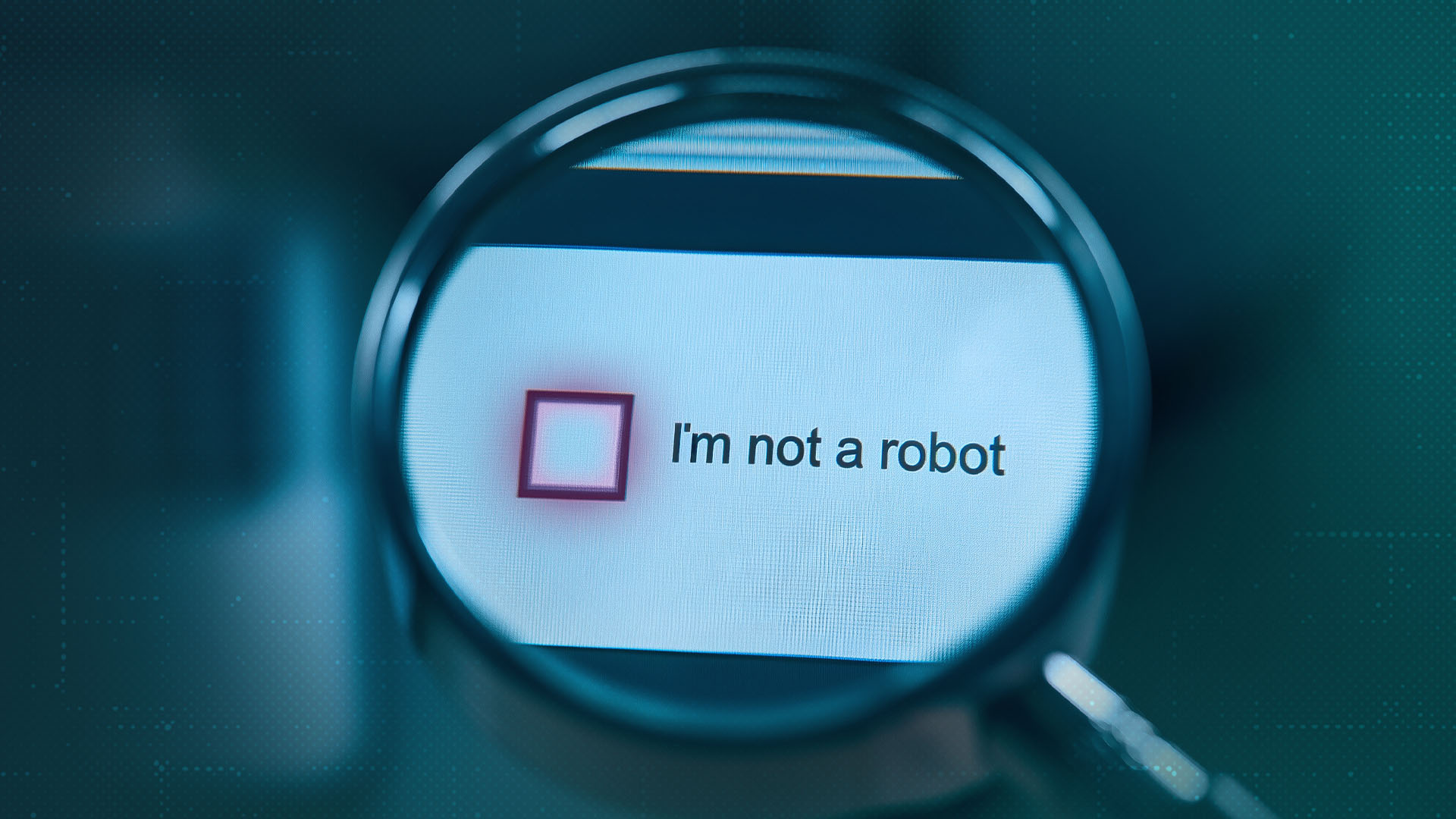
CAPTCHA (Completely Automated Public Turing test to tell Computers and Humans Apart) has been a part of our online lives for over two decades.
As the moniker suggests, it’s an umbrella term for any kind of test designed for websites to distinguish humans (good) from bots (bad). Providers like Google reCAPTCHA, hCaptcha, and Cloudflare Turnstile all have slightly different ways of doing this. But they usually involve the user completing a task that a machine would not be able to do, like selecting specific images on request, or typing in letters which have been distorted. Some advanced versions work in the background without user interaction.
Unfortunately, cybercriminals have caught on to this. They’ve created a number of fake CAPTCHA scams designed to trick you into doing something you’ll regret. Because we’re all familiar with CAPTCHA, we’re more likely to follow their instructions without thinking. Or at least, that’s the idea.
Fake CAPTCHA scams might request the user downloads a file, installs a browser extension, or enables browser notifications in order to complete the check. The branding can look almost identical to a real CAPTCHA or reCAPTCHA. The risk comes from the additional action requested of the victim.
ClickFix is a popular type of CAPTCHA scam or reCAPTCHA scam. It’s an entire class of social engineering techniques which trick you into executing malicious commands. Usually there’s a fake CAPTCHA or pop-up box which says that there’s something wrong with your machine that needs to be ‘fixed’. If you click through to start the process some malicious code will be secretly copied to your clipboard. Then you’ll be instructed to type in a series of commands which open a system tool like Run, PowerShell, or Terminal, and copy the malware into the tool before executing.
The result is usually something nasty being installed on your machine, like infostealer malware or a remote access trojan (RAT) designed to give an attacker remote control.
How to tell a real CAPTCHA from a fake one
Normal CAPTCHA:
Likely CAPTCHA Scam:
A checkbox (e.g. “I’m not a robot”) leading to verification.
A checkbox that leads to additional actions required.
Request to complete a brief task: select images containing similar objects; enter characters displayed in a distorted image; select objects according to an instruction etc.
Request to open Run/PowerShell/Terminal/Command Prompt, paste and execute command.
Doesn’t require you to install or enable anything, or follow a sequence of keyboard shortcuts.
Request to install an extension or enable notifications (e.g. click “allow”) or follow multi-key instructions.
Remember: A legitimate CAPTCHA will always keep you in the browser. If it asks you to use a system tool or install something, close the page. It’s a fake CAPTCHA scam.
Remember: A legitimate CAPTCHA will always keep you in the browser. If it asks you to use a system tool or install something, close the page. It’s a fake CAPTCHA scam.
If you encounter a suspicious CAPTCHA popup, here are some quick checks to verify whether to proceed or not:
- Check the URL carefully, especially the domain name for lookalike spellings. This could indicate a malicious site masquerading as a legitimate one.
- Confirm the page uses HTTPS. This will protect against someone intercepting your communication with the site, although it’s not a guarantee that the CAPTCHA is legitimate.
- Verify that the CAPTCHA is embedded in the page rather than a separate pop-up. Legitimate CAPTCHAs usually appear as part of the normal page
- Hover over the checkbox or link to inspect where it leads. This reveals where it’s trying to take you. If the domain looks unrelated or suspicious, it’s a clear red flag.
Google reCAPTCHA
hCaptcha: screenshot
Cloudflare Turnstile
Remember: none of these legitimate CAPTCHA tools will request that you open Run/PowerShell (Windows) or Terminal (Mac/Linux); copy, paste and run commands and scripts; download files; or grant notification permissions. These are all red flags where you may have encountered a fake CAPTCHA scam or reCAPTCHA scam.
How do I detect a fake CAPTCHA scam?
Real CAPTCHAs usually appear naturally on a web page. They may include a simple check box, or ask you to complete a simple task, like typing numbers and letters as they appear or selecting images. Fake CAPTCHA scams often appear as popups and ask you to run commands on your device, install something, or enable notifications.
What happens if you click a fake CAPTCHA?
Clicking inside a checkbox isn’t enough to install malware on your machine. But when a malicious actor tricks you into running commands, the risk rises significantly. They use a failed CAPTCHA to create a sense of urgency and then present steps that follow as the solution. But what you’re really doing unwittingly is copying malware to your clipboard then pasting it into Run/PowerShell/Terminal and executing it.
The result could be that you install CAPTCHA malware such as:
- Infostealers designed to steal your passwords, MFA codes, financial data, browsing history, crypto-account details and more
- RATs designed to steal your private data and spy on your activity
- Ransomware which could encrypt your machine/device until you pay a fee
- Cryptominers which secretly mine for cryptocurrency, running your machine down
The end result of CAPTCHA malware is usually identity theft and financial harm.
What to do if you completed a fake CAPTCHA
If you accidentally clicked on a fake CAPTCHA, don’t panic, there are still things you can do, depending on the scenario:
I saw the page or clicked the box, but did not copy, paste, download, or run anything
Close the tab or browser window and don’t revisit the page. Clear any browser notifications or downloads. If a notification permission was granted, take the following steps to revoke it:
Chrome
- Open Settings → Privacy and security → Site settings → Notifications.
- Find the suspicious site under Allowed to send notifications.
- Click the three dots next to it → Remove (or Block).
Microsoft Edge
- Go to Settings → Privacy, search and services à site permissions → all permissions→ notifications.
- Under Allowed to send notifications find the site.
- Click the three dots → Remove or Block.
Although this is a low-risk scenario, it’s worth carrying out a security scan after you’ve completed the above steps, as precaution.
I copied or pasted a command, but did not run it
If you copied a command from a fake CAPTCHA to your clipboard, don’t press Enter or execute the command. Close any system dialog box and clear the clipboard by copying harmless text. Run a security scan to double check there’s no malware on your machine. And review your browser downloads/extensions.
I ran the command, installed something, or entered credentials
If you ran a command from a fake CAPTCHA and are concerned about a ClickFix scam, follow these steps:
- Disconnect from the internet if something was executed or installed
- Run a full security scan
- Change the passwords on important accounts from a device you know is safe
- Enable multi-factor authentication (MFA) on those accounts
- Review browser extensions, downloads, saved passwords, active sessions, and financial/cryptocurrency accounts
- Escalate to workplace IT if it’s a work-related issue
Report the incident to reportfraud.ftc.gov (US) or the FBI's IC3 if in the US, especially if credentials or financial data were involved. If you’re in Europe, find your local authority here. In the UK, try the NCSC or, if you’ve been defrauded, Report Fraud. If you’re still concerned about potential malicious activity on your machine, seek professional IT support.
Recap box: A CAPTCHA should always keep you in the browser. If it asks you to use a system tool or install something and you: Saw the page or clicked the box, but didn’t copy, paste, download, or run anything, close the tab/window and don’t revisit. Clear browser notifications or downloads. Revoke any notification permissions that may have been granted. Copied/pasted a command but didn’t run it, don’t press Enter or execute the command. Close any system dialog box and clear the clipboard by copying harmless text. Run a security scan. And review your browser downloads/extensions. Ran the command, installed something, or entered credentials, disconnect from the internet. Run a security scan. Change your passwords and enable MFA. Review browser extensions, downloads, saved passwords, active sessions, and financial/cryptocurrency accounts. Report to the authorities.
Recap box:
A CAPTCHA should always keep you in the browser. If it asks you to use a system tool or install something and you:
Saw the page or clicked the box, but didn’t copy, paste, download, or run anything, close the tab/window and don’t revisit. Clear browser notifications or downloads. Revoke any notification permissions that may have been granted.
Copied/pasted a command but didn’t run it, don’t press Enter or execute the command. Close any system dialog box and clear the clipboard by copying harmless text. Run a security scan. And review your browser downloads/extensions.
Ran the command, installed something, or entered credentials, disconnect from the internet. Run a security scan. Change your passwords and enable MFA. Review browser extensions, downloads, saved passwords, active sessions, and financial/cryptocurrency accounts. Report to the authorities.
How ClickFix and fake CAPTCHA scams work
Fake CAPTCHA scams including ClickFix usually start when you land on a malicious webpage which you reached via a search result, an ad, or a phishing email. Alternatively, it could be a legitimate website that has been compromised by a cybercriminal.
You’ll be presented with a CAPTCHA request spoofed to appear as if legitimate. But the bad guys pretend that the CAPTCHA isn’t working until you perform an unusual action like opening a system tool and/or following a key sequence, then pasting a copied command or downloading an item.
The key here is that you’re being tricked into installing the malware or enabling notifications. You trust the CAPTCHA flow and want to get to the site you navigated to, so the extra bit of work seems worth it. It isn’t.
The AI Fix trap: when a 'helpful' prompt leads to ClickFix
Fake CAPTCHA is only one way that scammers deliver their ClickFix attacks. You might also encounter a fake or compromised AI tool which presents malicious instructions to ‘troubleshoot’ a non-existent problem. It might pretend that there’s an issue with your camera, microphone, browser, video, document, or sign-in.
The issue is plausible. The malicious AI assistance shows you how to ‘fix’ it. Its instructions take you away from the browser and require a command, download, extension, permission, or unusual key sequence.
It’s effectively the same scam, with a different lure. Your response should therefore be the same. AI tools, like CAPTCHAs, should not ask you to open Run/PowerShell (Windows) or Terminal (Mac/Linux); copy, paste and run commands and scripts; download files; or grant notification permissions.
How to protect yourself from fake CAPTCHA scams
If you’re wondering why an innocuous-looking CAPTCHA is asking you to open Terminal or press Windows + R, it’s because you’ve encountered a CAPTCHA verification scam. The good news is that a few best practices can help to protect you from suspicious CAPTCHA popups:
- Keep your operating system and browser updated
- Run security software from a trusted vendor
- Be cautious of unexpected CAPTCHAs
- Type URLs directly instead of clicking on links in emails or search results
- Avoid 'Allow' prompts, and use browser extensions to block malicious sites
For an additional layer of protection, ESET HOME Security solutions can help protect against malicious websites and malware.
ESET expert insights
“Attackers are doubling down on what works best, and they are finding new and more sophisticated ways to exploit the same underlying malicious tactics. Social engineering and exploiting human psychology remain the primary methods of initial compromise, now combined with trusted entities and actions: whether a popular AI tool, such as Claude, or a daily workflow, such as signing in through a Microsoft login page. Given the flexibility and effectiveness of ClickFix-style tactics, adversaries are likely to continue tracking authentication trends and adapting their methods to match user behavior and evolving platforms.” - Ondrej Kubovič, ESET Security Awareness Specialist
“Attackers are doubling down on what works best, and they are finding new and more sophisticated ways to exploit the same underlying malicious tactics. Social engineering and exploiting human psychology remain the primary methods of initial compromise, now combined with trusted entities and actions: whether a popular AI tool, such as Claude, or a daily workflow, such as signing in through a Microsoft login page. Given the flexibility and effectiveness of ClickFix-style tactics, adversaries are likely to continue tracking authentication trends and adapting their methods to match user behavior and evolving platforms.”
- Ondrej Kubovič, ESET Security Awareness Specialist
Conclusion
Fake CAPTCHA scams take something familiar and turn it into a pathway to malware delivery and fraud. Remember: a legitimate CAPTCHA should always keep you in the browser. If it asks you to use a system tool or install something, close the page. If you copied and pasted a command, don’t run it. And if you did follow the instructions, take immediate action to minimize the fallout. As long as this type of scam keeps working, the bad guys will keep using it in their campaigns.
Frequently asked questions
What happens if you click a fake CAPTCHA?
Clicking a fake CAPTCHA alone may not infect your machine or device. But it often leads to instructions that trick you into running a command, downloading a file, or enabling notifications. These actions can install malware that steals passwords, cookies, or financial information.
How do I detect a fake CAPTCHA?
A real CAPTCHA keeps you in the browser. Be suspicious if a 'CAPTCHA' asks you to open Run, PowerShell, Terminal, Command Prompt, paste and execute a command, download a file, install an extension, or enable notifications. Check the URL of the site you’re on for a potentially misspelled domain, as it could indicate a fake site.
Which CAPTCHA app is real or fake?
Legitimate CAPTCHA providers include Google reCAPTCHA, hCaptcha, and Cloudflare Turnstile. They generally operate within the browser and never ask you to run system commands or install software. If a 'CAPTCHA' appears as a pop-up asking for system access, it's likely fake.
Why is CAPTCHA asking me to open Terminal?
This is a clear red flag. Legitimate CAPTCHAs do not ask you to open Terminal, PowerShell, or any system tool. It's a social engineering trick to get you to run a malicious command that can infect your device.
Why is CAPTCHA asking me to press Windows R?
A legitimate CAPTCHA will never ask you to press Windows R or open the Run dialog. This is a technique used by ClickFix scams to trick you into pasting and execute a malicious command. Close the page immediately and do not press anything.
I clicked a fake CAPTCHA, what should I do now?
First, close the page and do not follow any instructions. If you only clicked the checkbox without copying/pasting or running commands, your risk is low. Run a security scan, clear browser downloads/extensions, and stay vigilant for any unusual behavior.
I ran a command from a CAPTCHA, what should I do?
Disconnect from the internet immediately, run a full security scan, and change your passwords from a device you know is safe. Enable MFA on important accounts and monitor them for unusual activity. If the device is work-related, contact your IT team.
What is the new CAPTCHA scam?
It's a fake verification prompt that mimics a real CAPTCHA but pushes you to leave the browser—open Run, PowerShell, or Terminal, paste a command, download a file, or grant a permission. The underlying technique is called ClickFix. The rule stays the same: a real CAPTCHA never asks you to run or install anything.
How do you remove CAPTCHA malware?
Malware delivered this way doesn't come from the CAPTCHA itself, but from a command you may have run or a file you may have downloaded. If you ran something, disconnect from the internet if appropriate. Then run a full security scan with your security product, change important passwords from a device you know is safe, and enable MFA. Seek expert help if you're unsure if the device is clean or not.
Why is a CAPTCHA asking me to click Allow?
A real CAPTCHA may ask for a checkbox or a short in-page challenge, but it should never require you to enable browser notifications. A 'Click Allow to prove you are human' prompt is a warning sign. Decline the permission and close the page.